Product Documentation
Abstract
The partitions for Db2 for i tables in Data Architect (IDA) for both, hash and range partitions are now supported.
Content
You can now add, modify, delete, and create partitions in a table.
Features supported
The following functionalities support partitioning:
- Generate DDL
Generate DDL for a table and get DDL with partitioning statements.
- Reverse engineering
When you apply reverse engineering to a table with partitions you get all the partition data in the table.
- Delta DDL generation (comparing tables)
- When you make changes to an existing table in the model and compare it with the table in the database, you can see the changes for partitions and generate Delta DDL accordingly.
- If you add a new partition to a table and compare it with the same table in the database, you can generate Delta DDL for the specific table. However, in this case, the old table is renamed, and a new table is created with new partitions and indexes, if they exist.
- A query is provided to copy data from old table to the new table which is commented, and you can execute as required.
- There is also an option to drop the old renamed table in Delta DDL, which is commented out.
For example, you can perform the following actions to make changes to the table:
- Add or remove partition
- Add or remove columns from indexes
- Convert hash partition to range partition
- Convert range partition to hash partition
Note:
Alter partition statements to alter partitions, and alter table statements in terms of partition to add and remove partition is not supported yet. However, the functionality of Delta DDL generation to incorporate changes to partitions and tables to make changes is provided. In this approach, the old tables are renamed and new tables are created with modifications.
Procedure
Adding a hash partition
To add a hash partition, complete the following steps:
Figure 1. Data Partitions
1. Click the Data Partitions tab.
2. Click the ellipses button  to add partition expression. Data partitions cannot be added unless partition expression is added.

Figure 2. Select Columns
3. Click OK to display partition expressions in the table.

Figure 3. Partition expressions
4. Select the Hash Partition check box.
5. Specify the Number of Partitions you want to create.
6. Save the model.
Deleting a hash partition
You can delete a hash partition by following either of the steps:

Figure 4. Deleting a hash partition
- Uncheck the Hash Partition check box.
- Enter the value “0” in the Number of Partitions text box.
Adding a range partition

Figure 5. Adding a range partition
1. Click the table and go to Data Partitions tab.
2. Click the ellipses button  to add partition expression. Data partitions cannot be added unless partition expression is added.

Figure 6. Select columns for range partition
3. Press OK for displaying partition expressions in the table.
4. Select  button to add data partition (this button is enabled only when Hash Partitioned is unchecked).
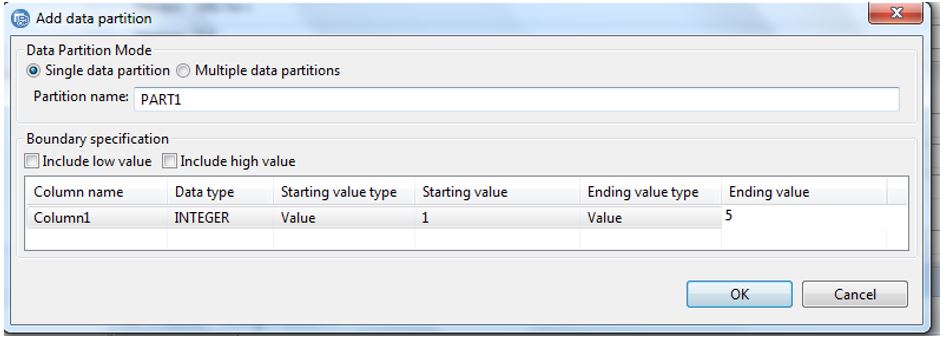
Figure 7. Single data partition

Figure 8. Multiple data partitions
5. In the Add data partition window, perform the following steps and click OK.
- Select either single or multiple data partitions
- Name the partition (if you select single data partition)
- Enter the width for each partition (if you select multiple data partitions)
- Select to include low and high values in Boundary specification
- Enter the starting and ending values
The OK button is enabled only when all the data is entered.

Figure 9. Selecting a data partition
Modifying a range partition
1. Click the table and go to Data Partitions tab.
2. Click the ellipses button  to modify partition expressions.
Deleting a range partition

Figure 10. Deleting a range partition
1. Click the table and go to Data Partitions tab.
2. Select the partition name and click  button.
Creating a partitioned index
A partitioned index can be created for both hash and range partitions.
- When you add index to a partitioned table, you can view the Partitioning tab.

Figure 11. Creating a partitioned index
- Deselect the check box for partitioning the index.
- The checkbox is enabled only when index is created for a table that has partitions.
Was this topic helpful?
Document Information
Modified date:
20 January 2021
UID
ibm10788301