How To
Summary
Support for secure TeamViewer unattended access (beta)
Steps
MaaS360 adds support for secure TeamViewer unattended access, allowing the administrators to set up permanent access to remote devices by using the TeamViewer host app for Android. With this support, administrators can silently install the host app on the remote devices and initiate unattended remote support without any action to be taken on the remote side. In the previous releases, MaaS360 added support for TeamViewer attended access.
The list of supported devices is provided here.
Setup unattended access
Enable and link TeamViewer to MaaS360
1. Navigate to Setup > Services and enable Remote Support for Mobile devices and Laptops/Desktops.
Result: The TeamViewer Remote Support for Attended Access and TeamViewer Remote Support for Unattended Access options are displayed.
2. Enable TeamViewer Remote Support for Unattended Access.
3. Link your TeamViewer account to MaaS360 account.
Note: TeamViewer introduced a new set of permissions for Secure Unattended Access. Hence, it is required for the existing users also to re-authorize the email address that is registered with TeamViewer account.
a. Sign up here if you do not already have a TeamViewer account.
b. In the Email Address field, provide an email address that is registered with TeamViewer and click Authorize
Result: The TeamViewer page is opened in a different tab.
c. Grant permissions required for MaaS360 to access TeamViewer account.
Result: The TeamViewer account is linked to MaaS360 and an account id is generated.
Note: You can view the account id in Setup > Services > Remote Support for Mobile devices and Laptops/Desktops.
Distribute TeamViewer host application
1. Distribute TeamViewer Host application from Google Play app store to Android devices via Apps > Catalog > Add Google PlayStore App.
Initiate unattended remote support
1. Navigate to Devices > Inventory and select a device that requires remote support.
2. Under Actions > More and then select Initiate Remote Support.

Result: The Initiate Remote Support window is displayed.
3. Select Unattended and then click Continue.
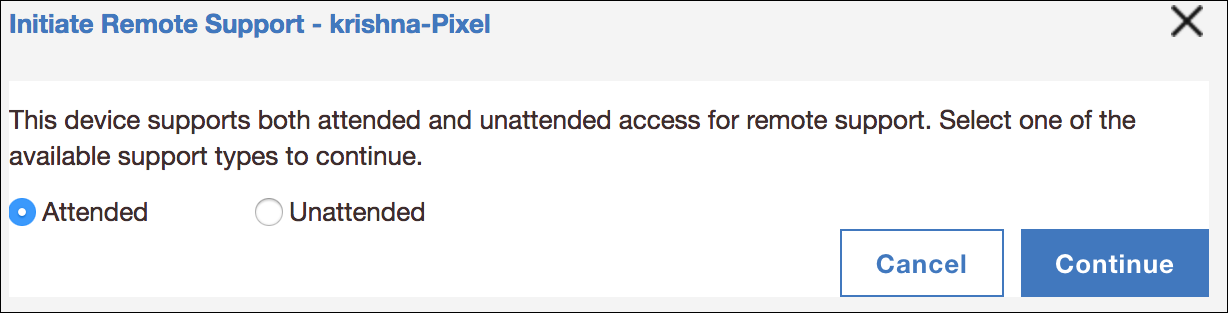
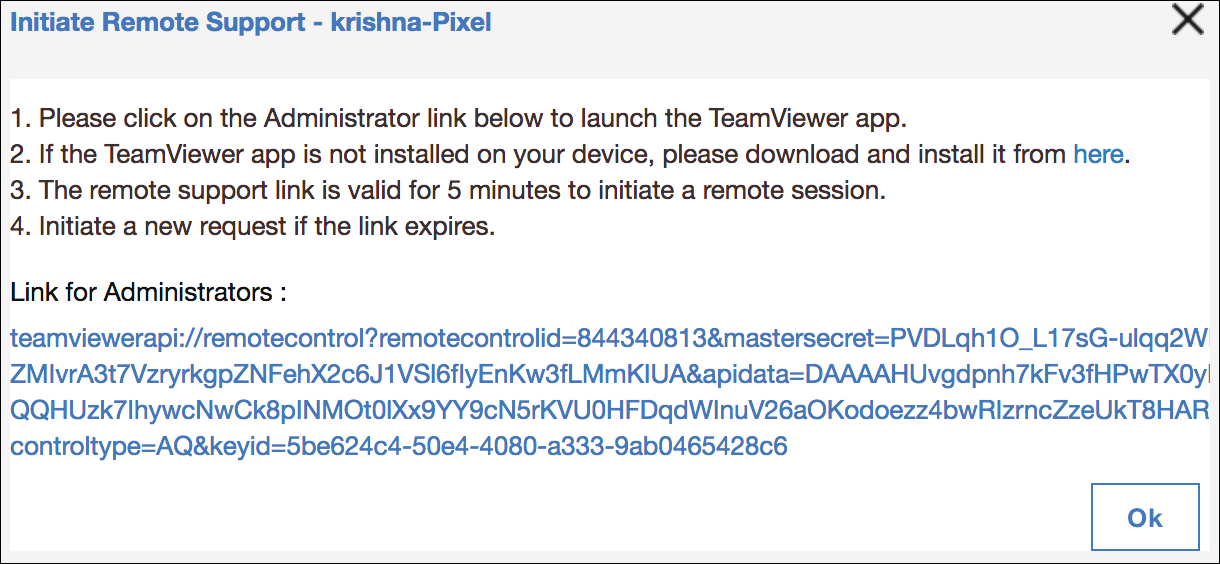
Result: A secure unattended remote sharing link is generated for the administrators.
4. Click the link to start remote session through TeamViewer app.
Limitations
- The link to initiate secure unattended access does not work on macOS devices.
- The host TeamViewer app on the device must be open when the remote support is initiated. The remote support cannot be initiated if the host app on the device is in the background.
Was this topic helpful?
Document Information
Modified date:
29 November 2018
UID
ibm10739089