Troubleshooting
Problem
This document shows how to access ASMI directly from the HMC so that the user can display or select the managed server firmware update policy. The user can choose to manage updates through the HMC or through an operating system service partition.
Resolving The Problem
This document shows how to access ASMI directly from the Hardware Management Console (HMC). Through ASMI, the user can display or select the managed server firmware update policy. The user can choose to manage updates through the HMC or through an operating system service partition.
Note: This option is not available on all systems and is dependent upon the system type/model and if an HMC is attached.
Note: On POWER6 and more current systems, if an HMC is attached, the firmware update policy must be set to HMC managed.
On Power 5 and Power 6 servers at server firmware level below Ex320_xxx, allowed this setting to be changed.
Power 7 and higher and Power 6 with server firmware From Ex320_xxx and beyond, the HMC, would have to be removed from
the server and reset the server with factory default to change from HMC managed to OS managed.
From a pre-Version 7 HMC, to access the ASM interface, do the following from your HMC:
| 1. | From Service Applications, select Service Focal Point > Service Utilities. |
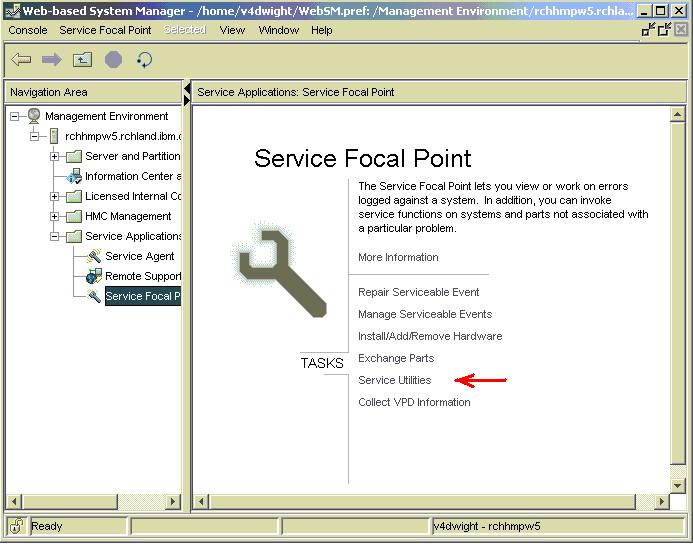
| 2. | Select the managed system from the pop-up window (your HMC might or might not manage more than one system). |

| 3. | Click Selected > Launch ASM Menu... |

| 4. | You will see a pop-up asking you to launch the ASM browser interface. Click OK. |

From a Version 7 HMC
1. Under Systems Management, expand Servers and select the system. Expand Operations and select Launch Advanced System Management (ASM).

2. Select/verify the Service Processor IP address, and click OK:

3. Log on to ASMI (Note: admin is a default user ID).

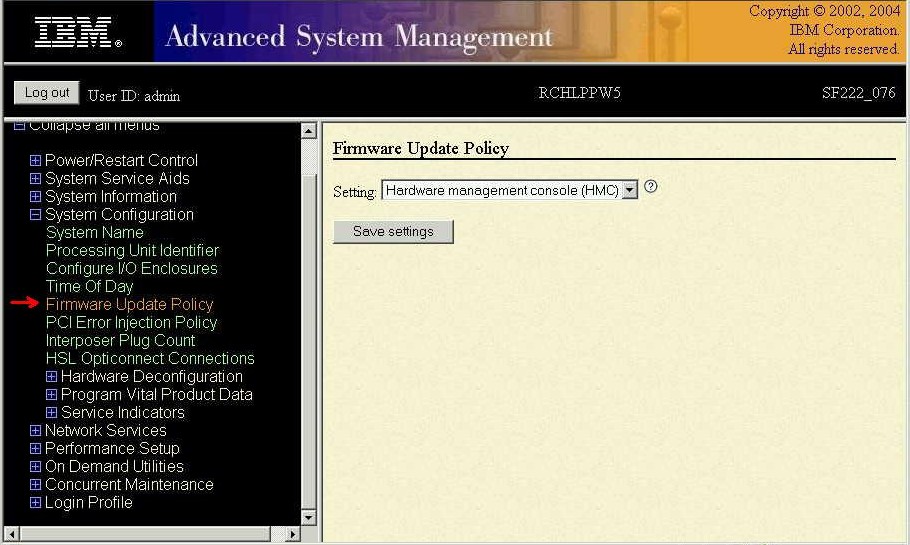
4. Select and expand the System Configuration section:

5. To verify or set your firmware update policy, select Firmware Update Policy.
This policy defines whether firmware updates are allowed from an operating system when the system is managed by an HMC. The default setting of this policy is to not allow firmware updates via the operating system. This policy takes effect only when a system is HMC-managed. When a system is not HMC-managed, firmware updates can be made only through the operating system and, therefore, this policy setting is ignored.
When this policy is set to allow firmware updates from the operating system, firmware updates from the HMC are not allowed unless the system is powered off. When a system is powered off to fsp standby, firmware updates can be performed from the HMC regardless of the setting of this policy. However, care should be taken when updating firmware from the HMC and the operating system. For example, IBM eServer i5 load source synchronization can cause a firmware updated from the HMC to be overlaid with older firmware from the load source.
6. The update policy can also be determined using the HMC restricted shell through the lslic command; for example:
> lslic -m systemname -t sys
lic_type=Managed System,management_status=
enabled is HMC managed
disabled is Operating System managed
For firmware updates, refer to the following Web site:
http://www-912.ibm.com/s_dir/slkbase.nsf/recommendedfixes
Then, select the applicable server firmware document.
Historical Number
372595506
Was this topic helpful?
Document Information
Modified date:
22 September 2021
UID
nas8N1015635