Troubleshooting
Problem
This document will provide steps to acquire server firmware.
Symptom
Using Fix Central to get server firmware
Environment
POWER Servers - 5, 6, 7, 8
Resolving The Problem
Navigate to:
| http://www-933.ibm.com/support/fixcentral |
1. From this link click on 'Select Product'
2. Under 'Product Group', select Power
3. Under 'Product', select your Power server Type-Model (For the current document we will use the Type-Model 8202-E4B as an example)

4. From the 'Select from' drop down, select the desired firmware release
Note: Select 'All' to see all available releases
5. Click on 'Continue'
Note: The process could take a few minutes

6. Then select the check box next to the desired firmware level
7. Click on Continue
8. Sign in with an IBM ID
Note: Click on 'Create IBM id' in case such is not available

9. Select the applicable options
Note: Use the 'What is this?' for more information on the two possible download options

10. Click on 'Continue'
11. Choose a country from the drop down list:
12. Type in the 'Machine Serial Number'
13. Click on 'Continue'
Note: The process could take a few minutes

14. On the 'View terms and conditions' page, after reading the "License Agreement", click 'I agree':

15. Ensure that the select box is checked, and click on 'Download now'

16. After 'IBM Download Director' pop-up, click on 'Run'
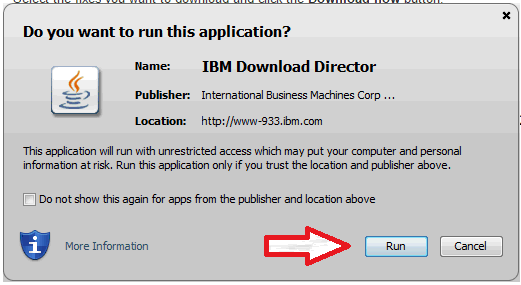
17. In the 'Initial Setup' window, type the desired target directory where the file will be downloaded and click 'OK'

18. The download process will start.
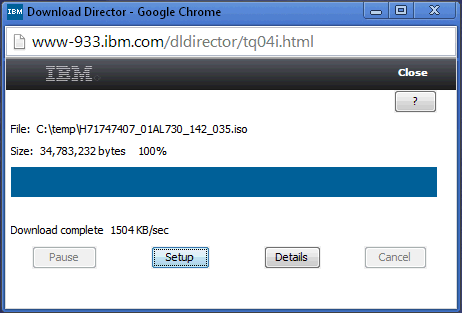
19. Once the download is finished, the file will be located in the specified directory in step 17.
Was this topic helpful?
Document Information
Modified date:
17 June 2018
UID
nas8N1020513