Question & Answer
Question
How do I remap the Print Screen key on my keyboard to do a host print screen instead of a local print screen for a 5250 Access Client Solutions display session?
Cause
Unable to do host print screen easily within Access Client Solutions 5250 display session.
Answer
Remap the Print Screen, or any other key or key combination, to the Host Print Screen function.
From the Access Client Solutions ( ACS ) 5250 display session pull down menu options:
Click on EDIT / PREFERENCES / KEYBOARD
From the Keyboard - HOD session Definition window, select the KEY ASSIGNMENT tab
From the pull down list for the CATEGORY, select HOST FUNCTIONS
Locate and select HOST PRINT
With HOST PRINT selected, click ASSIGN A KEY
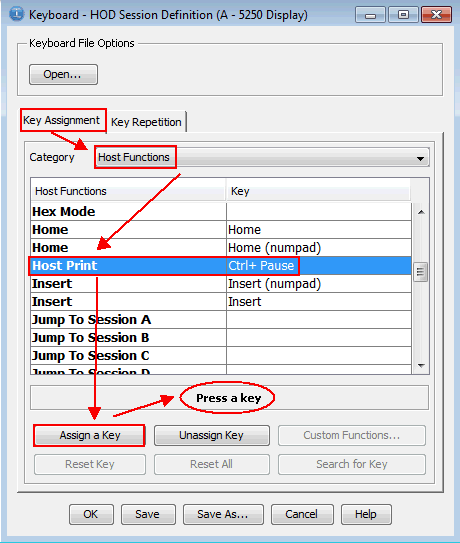
On the keyboard, press the key or key combination to assign to the function. In this example, the PrtSc key was pressed:

If you click SAVE, it will save it for the current session only
If you click on SAVE AS and save the changes in the default .kmp file, the keyboard will be remapped for any 5250 display session opened on this PC that uses the IBMi.kmp file

The FILE name should be C:\Users\IBM_ADMIN\Documents\IBM\iAccessClient\Emulator\IBMi.kmp
Click on OK
Click on OK to overwrite the existing file
Click on OK to exit keyboard remapping
To test, press the newly assigned key to verify a host print screen is generated. Use WRKJOB option 4. Work with spooled files or WRKSPLF to locate the print screen.
Was this topic helpful?
Document Information
Modified date:
18 December 2019
UID
nas8N1022333