Troubleshooting
Problem
This document describes the functions for the BRMS must gather data collector.
Resolving The Problem
QMGTOOLS' BRMS data collection currently collects (this list is dynamic and will be reflected when new data is added) :
BRMS flight recorder based on begin/end date
BRMS network status file (pings all BRMS nodes, checks to see if DDM is enabled, posts IP address found)
DSPASPBRM
DSPBKUBRM
DSPLOGBRM for begin/end date
DSPNETA
CHKPRDOPT for BR1 product
Listing of library QUSRBRM
SRVAUTE for all users
TCP information (connection statuses, interfaces, routes, host table)
WRKDEVBRM
WRKLOCBRM
WRKMEDBRM
WRKMEDIBRM
WRKMLBBRM
WRKRDBDIRE
QA1AAl file
QA1A1RMT file
QALANET2 file
QA1AHS file
QA1AMM file
QBRMSYNC job description
Installing QMGTOOLS
http://www-01.ibm.com/support/docview.wss?uid=nas8N1011297
To access BRMS data collection option, go to the MG menu via GO QMGTOOLS/MG command. From there, choose menu option for the Save/Restore menu.

There are 3 options for BRMS data collection. Descriptions will follow after the example screen shot.

Collect BRMS Data On All Nodes
-

This option will scan the BRMS network configuration file and try to grab all data from all nodes in the BRMS network.
Note: In order for the data collection to collect and retrieve data from all nodes in the BRMS network, FTP must be enabled on those nodes.
1) Parameters are as follows :

Output where do you want the data to be dump, IFS or as members in a physical file Perform CHKPRDOPT either yes or no (Y/N) to do a check production option for the BR1 produc Data library the library to store the data if specifying a physical file to store the data. This is also the library that will store temporary files (event though IFS is chosen for the output) IFS directory to store data if the output is *IFS, then this is the directory where the data will be stored...the subdirectory will be SRDOCS in that directory Begin date - the begin date to choose as this will be for dumping data such as the BRMS flight recorder and other logs (must in MMDDYYY where MM is month, DD is day, and YYYY is the year)
- *CURRENT is the defaultEnd date either specify an end date or the current date (*CURRENT is the default) as the ending date for the logs Network timeout when polling the remote nodes to see if DDM and FTP is active, how long should it wait for a response
2) Once the option is chosen to collect data from all nodes, the tool will ping and get the statuses of DDM and FTP from all the listed nodes in the BRMS network configuration file, QA1A1RMT in library QUSRBRM. The results are seen as in this example :

Local node this is the local node Total nodes total nodes found in the BRMS configuration file Errors errors detected when either trying to PING, check for FTP service, or check for DDM service for the nodes Collect data on local node Y/N to collect data on the local node Nodes this is the list of nodes User/Password login credentials to access the node via FTP Able to ping can the local node ping the remote node (Y/N) FTP enabled is FTP enabled on the remote node DDM enabled is DDM enabled on the remote node Same PWD for all nodes Y/N if the first node entry's login credentials should be for every node listed 3) If F1 is press to continue, the next screen should show the status of the collections. From this screen, F5 to refresh the status or exit out.

To view the status again, choose the menu option titled "BRMS all nodes data collection status" from the Save/Restore MustGather Menu.

4) When the collection is finished, the data will be saved into a save file (if *PF was chosen for output) or a zip file (if *IFS was chosen for the output).
If *PF was chosen, the save file will be named BRMSDOCxxx where xxx is a number under the data library.
If *IFS was chosen, the zip file will be named BRMSDOCxxx.zip where xxx is a number under the /tmp directory.
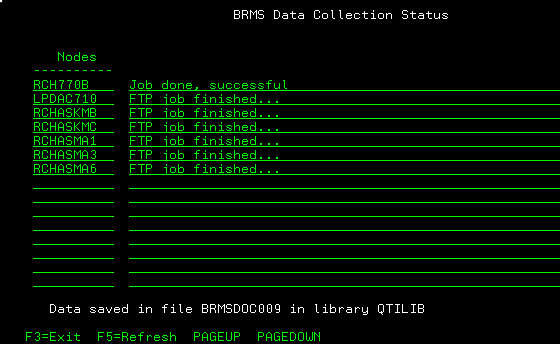
5) If there are errors during collection, there are logs stored either in the IFS or PF depending on what output was requested on the local node.
If *PF was requested for the output, the data library (QTILIB is the default) will contain files of each node. Every file should have a tool log member. Under the data library, there is also a BRMSFTPLOG file. The BRMSFTPLOG is a log of the FTP commands/responses that were sent/received from each node.
If *IFS was requested for the output, the IFS directory by default is /tmp/SRDOCS. Under the /tmp/SRDOCS directory, there will be subdirectories for each node. In each subdirectory, there is a tool log. The BRMSFTPLOG directory in /tmp/SRDOCS will contain the FTP command/responses from each node.
Collect BRMS Data On Local Node
-
This collects data on local node only.
1) Parameters are as follows (after this screen shot) :

Output either *IFS (store in the IFS) or *PF (store as physical file members) Perform CHKPRDOPT as this can be a time consuming task, either Y/N to perform a CHKPRDOPT against the BR1 product Network test timeout timeout value when trying to check FTP and DDM status of the remote nodes Data library - the default library to store the data if output *PF was chosen
- this is also used as a temp library to store program data even if *IFS was chosen for outputIFS directory to store data - the IFS directory to store the data, under that directory, the tool will create a SRDOCS subdirectory to store the data Begin date - the begin date to choose as this will be for dumping data such as the BRMS flight recorder and other logs (must in MMDDYYY where MM is month, DD is day, and YYYY is the year)
- *CURRENT is the defaultEnd date either specify an end date or the current date (*CURRENT is the default) as the ending date for the logs Save data after finish collecting data, save the data either in a zip or save file (Y/N) Save file name - if the save data option was chosen, either specify a save file name or let the tool generate the save file name
- the generated save file name will be named BRMSDOCxxx where xxx is a number under the data libraryZip file name - if the save option was chosen, either specify a zip file name or let the tool generate the zip file name
- the generated zip file name will be named BRMSDOCxxx.zip where xxx is a number under /tmp directoryTools library - leave this as default Data area - leave this as default
Collecting and sending diagnostic information to IBM Support
-
Method 1 - QMGTOOLS: FTP Data to IBM
http://www-01.ibm.com/support/docview.wss?uid=nas8N1010370
Method 2 - MustGather: Instructions for Sending Data to IBM i Support
http://www-01.ibm.com/support/docview.wss?uid=nas8N1019224
Was this topic helpful?
Document Information
Modified date:
18 December 2019
UID
nas8N1020100