Troubleshooting
Problem
After attempting to synchronize the local PC with OneDrive, the QMF application stopped working. When trying to relaunch QMF, the application fails to open. Re‑downloading and reinstalling QMF does not resolve the issue.
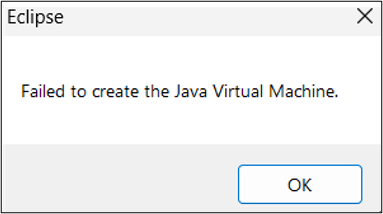
Each time the user attempts to start QMF, the following error message is displayed:
“Failed to create the Java Virtual Machine”
As a result, QMF cannot be launched, preventing the user from accessing the application.
Cause
- The root cause of the issue was that Java was missing from the user’s environment.

Environment
- QMF for Workstation
- QMF for WebSphere
Diagnosing The Problem
- Check if JAVA_HOME is set on machine using below command.
- Open Command prompt
- Execute set command as given below:
[The following screen appears whenJAVA_HOMEis configured correctly.]
[ IfJAVA_HOMEis missing or not configured correctly, the screen below is displayed. ]
Resolving The Problem
Steps to Set the JAVA_HOME Environment Variable:
- Check if JAVA present in below path:
C:\Program Files Or
C:\Program Files (x86)\Java\jdk1.8.0_261
- Type ‘Environment Variable’ in search box and open it.

- Click on New.
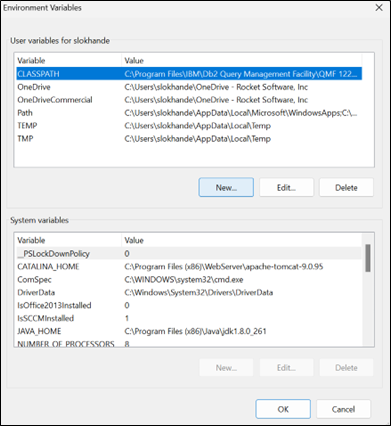
- Set the JAVA_HOME as specified.
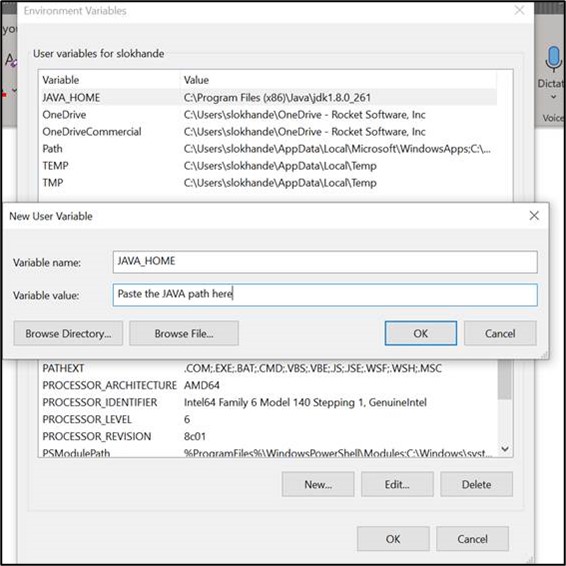
- Click on OK.
Once JAVA_HOME is set, verify it by running the set command in the Command Prompt.
Document Location
Worldwide
[{"Type":"MASTER","Line of Business":{"code":"LOB70","label":"Z TPS"},"Business Unit":{"code":"BU048","label":"IBM Software"},"Product":{"code":"SS6QWT","label":"IBM QMF Analytics for Multiplatforms"},"ARM Category":[{"code":"a8m3p000000PC3cAAG","label":"QMF for Websphere"},{"code":"a8m3p000000PC3hAAG","label":"QMF for Workstation"}],"ARM Case Number":"TS017730709","Platform":[{"code":"PF025","label":"Platform Independent"}],"Version":"13.1.1;13.1.2"}]
Was this topic helpful?
Document Information
Modified date:
12 February 2026
UID
ibm17260115