Product Documentation
Abstract
You can complete a series of steps to produce a referential integrity analysis with InfoSphere Information Analyzer. Referential integrity analysis evaluates whether there are gaps between the foreign keys and the primary keys in your data (for example, foreign key values which have no primary keys in a parent table). Tables with poor referential integrity are out of sync, or in an inconsistent state, and can indicate the presence of invalid or missing table inserts, cascading deletes, or other issues with database integrity.
This document explains, step-by-step, how to produce the referential integrity analysis.
Content
Before you begin
You must have created an InfoSphere Information Analyzer project, and associated metadata sources with the project.
The project must be open.
For more information, see Creating a project and Associating imported metadata with your project.
Steps to produce the referential integrity analysis
To produce a referential integrity analysis, complete the following steps:
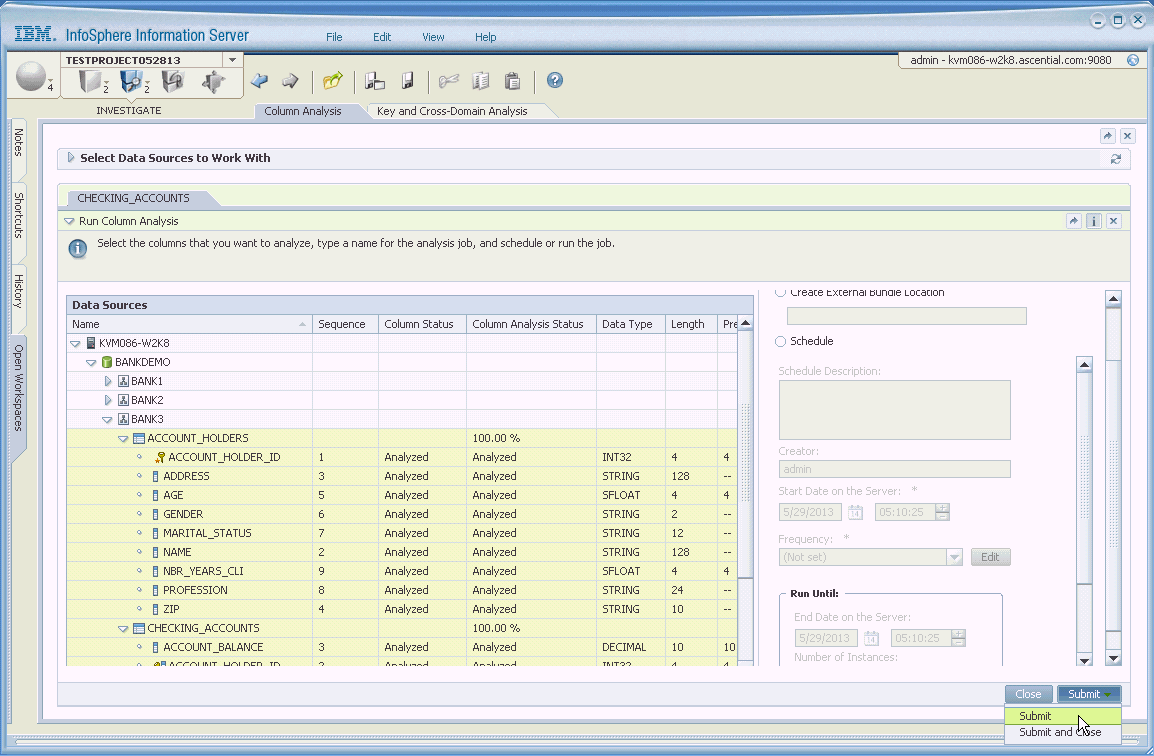
- Run a column analysis. For specific instructions, see Running a column analysis job.
For example, here we run the column analysis on all columns in the two tables ACCOUNT_HOLDERS and CHECKING_ACCOUNTS:
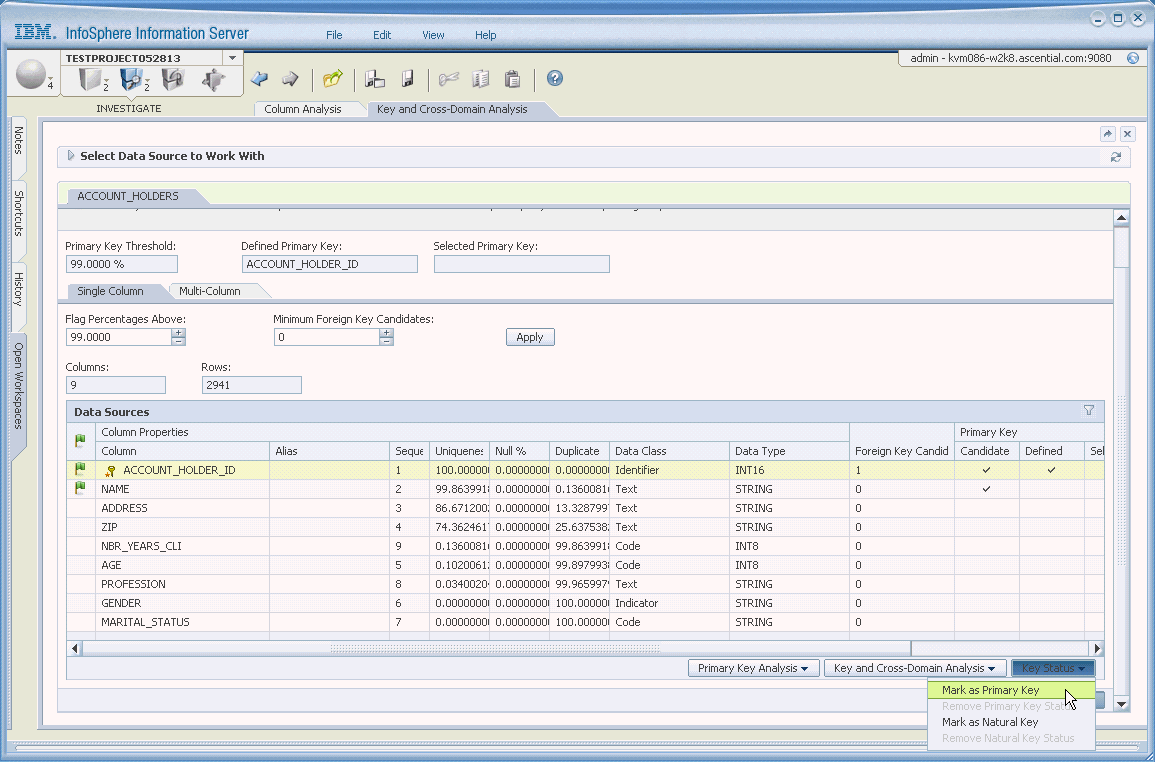
- Select a primary key. You must select a primary key before attempting to run a referential integrity analysis. For specific instructions, see Identifying a single-column primary key.
In this example, we mark ACCOUNT_HOLDER_ID in the ACCOUNT_HOLDERS table as the primary key:
- Run a key and cross-domain analysis.
- Click Key and Cross-Domain Analysis > Run a key and cross-domain analysis at the bottom of the window. For example:

The job page is displayed. For example:

- (Optional) To find foreign key candidates for the selected primary key only, click Filter Settings and check the Include only Primary Keys check box.
- Select tables to pair with the base table for the cross-domain analysis. Select a table to add by selecting it in the Available Tables section and clicking Add to Pair List. By default, the table that contains the primary key is specified as the base table. Columns within the paired tables will be evaluated for compatibility with the selected primary key in the base table. By default, all available pairs are automatically designated as selected pairs for evaluation.
- Click Next.
- Select scheduling options (or use the Run Now default), then click Submit and Close. You can use the status bar to monitor the progress of the job.
For more details about this step, see Running a key and cross-domain analysis job to identify foreign keys.
- Run the referential integrity analysis.
- Click the column that was selected as the primary key (in step 2), then select Key and Cross-Domain Analysis > View Foreign Key Candidates.
- From the Select Base Column list, select the primary key column. This causes the columns that are paired with the selected primary key column to be displayed. If the Paired to Base percentage exceeds the Flag Percentages Above threshold, the paired column is flagged as a foreign key candidate (green flag icon).
- Click the flagged foreign key candidate in the Paired Columns table.
- Select Referential Integrity > Run Referential Integrity. Note: If the selected base column is not selected as the primary key column, the Run Referential Integrity menu item is disabled.
- Click Submit > Submit and Close.
In this example, we run the referential integrity analysis to determine the commonality of the values in the ACCOUNT_HOLDER_ID column of the ACCOUNT_HOLDERS table, which we have defined as the primary key, and the ACCOUNT_HOLDER_ID column in the CHECKING_ACCOUNTS table, which is selected as the foreign key. In this example, 100% of distinct foreign key values are present in the primary key column, indicating that the referential integrity analysis is reliable.

For additional instructions about this step, see Determining the integrity of foreign keys.
- To view the referential integrity analysis results, click Referential Integrity > View Referential Integrity at the bottom of the window. For example:

In this example, 2,199, or nearly 75%, of the primary key and foreign key values match, while 742, or about 25%, of the primary key values are distinct from, and do not match, the foreign key value.
- (Optional) You can choose to specify that the candidate foreign key is the foreign key. To specify that the candidate foreign key is the foreign key, click Foreign Key Status > Accept Foreign Key Status at the bottom of the window.
Was this topic helpful?
Document Information
Modified date:
17 June 2018
UID
swg27038565