Troubleshooting
Problem
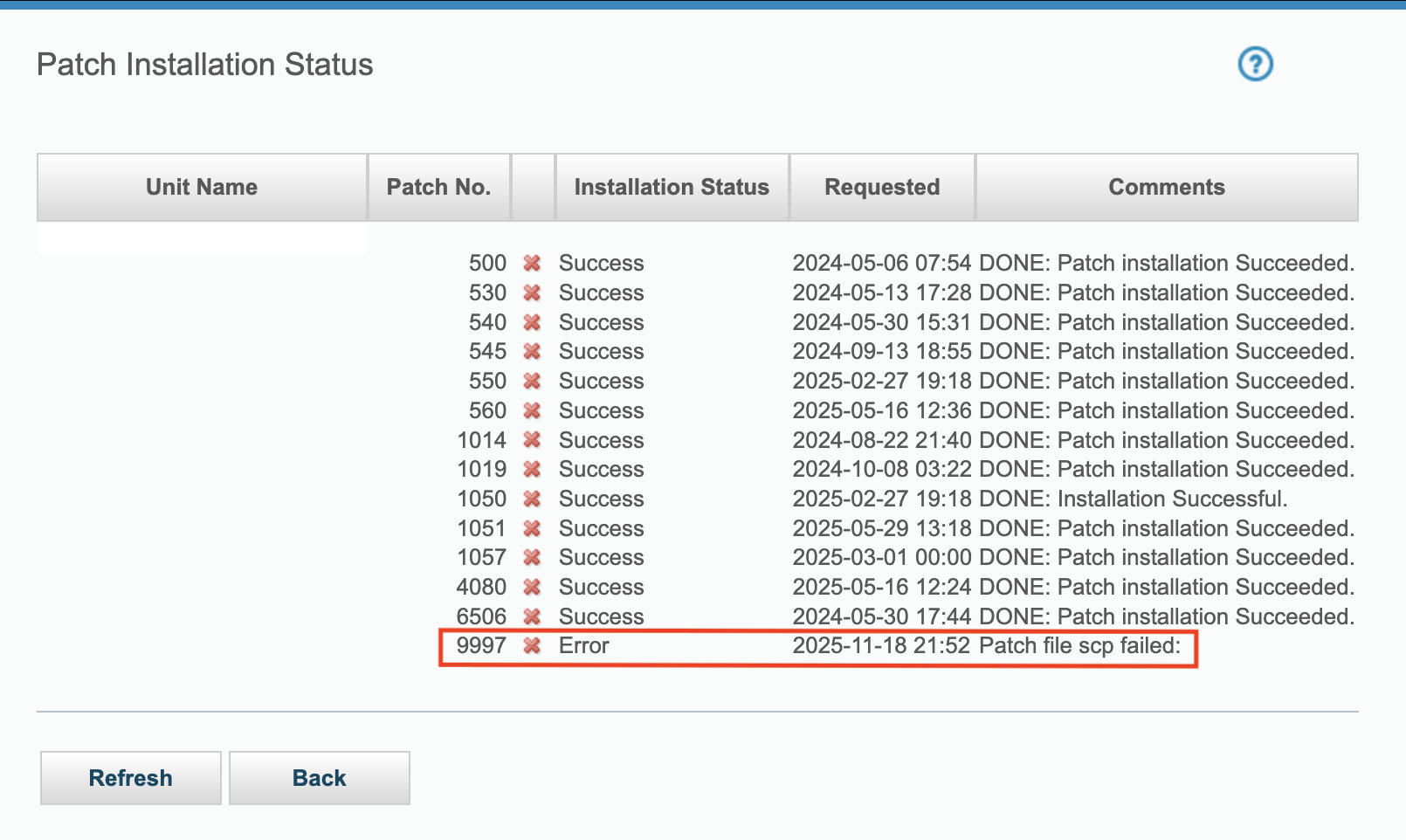
During patch distribution from Central Manager(CM) to Managed Units(MUs), the Patch Installation Status displays "Patch file SCP failed:" error message.
At the same time, aggregation process failures are encountered wherever SCP/SFTP is involved.
Symptom
1) "Patch file SCP failed:" message in the Patch Installation Status page.
2) Aggregation process failures are encountered wherever SCP/SFTP is involved, for Example: Import/Export jobs, etc.
You might observe one or both of the above listed symptoms even if:
1) You are able to ping the destination ip
2) Output of "support show port open [destination_ip] 22" returns "Connected to [destination_ip]"
3) There are no Firewall restrictions in the environment.
Cause
A known configuration that can trigger this failure is when the end user implements the feature of "Manage login access by IP address" to limit access to the Guardium UI, CLI (via SSH), or both to specified IP addresses.
The Managed Units' IP addresses have not been added to the list on "Manage login access by IP Address" modal.
Here is how the interface for "Manage login access by IP address" looks like:

IP addresses that are not included in the allowed SSH list are blocked from accessing the CM.
This restriction applies to all SSH-based services, including SCP and SFTP, since these protocols operate through the SSH daemon.
Diagnosing The Problem
Collect the "patch_issues must_gather" from the CM appliance. Review the guard_filetransfer_log file. Navigate to the approximate timestamp when you initiated the patch distribution. One may expect to see the below attached log-entries:
guard_filetransfer.pl: current timestamp = 2025.11.18.21.52.40
19683 Tue Nov 18 21:52:40 2025 guard_filetransfer.pl: /var/IBM/Guardium/data/dump/export_synch_files.tgz - from: /var/dump/ to: [dest_ip] -> /var/IBM/Guardium/data/importdir/ as aggregator
19683 Tue Nov 18 21:52:40 2025 guard_filetransfer.pl: Starting file transfer.
19683 Tue Nov 18 21:52:40 2025 scp STDOUT> spawn /usr/bin/scp -4 -q /var/IBM/Guardium/data/dump/export_synch_files.tgz aggregator@[dest_ip]:/var/IBM/Guardium/data/importdir/
19683 Tue Nov 18 21:52:45 2025 scp STDOUT> lost connection
19683 Tue Nov 18 21:52:45 2025 SCP to: [dest_ip], User: aggregator, Path: /var/IBM/Guardium/data/importdir/, File: /var/IBM/Guardium/data/dump/export_synch_files.tgz
19683 Tue Nov 18 21:52:45 2025 Error code: 1
19683 Tue Nov 18 21:52:45 2025 Only primary host is defined. Transfer to primary host failed.
Note: The above snippet of logs is for reference purpose only.
This is from a test environment.
Actual entries may differ.
Resolving The Problem
To make sure intra-environment communication via SCP protocol is restored:
1) Navigate to "Manage login access by IP address" modal by clicking on the "Manage" button on the "Global Profile" page. Here is how you can navigate to this page: Setup > Tools and Views > Global Profile
Note: Only users with Admin role can access this functionality.
2) Click on the New button
3) Another modal named "Add IP address to allowlist" opens, input the Managed Unit IP address in the textbox corresponding to the "IP Address" label
4) Choose SSH radio button against the "Login Type" label.
5) Click "OK".
6) Click the "Save" button on the "Manage login access by IP Address"
Here is how the "Add IP address to allowlist" modal looks like:

Now try to distribute the desired patch again to the Managed Unit who's IP address was added to the list, it should be successful.
Note: If you want to add multiple IP addresses (i.e. Multiple Managed Units), you may prepare a CSV file for the list of IP Address to be added and upload the same by clicking on the "Import from CSV" option.
Document Location
Worldwide
Product Synonym
IBM Guardium; IBM Data Security Guardium; Guardium Data Protection
Was this topic helpful?
Document Information
Modified date:
19 November 2025
UID
ibm17251717