How To
Summary
In some situations, it's not possible to have an external resource to provide the bootable media and installation repositories that are needed to perform an offline upgrade. External resources like PXE boot, USB drive or DVD can be replaced with a normal partition from the hard disk, the system resides and has enough space to hold the content of the installation ISO image.
Objective
Environment
Steps
| Before proceeding with the upgrade steps below, please make sure that you read the prerequisites page here |
1- Download the ISO image and mount it then copy the content to some location ( /sp5 directory is used in this demo).
linux-ri87:~ # ls -l /iso/
total 4002816
-rw-r--r-- 1 root root 4098883584 Oct 14 17:37 SLE-12-SP5-Server-DVD-x86_64-GM-DVD1.iso
linux-ri87:~ # mkdir /sp5
linux-ri87:~ # mount /iso/SLE-12-SP5-Server-DVD-x86_64-GM-DVD1.iso /mnt
mount: /dev/loop0 is write-protected, mounting read-only
linux-ri87:~ # cp -a /mnt/* /sp5
2- Copy the kernel (linux) and the installation system (initrd) from the directory/boot/ARCHITECTURE/on the installation media to the hard disk. Then take a backup of the grub.cfg file and run grub2-mkconfig to create a new grub2 menu entry.
linux-ri87:~ # cp -a /sp5/boot/x86_64/vmlinuz-xen /sp5/boot/x86_64/initrd-xen /boot/
linux-ri87:~ # cp /boot/grub2/grub.cfg /boot/grub2/grub.cfg.bkp
linux-ri87:~ # grub2-mkconfig -o /boot/grub2/grub.cfg
Generating grub configuration file ...
Found theme: /boot/grub2/themes/SLE/theme.txt
Found linux image: /boot/vmlinuz-4.12.14-94.41-default
Found initrd image: /boot/initrd-4.12.14-94.41-default
Found linux image: /boot/vmlinuz-xen
Found initrd image: /boot/initrd-xen


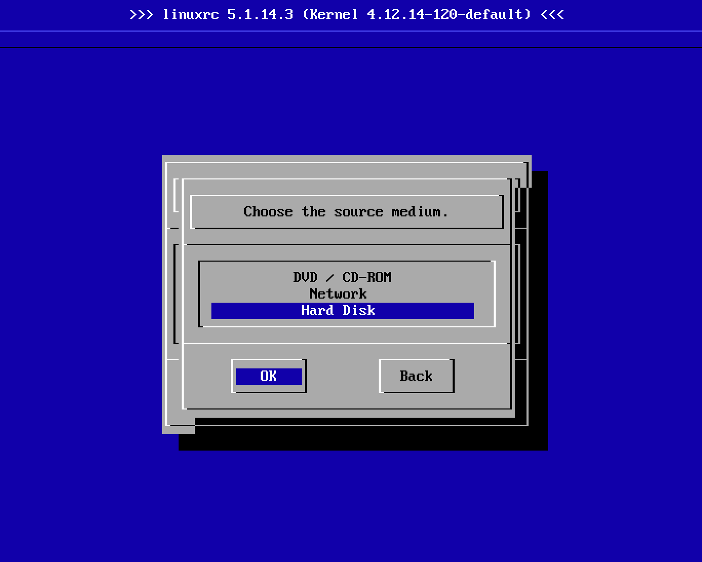

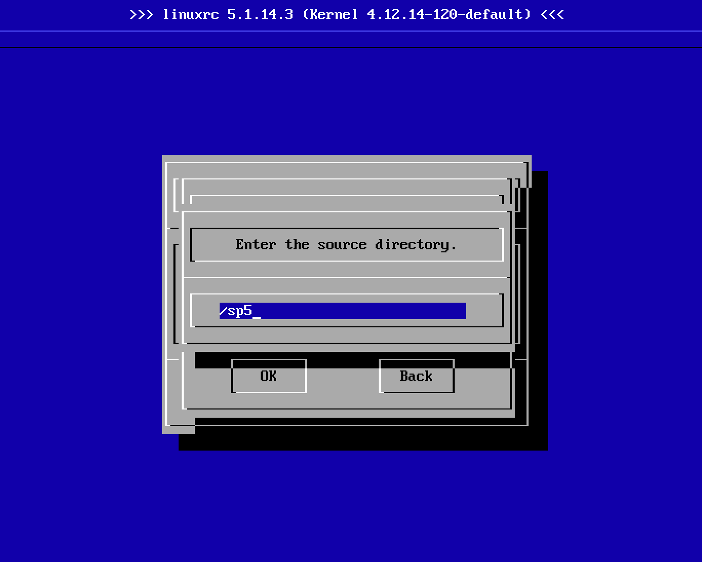
-
From the w screen, choose and and accept the license agreement, then click `.
YaST will check your partitions for already installed SUSE Linux Enterprise systems. -
In the screen, select the appropriate partition to upgrade then click `.
YaST mounts the selected partition and displays all repositories that have been found on the partition that you want to upgrade. -
In the screen, adjust the status of the repositories: enable those you want to include in the upgrade process and disable any repositories that are no longer needed. When done, click `.
-
Inside the screen, select whether to register the upgraded system now (by entering your registration data and clicking ). For details on registering your system, see Section 21.8, “Registering Your System”.
-
Review the for the upgrade, specially the u. Choose between the following options:
-
, in which case you might miss new features shipped with the latest SUSE Linux Enterprise version.
-
. Click if you want to enable or disable patterns and packages according to your needs.
-
-
If all settings are according to your wishes, start the installation and removal procedure by clicking .
-
After the upgrade process has finished successfully, perform post-upgrade checks as described in Section 21.5.1, “Post-upgrade Checks”.
Related Information
Document Location
Worldwide
Was this topic helpful?
Document Information
Modified date:
01 April 2021
UID
ibm16348024