Question & Answer
Question
How do you import from IBM Rational RequisitePro when it is failing with an "Unknown exception" or with a message that the connection to the RequisitePro Server failed (incorrect URL or server down) when using IBM Rational Portfolio Manager?
Cause
The Rational RequisitePro and or Rational Portfolio Manager installation is not set up correctly
Answer
All source code and/or binaries attached to this document are referred to here as "the Program". IBM is not providing program services of any kind for the Program. IBM is providing the Program on an "AS IS" basis without warranty of any kind. IBM WILL NOT BE LIABLE FOR ANY ACTUAL, DIRECT, SPECIAL, INCIDENTAL, OR INDIRECT DAMAGES OR FOR ANY ECONOMIC CONSEQUENTIAL DAMAGES (INCLUDING LOST PROFITS OR SAVINGS), EVEN IF IBM, OR ITS RESELLER, HAS BEEN ADVISED OF THE POSSIBILITY OF SUCH DAMAGES.
- Verify that the Windows service "IBM WebSphere Application Server V6 - RWP servlet" is running:
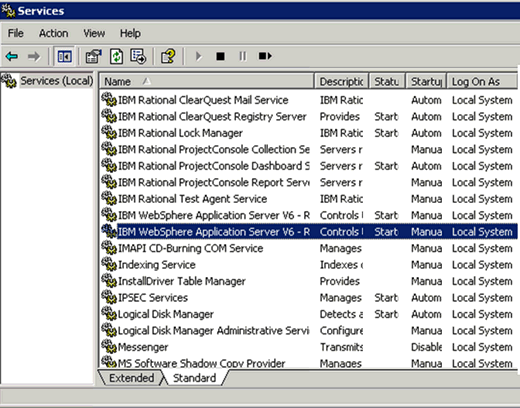
- Verify that in the RequisitePro Server URL the port 11080 is used (and not 9080).
For example: http://localhost:11080/reqpro/services/RequisiteProWebservice
- Verify that proxies.jar has been copied from RequisitePro installation directory 'RequisitePro\lib' to the following directory: Common\rwp\EmbeddedExpress\profiles\profile2\installedApps\DefaultNode\WebServices.ear\RequisiteProWebservice.war\WEB-INF\lib\
The integration may not work properly if another Proxies.jar is found in the same system path. (DO NOT keep a copy of the original proxies.jar before replacing it. DO NOT even keep the copy in a new folder in the same path.)
- Verify that resources.xml is correct
a. The text from the release notes needs to be pasted just before the closing end tag (</xmi:XMI>)

b. Verify that resources.xml doesn't contain junk characters or unwanted “?”
(This is caused when the xml file is opened & saved using a notepad. The double quote (“) character changes to (?). To avoid this, please use a WordPad, MS Word or any Unicode supporting application to open the xml file.)
c. Verify that the RequisitePro installation path is correct.
Check that there be no space character right after the installation path.
Find & replace of “%REQPRO_INSTALLATION_DIRECTORY” with the installation path will NOT remove a space character right after this. Please remove it manually.
Was this topic helpful?
Document Information
Modified date:
16 June 2018
UID
swg21303735