How do you determine the traffic rate that your hosts can manage?
Answer
You might want to confirm the rate of traffic your hosts are capable of managing. You can use the iperf command to measure throughput from point A to B between systems to which you have direct access. It is extremely useful to identify if there are any issues along the network path that is taken between systems or if you are not getting the expected download and upload throughput speeds.
This guide shows you how use iperf for testing. It is available on both Windows and Linux server systems. A sender and a receiver will log reports to help identify any throughput issues along a network path. You can set many flags to control the flow of traffic it generates, such as the TCP window size, test length, port specification, and target bandwidth to test for real world scenarios. You can refer to the man or help pages of your respective operating system to view more flags.
You need to run Iperf in a client - server configuration between two end target systems. Thus, it needs to be installed on both systems that are involved in the transfer of data. One host will act will as the server or receiver of the traffic while another system acts as a client or sender of traffic.
Linux
Note: The following tests ran on systems with port speeds of 100Mbps.
Server A (the receiver) is set to listen for traffic. You can specify a port to use, if necessary, for firewall considerations.
–s means Set Server A as an iperf server agent that will listen for iperf-client traffic.
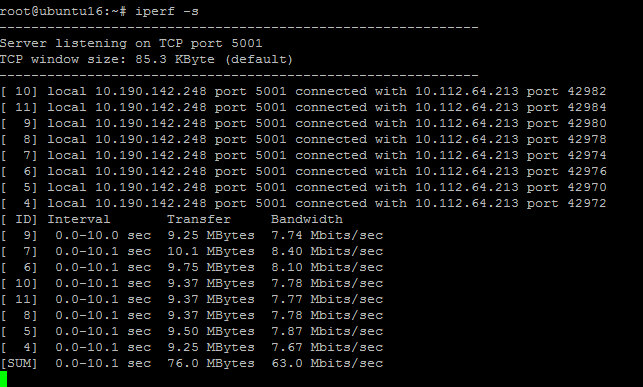
On Server B, you initiate a test. This test means you want to send 10 concurrent TCP connections simultaneously with a TCP window size of 100 bytes in the client mode.
-P means parallel or number of connections
-w specifies a tcp window size of 100 bytes from this server in the client mode
-c puts the system in client mode/specifies it as the sender of traffic

Windows
You can use the Iperf or Ntttcp utilities. You also should specify the same sort of options to tweak the throughput commands to meet real world traffic levels. For example, we will use Iperf with a TCP window size of 1–4MB.
Note: Both of these utilities run from the command prompt and must be downloaded and executed on each system.
Server A (the receiver) is set it to listen for traffic. You can specify a port for use, if necessary, for firewall considerations.
– s means Set Server A as an iperf server agent that will listen for iperf-client traffic.
On Server B, you initiate a test. It means that you want to send throughput to target 50.23.53.121 of 10 parallel concurrent connections for 2 iterations with a tcp window size of 4 MB.
-c specifies the client mode/specifies the host as the sender
-P specifies parallel/concurrency
-t specifies the iterations or number of tests
-w specifies the byte size
If you notice that you are not seeing the level of expected throughput, review the network path between the devices.
[{"Business Unit":{"code":"BU053","label":"Cloud & Data Platform"},"Product":{"code":"SSCL81","label":"Network Tools"},"Component":"","Platform":[{"code":"PF025","label":"Platform Independent"}],"Version":"All Versions","Edition":"","Line of Business":{"code":"","label":""}}]

