Education
Abstract
Out of the box, the only way to add multiple assets/locations to a route record is through a list dialog, from which you flag the desired records. By enabling the map in the filter of the Select Assets/Select Locations lookups, you can open the map and select the records you want from it.
Content
To get this feature enabled is pretty simple. In this example, we'll enable the map for Assets:
1. Open your Application Designer.

2. Search for ROUTES.

3. Click on Edit Dialogs.

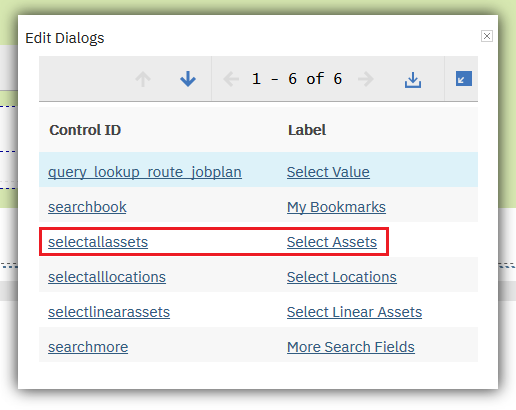
4. Click on "selectallassets".
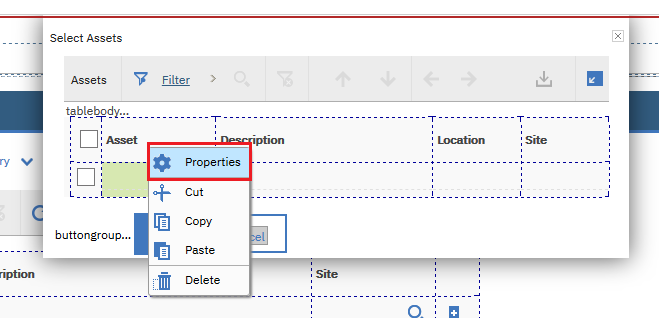
5. Right-click on the Asset column and select Properties.
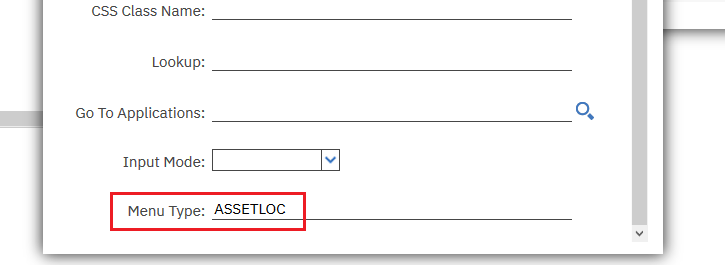
6. Scroll down and type "ASSETLOC" inside the Menu Type field.
7. Save.

8. Open any route record in your Routes application and click Select Assets.

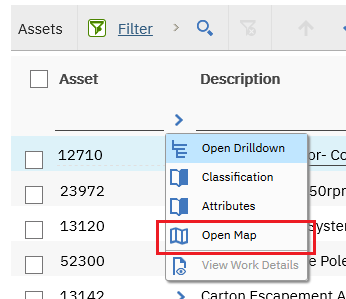
9. You'll see that now you can use the "Open Map" feature to select your assets.
Done! Now you can geographically select your asset records and transfer them to your route all at once.
[{"Business Unit":{"code":"BU059","label":"IBM Software w\/o TPS"},"Product":{"code":"SSG2D3","label":"Maximo Spatial Asset Management"},"Component":"","Platform":[{"code":"PF033","label":"Windows"}],"Version":"All Versions","Edition":"","Line of Business":{"code":"LOB59","label":"Sustainability Software"}}]
Was this topic helpful?
Document Information
Modified date:
03 July 2019
UID
ibm10958241