Question & Answer
Question
The purpose of this document is to explain how to setup and perform a mksysb restore through NIM, including setup and explanation of the SMS/BOS install menus.
Answer
Introduction
This document will explain in detail how to setup and perform a mksysb restore from NIM, detailed explanation on how to boot into SMS from your HMC, navigating all the required menus, and additional options available with NIM and a mksysb.
When do I need to restore from a mksysb backup?
Having a regular mksysb backups is a very important aspect of managing a system environment. A recent mksysb backup can help quickly recover from a disaster situation in which production is heavily impacted, and can help to easily roll back any changes done to the system that might not be working as expected.
IBM recommends having an up-to-date mksysb backup of every system in your environment that can be used to bring the respective LPAR up in a critical situation.
IBM advises to take a mksysb backup prior to performing any changes to the system, planned or otherwise (Migration, update_all, LKU, installing new software, mirroring etc.).
How do I set up for a mksysb restore using NIM?
Having a NIM Master which holds backups of all your LPARs makes managing your environment very easy.
As a start, for any mksysb restore, you will need a NIM mksysb resource and a NIM SPOT resource, either created from the mksysb itself, or a generic SPOT at the exact same version of AIX as the mksysb.
NOTE: A SPOT resource created from a mksysb can only be used in conjunction with this exact mksysb and cannot be used to restore any other mksysbs. A generic Base Media SPOT can be used to restore any number of mksysb backups, but this presents the limitation of all your LPARs needing to be the exact same version of AIX (VRMF).
You can verify if you have an already existing NIM mksysb resource on your NIM master with:
# lsnim -t mksysb
AIXClientBackup resources mksysb
We have one mksysb resource on our NIM master, a backup of the NIM client AIXClient. Running "lsnim -l" against this mksysb will give us a detailed list of information for this particular backup:
# lsnim -l AIXClientBackup
AIXClientBackup:
class = resources
type = mksysb
creation_date = Tue Dec 11 07:30:18 2018
arch = power
* source_image = AIXClient
Rstate = ready for use
prev_state = unavailable for use
* location = /export/mksysb/AIXClientBackup
version = 7
release = 2
mod = 1
* oslevel_r = 7200-01
* oslevel_s = 7200-01-01-1642
* alloc_count = 0
server = master
* extracted_spot = AIXClientBackup_SPOT
AIXClientBackup:
class = resources
type = mksysb
creation_date = Tue Dec 11 07:30:18 2018
arch = power
* source_image = AIXClient
Rstate = ready for use
prev_state = unavailable for use
* location = /export/mksysb/AIXClientBackup
version = 7
release = 2
mod = 1
* oslevel_r = 7200-01
* oslevel_s = 7200-01-01-1642
* alloc_count = 0
server = master
* extracted_spot = AIXClientBackup_SPOT
The important stanzas you need to consider:
* source_image = AIXClient
This is the NIM client source of the mksysb backup.
* location = /export/mksysb/AIXClientBackup
This is the location on the NIM master where the mksysb file is located.
* oslevel_r / oslevel_s
These two stanzas show detailed information for the AIX oslevel of this backup. This is useful if you want to create one SPOT resource for multiple mksysbs - this way you can easily verify the exact version of all backups.
* alloc_count = 0
This is the number of NIM clients that this resource is allocated to.
* extracted_spot = AIXClientBackup_SPOT
If there is a SPOT resource created from this mksysb, this stanza will show which it is.
You can see similar output when running "lsnim -l" for the extracted NIM SPOT:
# lsnim -l AIXClientBackup_SPOT
AIXClientBackup_SPOT:
class = resources
type = spot
plat_defined = chrp
arch = power
Rstate = ready for use
prev_state = verification is being performed
* location = /export/spot/AIXClientBackup_SPOT/AIXClientBackup_SPOT/usr
version = 7
release = 2
mod = 1
* oslevel_r = 7200-01
* oslevel_s = 7200-01-01-1642
* alloc_count = 0
server = master
if_supported = chrp.64 ent
Rstate_result = success
* mksysb_source = AIXClientBackup
AIXClientBackup_SPOT:
class = resources
type = spot
plat_defined = chrp
arch = power
Rstate = ready for use
prev_state = verification is being performed
* location = /export/spot/AIXClientBackup_SPOT/AIXClientBackup_SPOT/usr
version = 7
release = 2
mod = 1
* oslevel_r = 7200-01
* oslevel_s = 7200-01-01-1642
* alloc_count = 0
server = master
if_supported = chrp.64 ent
Rstate_result = success
* mksysb_source = AIXClientBackup
Once we have verified which NIM mksysb and SPOT we will be using for the restore, we can initiate the restore to the target NIM client:
# lsnim -l AIXClient
AIXClient:
class = machines
type = standalone
connect = nimsh
platform = chrp
netboot_kernel = 64
if1 = network1 AIXClient 0
cable_type1 = bnc
Cstate = ready for a NIM operation
prev_state = ready for a NIM operation
Mstate = currently running
cpuid = 00F634864C00
Cstate_result = reset
AIXClient:
class = machines
type = standalone
connect = nimsh
platform = chrp
netboot_kernel = 64
if1 = network1 AIXClient 0
cable_type1 = bnc
Cstate = ready for a NIM operation
prev_state = ready for a NIM operation
Mstate = currently running
cpuid = 00F634864C00
Cstate_result = reset
Initiating the restore can be done either through the command line with:
# nim -o bos_inst -a source=mksysb -a spot=AIXClientBackupSPOT -a mksysb=AIXClientBackup -a boot_client=no AIXClient
or using smitty:
# smitty nim_bosinst
> Select the NIM client
> Select mksysb - Install from a mksysb
> Select the mksysb resource
> Select the SPOT resource
On the following page, the most important things to change are:
ACCEPT new license agreements? to Yes
Initiate reboot and installation now? to No
and a bit further down:
ACCEPT new license agreements? to Yes
Once you hit Enter, you should get the OK prompt and from there we can shutdown the LPAR and boot it in SMS (System Management Service) menu.
Activating the partition in SMS & SMS setup.
Once we have set up for the installation from the NIM side, the rest of the work is now done on the NIM client side - we have to boot the client LPAR in SMS and perform a network boot.
The easiest way to shutdown the LPAR, boot it in SMS and have a console open is straight through your HMC console. You need to SSH to your HMC and login as hscroot to run the below commands:
Shutdown an LPAR:
hscroot@ibm-hmc:~> chsysstate -m "<managed system>" -r lpar -o shutdown -n "<Partition name>" --immed
Next, to boot it in SMS:
hscroot@ibm-hmc:~> chsysstate -r lpar -m "<managed system name>" -o on -f default -b sms -n "<Partition name>"
The LPAR is now booted in SMS menus. To open a console to it:
hscroot@ibm-hmc:~> vtmenu
----------------------------------------------------------
Managed Systems:
----------------------------------------------------------
1) prod_systems
----------------------------------------------------------
Managed Systems:
----------------------------------------------------------
1) prod_systems
Enter Number of Managed System. (q to quit): 1
----------------------------------------------------------
Partitions On Managed System: prod_systems
OS/400 Partitions not listed
----------------------------------------------------------
1) AIXClient Open Firmware
Partitions On Managed System: prod_systems
OS/400 Partitions not listed
----------------------------------------------------------
1) AIXClient Open Firmware
Enter Number of Running Partition (q to quit): 1
Open in progress
PowerPC Firmware
Version AL730_122
SMS 1.7 (c) Copyright IBM Corp. 2000,2008 All rights reserved.
-------------------------------------------------------------------------------
Main Menu
1. Select Language
2. Setup Remote IPL (Initial Program Load)
3. Change SCSI Settings
4. Select Console
5. Select Boot Options
And we have a console opened to the LPAR in SMS menu.
You can also Shutdown and Activate LPARs from the HMC GUI, both Enhanced+ and Classic:
You can shutdown and activate the LPAR in SMS mode from the HMC advanced GUI as follows:

Login to the HMC GUI as hscroot, navigate to All Partitions > Select the Partition > Actions > Shutdown > Immediate Shutdown.


Once the LPAR is shutdown, you can boot it in SMS as follows:

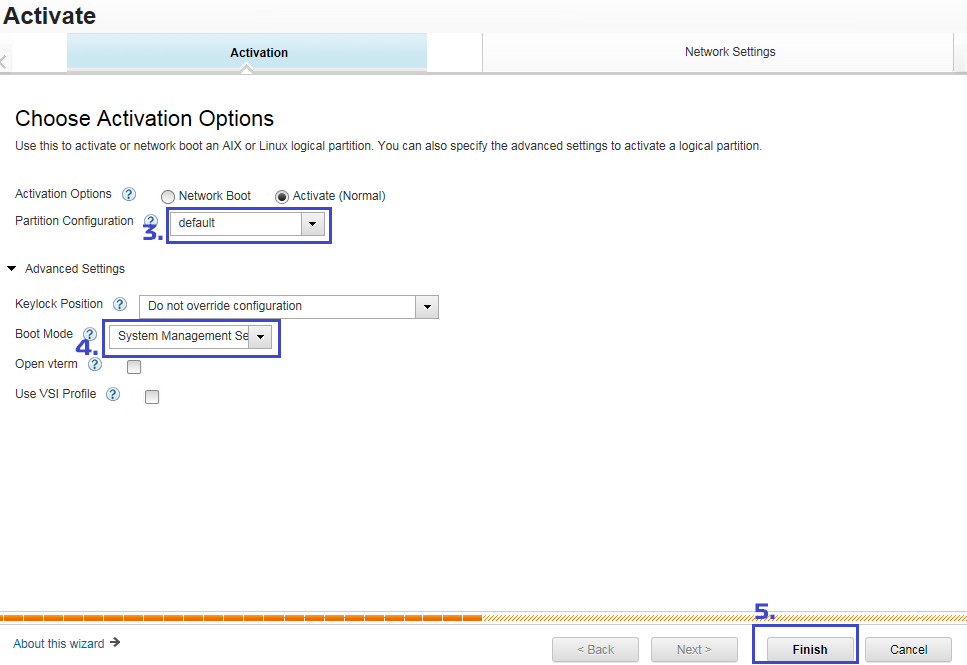
You can Shutdown and Activate the LPAR from the HMC Classic GUI as follows:

Login to the HMC as hscroot, navigate to Systems Management > Servers > Your Frame > Select the LPAR > Operations > Shut Down.


Once the LPAR is shutdown, you can boot it in SMS as follows:


Once we are in SMS menu, we need to configure the IPL settings and boot from the network:
SMS 1.7 (c) Copyright IBM Corp. 2000,2008 All rights reserved.
-------------------------------------------------------------------------------
Select Internet Protocol Version.
SMS 1.7 (c) Copyright IBM Corp. 2000,2008 All rights reserved.
-------------------------------------------------------------------------------
Main Menu
1. Select Language
2. Setup Remote IPL (Initial Program Load)
3. Change SCSI Settings
4. Select Console
5. Select Boot Options
-------------------------------------------------------------------------------
Main Menu
1. Select Language
2. Setup Remote IPL (Initial Program Load)
3. Change SCSI Settings
4. Select Console
5. Select Boot Options
-------------------------------------------------------------------------------
Navigation Keys: X = eXit System Management Services
-------------------------------------------------------------------------------
Type menu item number and press Enter or select Navigation key: 2
Navigation Keys: X = eXit System Management Services
-------------------------------------------------------------------------------
Type menu item number and press Enter or select Navigation key: 2
SMS 1.7 (c) Copyright IBM Corp. 2000,2008 All rights reserved.
-------------------------------------------------------------------------------
NIC Adapters
Device Location Code Hardware Address
> 1. PORT - 2 IBM Host Ethernet Ada U78A0.001.DNWHYZ1-P1-C6-T1 00215ea94101
-------------------------------------------------------------------------------
NIC Adapters
Device Location Code Hardware Address
> 1. PORT - 2 IBM Host Ethernet Ada U78A0.001.DNWHYZ1-P1-C6-T1 00215ea94101
-------------------------------------------------------------------------------
Option 1.
SMS 1.7 (c) Copyright IBM Corp. 2000,2008 All rights reserved.
-------------------------------------------------------------------------------
Select Internet Protocol Version.
> 1. IPv4 - Address Format 123.231.111.222
2. IPv6 - Address Format 1234:5678:90ab:cdef:1234:5678:90ab:cdef
2. IPv6 - Address Format 1234:5678:90ab:cdef:1234:5678:90ab:cdef
-------------------------------------------------------------------------------
Option 1.
SMS 1.7 (c) Copyright IBM Corp. 2000,2008 All rights reserved.
-------------------------------------------------------------------------------
Select Network Service.
> 1. BOOTP
2. ISCSI
-------------------------------------------------------------------------------
Select Network Service.
> 1. BOOTP
2. ISCSI
-------------------------------------------------------------------------------
Option 1.
SMS 1.7 (c) Copyright IBM Corp. 2000,2008 All rights reserved.
-------------------------------------------------------------------------------
Network Parameters
PORT - 2 IBM Host Ethernet Adapter: U78A0.001.DNWHYZ1-P1-C6-T1
> 1. IP Parameters
2. Adapter Configuration
3. Ping Test
4. Advanced Setup: BOOTP
-------------------------------------------------------------------------------
Network Parameters
PORT - 2 IBM Host Ethernet Adapter: U78A0.001.DNWHYZ1-P1-C6-T1
> 1. IP Parameters
2. Adapter Configuration
3. Ping Test
4. Advanced Setup: BOOTP
-------------------------------------------------------------------------------
Option 1.
SMS 1.7 (c) Copyright IBM Corp. 2000,2008 All rights reserved.
-------------------------------------------------------------------------------
IP Parameters
PORT - 2 IBM Host Ethernet Adapter: U78A0.001.DNWHYZ1-P1-C6-T1
1. Client IP Address [0000.0000.0000.0000]
2. Server IP Address [0000.0000.0000.0000]
3. Gateway IP Address [0000.0000.0000.0000]
4. Subnet Mask [0000.0000.0000.0000]
-------------------------------------------------------------------------------
IP Parameters
PORT - 2 IBM Host Ethernet Adapter: U78A0.001.DNWHYZ1-P1-C6-T1
1. Client IP Address [0000.0000.0000.0000]
2. Server IP Address [0000.0000.0000.0000]
3. Gateway IP Address [0000.0000.0000.0000]
4. Subnet Mask [0000.0000.0000.0000]
If you are unsure what settings you need to put for the IPL (Initial Program Load), you can verify the IP configuration of your NIM master with "netstat -rn" or "ifconfig -a"
# netstat -rn
Routing tables
Destination Gateway Flags Refs Use If Exp Groups
Routing tables
Destination Gateway Flags Refs Use If Exp Groups
Route tree for Protocol Family 2 (Internet):
default 10.99.0.200 UG 0 90530 en0 - - =>
default 10.99.0.1 UG 0 1341589 en0 - -
10.99.0.0 10.99.1.83 UHSb 0 0 en0 - - =>
10.99/16 10.99.1.83 U 5 18664888 en0 - -
10.99.1.83 127.0.0.1 UGHS 2 7361 lo0 - -
10.99.255.255 10.99.1.83 UHSb 0 4 en0 - -
127/8 127.0.0.1 U 6 2090255 lo0 - -
default 10.99.0.200 UG 0 90530 en0 - - =>
default 10.99.0.1 UG 0 1341589 en0 - -
10.99.0.0 10.99.1.83 UHSb 0 0 en0 - - =>
10.99/16 10.99.1.83 U 5 18664888 en0 - -
10.99.1.83 127.0.0.1 UGHS 2 7361 lo0 - -
10.99.255.255 10.99.1.83 UHSb 0 4 en0 - -
127/8 127.0.0.1 U 6 2090255 lo0 - -
Route tree for Protocol Family 24 (Internet v6):
::1%1 ::1%1 UH 0 100 lo0 - -
::1%1 ::1%1 UH 0 100 lo0 - -
IP address is 10.99.1.83, default gateway is 10.99.0.200, Subnet mask is /16 (255.255.0.0).
# ifconfig -a
en0: flags=1e084863,814c0<UP,BROADCAST,NOTRAILERS,RUNNING,SIMPLEX,MULTICAST,GROUPRT,64BIT,CHECKSUM_OFFLOAD(ACTIVE),LARGESEND,CHAIN>
inet 10.99.1.83 netmask 0xffff0000 broadcast 10.99.255.255
tcp_sendspace 262144 tcp_recvspace 262144 rfc1323 1
lo0: flags=e08084b,c0<UP,BROADCAST,LOOPBACK,RUNNING,SIMPLEX,MULTICAST,GROUPRT,64BIT,LARGESEND,CHAIN>
inet 127.0.0.1 netmask 0xff000000 broadcast 127.255.255.255
inet6 ::1%1/64
tcp_sendspace 131072 tcp_recvspace 131072 rfc1323 1
inet 10.99.1.83 netmask 0xffff0000 broadcast 10.99.255.255
tcp_sendspace 262144 tcp_recvspace 262144 rfc1323 1
lo0: flags=e08084b,c0<UP,BROADCAST,LOOPBACK,RUNNING,SIMPLEX,MULTICAST,GROUPRT,64BIT,LARGESEND,CHAIN>
inet 127.0.0.1 netmask 0xff000000 broadcast 127.255.255.255
inet6 ::1%1/64
tcp_sendspace 131072 tcp_recvspace 131072 rfc1323 1
The IP Parameters are as follows:
1. Client IP Address - NIM client IP address
2. Server IP Address - NIM master IP address
3. Gateway IP Address - NIM client Gateway address
4. Subnet Mask - NIM client subnet mask
Once finished, you can press ESC to return to the previous screen and do a ping test:
SMS 1.7 (c) Copyright IBM Corp. 2000,2008 All rights reserved.
-------------------------------------------------------------------------------
Network Parameters
PORT - 2 IBM Host Ethernet Adapter: U78A0.001.DNWHYZ1-P1-C6-T1
1. IP Parameters
2. Adapter Configuration
> 3. Ping Test
4. Advanced Setup: BOOTP
-------------------------------------------------------------------------------
Network Parameters
PORT - 2 IBM Host Ethernet Adapter: U78A0.001.DNWHYZ1-P1-C6-T1
1. IP Parameters
2. Adapter Configuration
> 3. Ping Test
4. Advanced Setup: BOOTP
-------------------------------------------------------------------------------
Option 3.
SMS 1.7 (c) Copyright IBM Corp. 2000,2008 All rights reserved.
-------------------------------------------------------------------------------
Ping Test
PORT - 2 IBM Host Ethernet Adapter: U78A0.001.DNWHYZ1-P1-C6-T1
Speed, Duplex: auto,auto
Client IP Address: 10.99.1.75
Server IP Address: 10.99.1.91
Gateway IP Address: 10.99.0.1
Subnet Mask: 255.255.254.0
Protocol: Standard
Spanning Tree Enabled: 0
Connector Type:
-------------------------------------------------------------------------------
Ping Test
PORT - 2 IBM Host Ethernet Adapter: U78A0.001.DNWHYZ1-P1-C6-T1
Speed, Duplex: auto,auto
Client IP Address: 10.99.1.75
Server IP Address: 10.99.1.91
Gateway IP Address: 10.99.0.1
Subnet Mask: 255.255.254.0
Protocol: Standard
Spanning Tree Enabled: 0
Connector Type:
> 1. Execute Ping Test
-------------------------------------------------------------------------------
Option 1.
Once the Ping test completes successfully, you can go back to the Main SMS Menus with M and then boot from the network:
SMS 1.7 (c) Copyright IBM Corp. 2000,2008 All rights reserved.
-------------------------------------------------------------------------------
Main Menu
1. Select Language
2. Setup Remote IPL (Initial Program Load)
3. Change SCSI Settings
4. Select Console
> 5. Select Boot Options
-------------------------------------------------------------------------------
Main Menu
1. Select Language
2. Setup Remote IPL (Initial Program Load)
3. Change SCSI Settings
4. Select Console
> 5. Select Boot Options
-------------------------------------------------------------------------------
Option 5.
SMS 1.7 (c) Copyright IBM Corp. 2000,2008 All rights reserved.
-------------------------------------------------------------------------------
Multiboot
> 1. Select Install/Boot Device
2. Configure Boot Device Order
3. Multiboot Startup <OFF>
4. SAN Zoning Support
-------------------------------------------------------------------------------
Multiboot
> 1. Select Install/Boot Device
2. Configure Boot Device Order
3. Multiboot Startup <OFF>
4. SAN Zoning Support
-------------------------------------------------------------------------------
Option 1.
SMS 1.7 (c) Copyright IBM Corp. 2000,2008 All rights reserved.
-------------------------------------------------------------------------------
Select Device Type
1. Diskette
2. Tape
3. CD/DVD
4. IDE
5. Hard Drive
> 6. Network
7. List all Devices
-------------------------------------------------------------------------------
Select Device Type
1. Diskette
2. Tape
3. CD/DVD
4. IDE
5. Hard Drive
> 6. Network
7. List all Devices
-------------------------------------------------------------------------------
Option 6.
SMS 1.7 (c) Copyright IBM Corp. 2000,2008 All rights reserved.
-------------------------------------------------------------------------------
Select Network Service.
> 1. BOOTP
2. ISCSI
-------------------------------------------------------------------------------
Select Network Service.
> 1. BOOTP
2. ISCSI
-------------------------------------------------------------------------------
Option 1.
SMS 1.7 (c) Copyright IBM Corp. 2000,2008 All rights reserved.
-------------------------------------------------------------------------------
Select Device
Device Current Device
Number Position Name
> 1. - PORT - 2 IBM Host Ethernet Adapter ( loc=U78A0.001.DNWHYZ1-P1-C6-T1 )
-------------------------------------------------------------------------------
Select Device
Device Current Device
Number Position Name
> 1. - PORT - 2 IBM Host Ethernet Adapter ( loc=U78A0.001.DNWHYZ1-P1-C6-T1 )
-------------------------------------------------------------------------------
Option 1.
SMS 1.7 (c) Copyright IBM Corp. 2000,2008 All rights reserved.
-------------------------------------------------------------------------------
Select Task
-------------------------------------------------------------------------------
Select Task
PORT - 2 IBM Host Ethernet Adapter
( loc=U78A0.001.DNWHYZ1-P1-C6-T1 )
( loc=U78A0.001.DNWHYZ1-P1-C6-T1 )
1. Information
> 2. Normal Mode Boot
3. Service Mode Boot
> 2. Normal Mode Boot
3. Service Mode Boot
-------------------------------------------------------------------------------
Option 2.
SMS 1.7 (c) Copyright IBM Corp. 2000,2008 All rights reserved.
-------------------------------------------------------------------------------
Are you sure you want to exit System Management Services?
> 1. Yes
2. No
-------------------------------------------------------------------------------
Are you sure you want to exit System Management Services?
> 1. Yes
2. No
-------------------------------------------------------------------------------
Option 1.
Next, the TFTP boot and packet count will start and once they're finished, we will be presented with the Base Operating System Installation Menus:
TFTP BOOT ---------------------------------------------------
Server IP.....................10.99.1.91
Client IP.....................10.99.1.75
Gateway IP....................10.99.0.1
Subnet Mask...................255.255.254.0
( 1 ) Filename................./tftpboot/aixclient.ibm.com
TFTP Retries..................5
Block Size....................512
PACKET COUNT = XXXX
Server IP.....................10.99.1.91
Client IP.....................10.99.1.75
Gateway IP....................10.99.0.1
Subnet Mask...................255.255.254.0
( 1 ) Filename................./tftpboot/aixclient.ibm.com
TFTP Retries..................5
Block Size....................512
PACKET COUNT = XXXX
FINAL PACKET COUNT = XXXXXXXX bytes
How do I navigate the BOS installation menus ?
Once the packet count is finished and the system boots from the SPOT, you will be presented with the Base Operating System (BOS) installation menus:
Welcome to Base Operating System
Installation and Maintenance
Installation and Maintenance
Type the number of your choice and press Enter. Choice is indicated by >>>.
>>> 1 Start Install Now with Default Settings
2 Change/Show Installation Settings and Install
3 Start Maintenance Mode for System Recovery
4 Make Additional Disks Available
5 Select Storage Adapters
>>> Choice [1]: 2
During a regular installation of AIX, this is where you can select the installation type (Migration/New & Complete Overwrite/Preservation) and the disks to install to. When you are performing a mksysb restore, you will only have the options to change the disks to install to. You can select option 2 Change/Show Installation Settings and Install and you can see which disks are selected for the installation:
System Backup Installation and Settings
Setting: Current Choice(s):
1 Disk(s) where you want to install ...... hdisk1
Use Maps............................. No
2 Shrink File Systems..................... No
3 Import User Volume Groups............... Yes
4 Recover Devices......................... Yes
Use Maps............................. No
2 Shrink File Systems..................... No
3 Import User Volume Groups............... Yes
4 Recover Devices......................... Yes
>>> Choice [0]: 1
We can see the list of available disks to install on by pressing 1 and Enter - Disk(s) where you want to install.
Change Disk(s) Where You Want to Install
Name Location Code Size(MB) VG Status Bootable Maps
1 hdisk0 none 51200 rootvg Yes No
>>> 2 hdisk1 none 51200 rootvg Yes No
3 hdisk2 none 51200 none Yes No
>>> 2 hdisk1 none 51200 rootvg Yes No
3 hdisk2 none 51200 none Yes No
You can select/deselect as many disks as you want to restore on to. One important thing to keep in mind is that if you have a mirrored mksysb, you need to select disks equal to the same number of mirrored disks the rootvg was originally on, otherwise the restore will fail, even if the single selected disk is large enough to hold the image.
A workaround is to manually break the mirror in the mksysb by editing and using a custom image.data file - see references.
Once you are happy with the disks and choices for the restore, you can press 0 and enter and the installation will start. Once finished, the server will reboot automatically after which you will be prompted with the login screen.
What else can I use the mksysb for ?
Once you have your NIM environment set up, with mksysb backups and SPOTs for multiple clients, managing them becomes effortless. Some of the most commonly used operations from NIM include:
> Maintenance Mode boot
If a server needs to be booted into Maintenance Mode for System recovery, we can use the same SPOT that was extracted from this client's mksysb. Keep in mind that the same restrictions still apply - you can only use a SPOT extracted from a mksysb of this particular LPAR, or a generic SPOT at the same AIX version as the LPAR.
You can enable Maintenance Boot either through the command line with:
# nim -o maint_boot -a spot=<spot name> <client name>
or using smitty:
# smitty nim_mac_op
> Select NIM client
> Select maint_boot = enable a machine to boot into maintenance mode
Target Name <client name>
* SPOT [<SPOT name>] +
Initiate Boot Operation on Client? no +
* SPOT [<SPOT name>] +
Initiate Boot Operation on Client? no +
Once you get the OK prompt, the boot image is now allocated to the network for the client to find and boot from. To get to the Maintenance Mode menus, you need to do a network boot, same as if you were restoring a mksysb from NIM.
> Non-prompted mksysb restore
Another benefit of having a NIM master to perform mksysb restores, is that you can automate it completely by doing non-prompted restores. This requires the use of an edited bosinst_data NIM resource. The bosinst_data is a resource that you can define from an already existing bosinst.data file. By default it is located in the root home directory (/), but if it’s not present there, there’s a copy of it in /var/adm/ras. The main purpose of the bosinst.data file is generally to run “non-prompted” installations. When you boot from the AIX Installation media you are presented with a series of choices. Every choice that you make affects the outcome and configuration of your installation.
When performing a NIM mksysb restore, you can specify PROMPT=no and target_disk_data with a specified hdiskname so that when you start a mksysb restore with a non-prompt bosinst_data resource, all choices will be made automatically based on how you have set the file up and allow you to do restores with predefined choices.
You can define a custom bosinst_data resource either through the command line:
# nim -o define -t bosinst_data -a server=master -a location=/location/to/edited/bosinst.data <resource name>
or using smitty:
# smitty nim_mkres
> Select bosinst_data = config file used during base system installation
* Resource Name [<Resource name>]
* Resource Type bosinst_data
* Server of Resource [master]
* Resource Type bosinst_data
* Server of Resource [master]
* Location of Resource [/location/to/edited/bosinst.data]
You can then perform the mksysb restore together with the bosinst_data resource:
# nim -o bos_inst -a source=mksysb -a spot=AIXClientBackupSPOT -a bosinst_data=<resource name>-a mksysb=AIXClientBackup -a boot_client=no AIXClient
or using smitty:
# smitty nim_bosinst
> Select the NIM client
> Select mksysb - Install from a mksysb
> Select the mksysb resource
> Select the SPOT resource
On the following page:
BOSINST_DATA to use during installation [<resource name>]
ACCEPT new license agreements? to Yes
Initiate reboot and installation now? to No
and a bit further down:
ACCEPT new license agreements? to Yes
References:
Creating and Restoring a Mksysb Without Preserving Mirrors: https://www-01.ibm.com/support/docview.wss?uid=isg3T1011782
Network Installation Management Intro: https://www.ibm.com/support/knowledgecenter/en/ssw_aix_72/com.ibm.aix.install/nim_intro.htm
Mksysb command: https://www.ibm.com/support/knowledgecenter/en/ssw_aix_71/com.ibm.aix.cmds3/mksysb.htm
NIM Setup Guide: http://www-01.ibm.com/support/docview.wss?uid=isg3T1010383
Using a mksysb image to install the BOS on a NIM client: https://www.ibm.com/support/knowledgecenter/en/ssw_aix_72/com.ibm.aix.install/basic_mksysb_image.htm
Bosinst.data control_flow stanzas: https://www.ibm.com/support/knowledgecenter/en/ssw_aix_71/com.ibm.aix.install/bosinst.data_cntrl_flow_stanza.htm
Created by:
Todor H. Todorov
[{"Business Unit":{"code":"BU058","label":"IBM Infrastructure w\/TPS"},"Product":{"code":"SWG10","label":"AIX"},"Component":"","Platform":[{"code":"PF002","label":"AIX"}],"Version":"All Versions","Edition":"","Line of Business":{"code":"LOB08","label":"Cognitive Systems"}}]
Was this topic helpful?
Document Information
Modified date:
26 March 2019
UID
ibm10878360