How To
Summary
IBM i Cryptographic Services integrates with IBM Key Protect for IBM Cloud to support external key management and secure storage of cryptographic key material. This guide walks through configuring an External Key Manager Description (EKMD), generating 256-bit AES keys in IBM Key Protect, and loading those keys as IBM i master key parts. By completing these steps, you will learn how to use IBM Key Protect as a secure repository for cryptographic keys and master key material.
Objective
This guide provides a step-by-step walkthrough for configuring external key management between IBM i Cryptographic Services and IBM Key Protect for IBM Cloud. After completing the guide, you will be able to:
Configure an External Key Manager Description (EKMD)
Generate 256-bit AES keys in IBM Key Protect
Load Key Protect keys as IBM i master key parts
Set an IBM i master key using externally managed key parts
Environment
System requirements:
IBM i Version 7.6
- An instance of the IBM Key Protect for IBM Cloud service. For more information on using IBM Key Protect for IBM Cloud, see the Key Protect documentation.
- The Cryptographic Services Key Management interfaces in IBM Navigator for i require a TLS-secured session. For more information on setting up TLS, see Enabling TLS for IBM Navigator for i.
- Required PTFs for External Key Management
PTF | Product | Notes |
MJ09820 | 5770999 | Delayed Apply |
MJ09843 | 5770999 |
|
MJ09828 | 5770999 | Delayed Apply |
MJ09827 | 5770999 | Delayed Apply |
MJ09825 | 5770999 | Delayed Apply |
MJ09823 | 5770999 | Delayed Apply |
MJ09745 | 5770999 |
|
MJ09824 | 5770999 |
|
MJ10009 | 5770999 | Delayed Apply |
SJ09822 | 5770SS1 |
|
SJ09900 | 5770SS1 |
|
SJ09821 | 5770SS1 |
|
SJ09830 | 5770SS1 | Should pull in the rest due to requisites |
SJ09836 | 5770SS1 |
|
SJ09911 | 5770SS1 |
|
SJ10116 | 5770SS1 |
|
SJ10591 | 5770SS1 |
|
SJ10004 | 5770SS1 |
|
Steps
Step 1: Create an external key manager description file
An external key manager description (EKMD) file is a password-protected stream file that stores the connection information IBM i needs to communicate with the Key Protect service. Before creating an EKMD, gather the following information:
- Key Protect instance ID - the UUID that identifies the Key Protect instance
Can be found on the overview page of the Key Protect service

- Authentication endpoint - The Identity and Access Management (IAM) endpoint used to authenticate with IBM Cloud
- Unless you use private endpoints, use iam.cloud.ibm.com for the authentication endpoint
- Service endpoint - The Key Protect regional endpoint
Both the private and public endpoints can be found on the overview page of the Key Protect service

- API Key - Your IBM Cloud API key
- Use the following procedure to create a new API key:
- Log in to your IBM Cloud account.
- In the Manage menu, select Access (IAM).
- In the API keys menu, click Create button.
- In the Create IBM Cloud API key page, enter a name and description for your API Key.
- Copy the API key to a secure storage location, such as a password manager.
- Use the following procedure to create a new API key:
Once you have gathered the required information, you can create the EKMD file using the Manage External Key Manager Description Files interface in Navigator for i or with the Create EKM Description (CRTEKMD) command.

Step 2: Generate a 256-bit AES key in IBM Key Protect
The next step is to create a standard encryption key in IBM Key Protect. Generate a new 256-bit AES key, which will later be used as a master key part on IBM i.
- Log in to your IBM Cloud account.
- From the navigation menu, go to Resource List to view a list of your resources.
- From your IBM Cloud resource list, select your provisioned instance of Key Protect.
- To create a new key, click Add and select the Create a key option.
Specify the key name and, optionally, an alias. An alias provides a more meaningful identifier for the key and can make it easier to locate and manage later. Without an alias, the key is typically identified by its 36-character UUID.
- When you are finished filling out the key's details, click Add key to confirm.

Step 3: Load the Key Protect key as a system master key part
Once the key has been exported to IBM Key Protect, it can be loaded as a system master key part. This capability enables secure backup and recovery of master key parts and simplifies distribution of master key material across multiple systems. To load a Key Protect key as a master key part, use the Load EKM Key action in the Manage Master Keys panel of Navigator for i or use the Add Master Key Part (ADDMSTPART) command.
It is recommended to use multiple master key parts instead of relying on a single part. Using multiple parts can help strengthen operational controls by distributing responsibility for master key material and reducing dependence on a single source for key recovery.
Important: Always use 256-bit (32-byte) AES keys as master key parts. Although IBM Key Protect generates AES-256 keys by default, imported AES-128 and AES-192 keys can also be stored in Key Protect. Using an imported AES-128 or AES-192 key as a master key part reduces the effective strength of the resulting master key and is not recommended.

Step 4: Set the system master key
After the desired master key parts have been loaded, use the Set Master Key (SETMSTKEY) command or the Manage Master Keys panel in IBM Navigator for i to set the master key. The set operation activates the key material that was loaded into the new version of the master key. After the operation completes, the new version becomes the current version and is used for cryptographic operations that require the master key.
Each master key version has an associated Key Verification Value (KVV). The KVV is a 24-byte hash of the master key value that can be used to identify a specific master key version without revealing the key itself. KVVs are commonly used to determine whether a master key has changed and to identify which master key version was used during an encryption operation. To view the KVV for a master key, use the Check Master Key Verification Value (CHKMSTKVV) command or the Properties window in the Manage Master Keys panel in IBM Navigator for i.
Setting a master key for the first time
When a master key is being set for the first time, the current version is empty and the new version contains the loaded master key parts. During the set operation, the new version becomes the current version.
Before setting:

After setting:
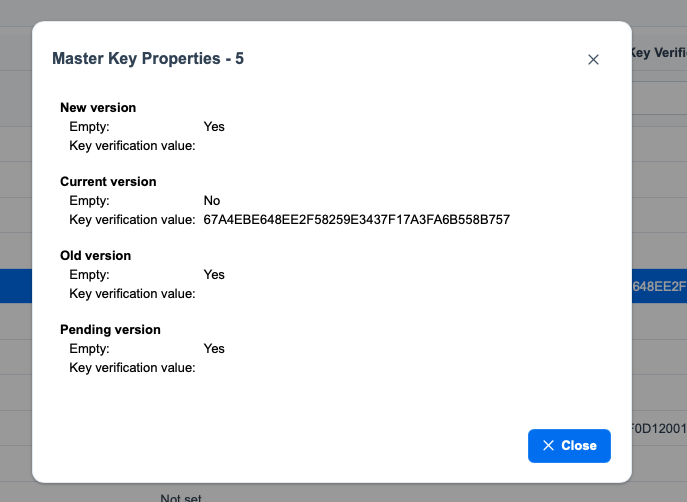
In this example, the key material in the new version of master key 5 becomes the current version of master key 5.
Replacing an existing master key
If a current master key already exists, the set operation preserves the previous value by moving it to the old version. The new version then becomes the current version.
Before setting:

After setting:
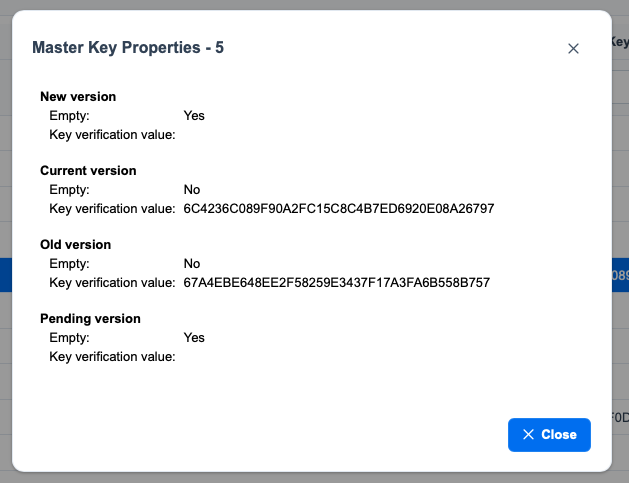
In this example, the existing current version of master key 5 is moved to the old version, and the new version becomes the current version. The old version serves as a record of the previously active master key value. To restore that value as the current master key, the master key parts must be loaded again and the master key reset.
Additional Information
As an alternative to generating master key parts in IBM Key Protect, you can use IBM i to generate and securely back up master key parts. First, create a root key in IBM Key Protect. Next, use the Generate EKM Key (GENEKMKEY) command to generate a random 256-bit AES key and wrap it with the root key. The wrapped key ciphertext is stored in an IFS stream file, allowing the master key part to be securely backed up and later restored. The stream file can be specified when loading a master key part by using the Add Master Key Part (ADDMSTPART) command or the Manage Master Keys interface in IBM Navigator for i.
Example of GENEKMKEY command:
GENEKMKEY EKMD('/home/user/ekmd') EKMPWD() ROOT('My-AES-Root-Key') STMF('/home/user/wrapped-part-for-MK5')
Loading a wrapped key part in Navigator for i:

Document Location
Worldwide
Was this topic helpful?
Document Information
Modified date:
09 September 2026
UID
ibm17282538