News
Abstract
IBM MaaS360 introduces an enhanced Account Management feature that increases usability, search efficiency, boosts performance, and offers a more intuitive interface for users.
Content
The new Accounts page provides a structured and intuitive interface to manage accounts. It includes enhanced search capabilities, a dedicated filter panel, and summary indicators that help you quickly understand the account status and activity. These features enable you to locate accounts efficiently and gain clearer insights into account information.
The modernized Accounts page is available to partners with the new enhanced UI experience. To access the enhanced Account Management UI, contact IBM support to enable the customer property in the IBM MaaS360 Portal.
Roll-out plan for the next phase
The rollout for existing partners will occur in phases from May through July 2026.
Current Accounts page

New Accounts page

Feature comparison between current and new Accounts page
The following table shows which features are available in each page. For more information on the Accounts page, see Account Management for Partners.
| Feature | Current page | New page |
|---|---|---|
| Tab navigation |
All information is displayed in a single layout. Account details was viewed using View link. For Customer and Trial accounts 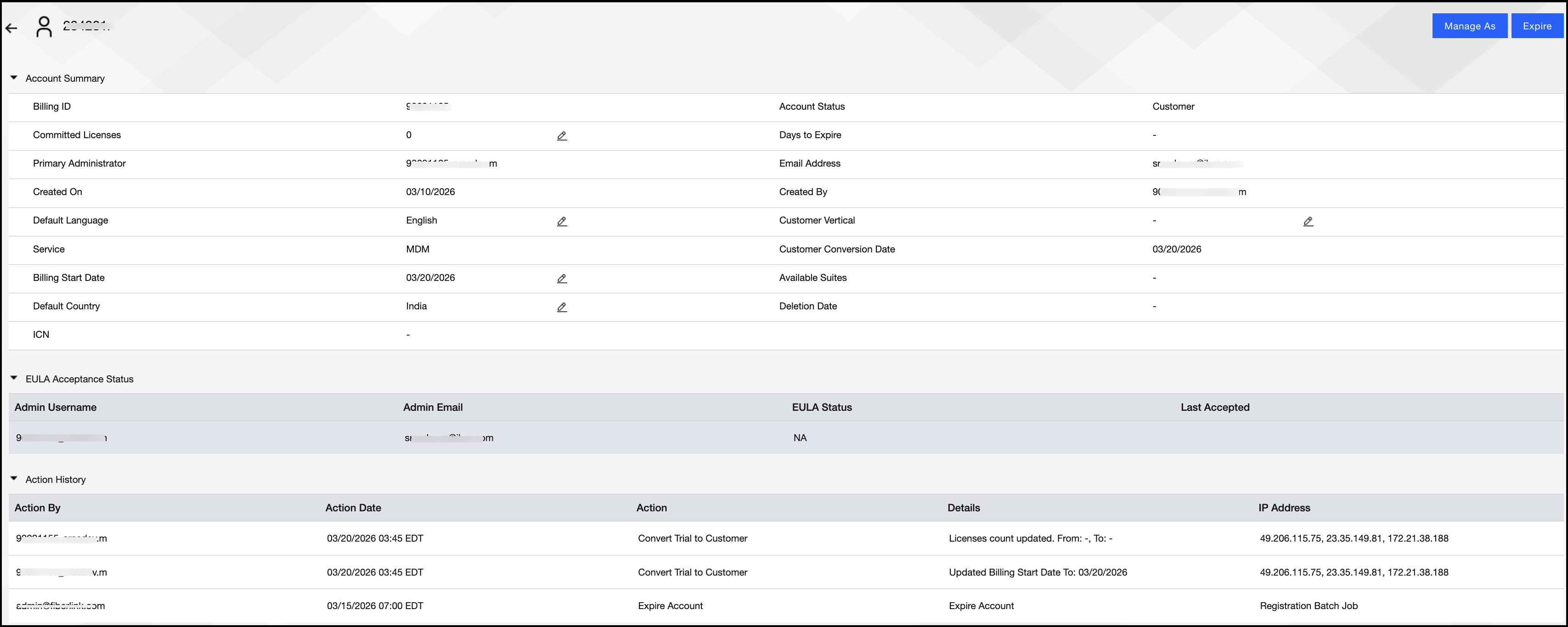 For Partner accounts 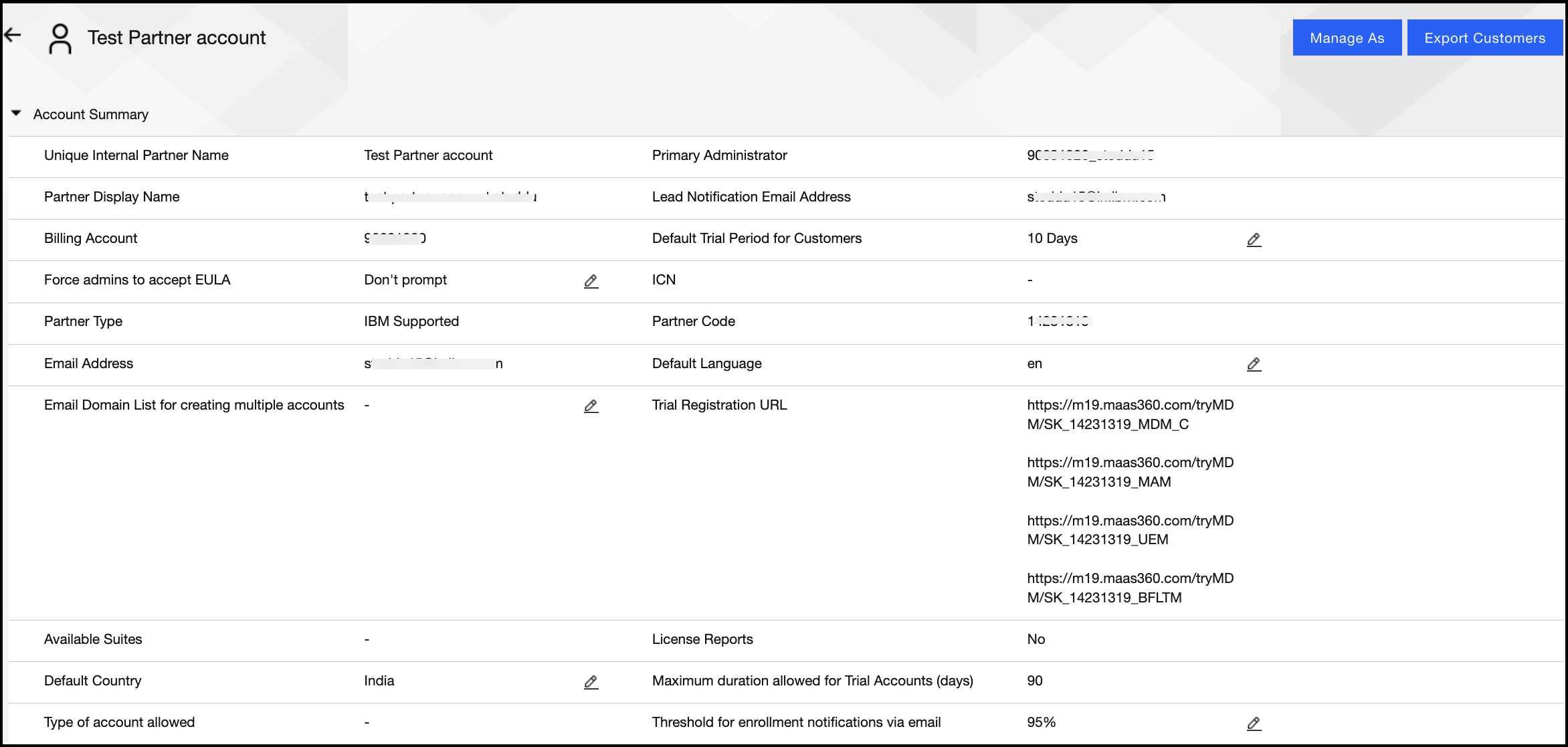 | Account information is organized into tabs such as Accounts and Account details. The same account details can be viewed as separate sections by switching the tabs. Click the account name link and use tabs to view the details. For more details, see Viewing the account details. For Customer and Trial accounts  For Partner accounts  |
| Overview section with account statistics |
The page did not provide a summary view of account statistics. |
An Overview section displays metrics such as total accounts, customers, partners, and trials. 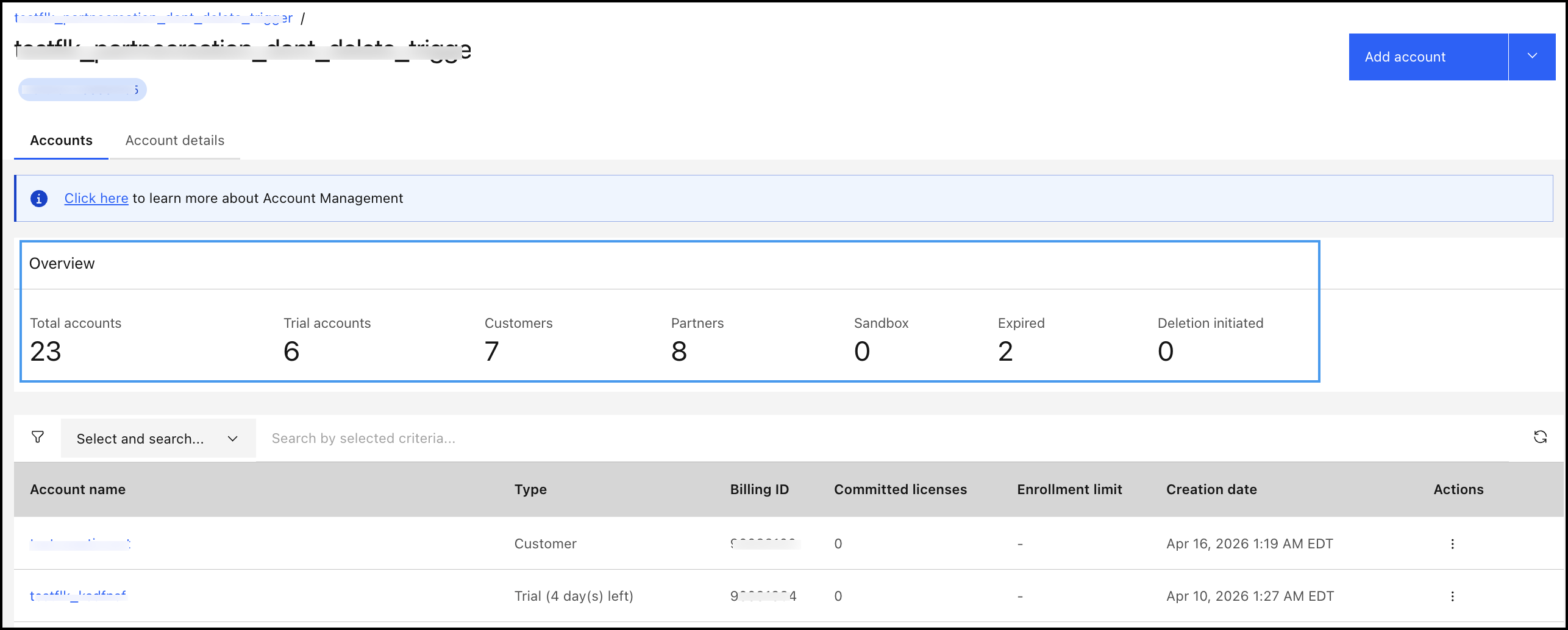
|
| Centralized search bar |
Users were entering search values in individual column fields to filter account data. 
|
Use the centralized search bar at the beginning of the page to quickly find accounts by account name and billing ID.  |
| Filter icon or filter panel |
The interface did not include a dedicated filter panel. |
A filter panel is available to refine accounts by criteria such as Customer or Partner.  |
| Account actions accessed through a menu |
Account actions such as View, Manage As, and Expire were displayed below the account name. 
|
Find all account actions such as View, Manage As, Expire in the Actions column on the right side of each row.  |
| Manage As option |
The Manage as option was available for individual accounts. Click Manage as for a specific account to switch context to that account. 
|
To work within a specific child account, use Manage as option to switch to the child account that you want to manage. Follow on of these methods to switch to child account using the Manage as option:
For more details on the Manage as option, see Managing the child account.  |
| Add account option |
Separate buttons are available for Add customer, Add partner, and a More menu for additional options.  |
A Add account button with a drop-down menu provides access to all account creation options in one place.  |
| Viewing child accounts (Partner hierarchy) | Child accounts can be viewed by expanding the partner row using the arrow icon located on the left side of the account name. The partner hierarchy expands directly within the same page.  |
Child accounts are viewed by clicking the partner account name, which opens the partner account view. Click the account name to navigate to child accounts. When you navigate two or more level down the hierarchy, the breadcrumb trail at the top of the page shows the current navigation path. Each level in the breadcrumb is clickable, allowing you to quickly return to the parent account. 
|
Benefits of using the Accounts page
The new Accounts page provides several improvements over the current Accounts page in terms of usability, navigation, and performance.
Improved Navigation
The new Accounts page introduces tab-based navigation (Accounts, Account details), which helps organize related information into clearly separated sections. Users can move between account information and overview details without navigating to another page.
Note: Compared to the current Accounts page, account details were previously displayed by clicking the View link.
Click the account name link to view the account details for the child accounts. The account details page provides detailed information about the account status, committed licenses, billing start date at account level and makes it easier to identify the accounts where the action is being performed.
Faster Account Search
A centralized search bar enables users to quickly locate accounts. Compared to the column-based search in the current accounts page, the new approach improves search efficiency and reduces the time that is required to find specific accounts.
Better Visibility with Overview Metrics
The new accounts page provides an Overview section that displays key account metrics such as total accounts, customers, partners, and trial accounts. Users can quickly understand the account distribution without opening individual records.
Streamlined Actions
Account actions are now consolidated into a dedicated Actions menu. In the new Accounts page, actions are moved to the far-right column under Actions column. This approach reduces visual clutter and provides a consistent way to access account operations.
Important:
- Compared to the current Accounts page, actions that were previously displayed below the account name are now consolidated into the Actions column.
Refine account results by using filters
A dedicated filter option is available to refine account listings. Click the filter icon  to select and search for an account. You can use the filter option to refine the accounts list based on specific criteria and quickly identify relevant accounts.
Was this topic helpful?
Document Information
Modified date:
21 April 2026
UID
ibm17262739