Troubleshooting
Problem
This document provides a clear sequence of steps to follow when a fatal error occurs in any of the Maximo Scheduler applications. The goal is to validate the underlying data, capture meaningful logs, and collect the correct MustGather files for Support.
Diagnosing The Problem
When a fatal error is received in Scheduler, the first recommended action is to confirm the integrity of the data on the affected Scheduler record.
Open the Scheduler Data Manager application. The Data Manager can be opened using the chevron next to the record name or by navigating to the application directly.

- Load the schedule that is generating the error.
Run the data validation process. If any errors or warnings appear, review each warning and error message.
Correct the data issues directly in the relevant applications (Work Orders, Calendars, Assets, Crafts, etc.).
Re-run Scheduler Data Manager until no validation errors remain. This step ensures that the schedule's dataset is structurally sound before deeper troubleshooting is performed.
If the fatal error continues after resolving validation issues, the next step is to collect detailed diagnostic logs.
2. Enable Debug Logging for Scheduler Components*
If the fatal error continues after resolving validation issues, the next step is to collect detailed diagnostic logs.
- Navigate to the Logging application.
- Locate the following loggers:
scheduler(root logger), and the UI Logger (lower portion of the screen under the Loggers section).scheduler.sql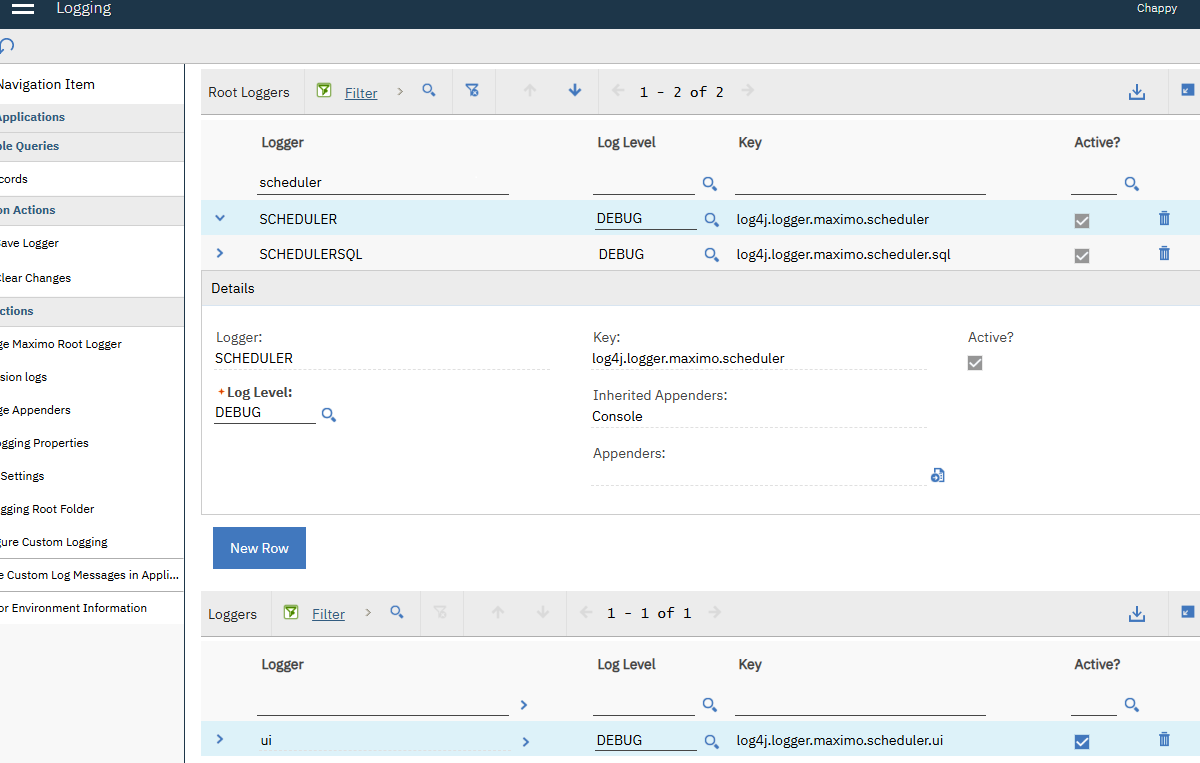
- Set all loggers to DEBUG level.
- Save the changes and apply settings.
- Reproduce the Issue**
With DEBUG logging active:
- Return to the Scheduler application.
- Reproduce the scenario that triggers the fatal error (e.g., opening a schedule, running an optimization, rescheduling tasks).
- Confirm that the error occurs again so detailed logs are captured.
4. Provide MustGather Files to Maximo Support
Once the issue has been reproduced:
Collect and provide Support with the full set of Scheduler MustGather artifacts, including:
- Screenshots of the error
- Exact schedule name, and steps to reproduce
Any integration or automation scripts involved
Document Location
Worldwide
Was this topic helpful?
Document Information
Modified date:
11 February 2026
UID
ibm17260456