Troubleshooting
Problem
Users face difficulties setting up OPC communication in KEPServer due to incorrect or incomplete configuration.
Data does not update in IBM Maximo Renewables when required services like the Cormatix Service are not running.
Tags in KEPServerEX show Bad or Zero quality because channels, devices, or tags are not configured properly.
OPC UA certificates sometimes get rejected, stopping communication between the OPC server and client.
Certificates placed in the rejected folder instead of the trusted folder prevent the OPC connection from working correctly.
OPC server licenses may be expired or invalid, leading to issues in reading or updating data.
Clear and easy troubleshooting steps are needed to help users identify and fix OPC communication problems.
Symptom
Data is not updating in IBM Maximo Renewables.
Tags in KEPServerEX display Bad or Zero quality.
OPC connections fail or cannot be established.
Error messages related to certificate rejection appear.
Data readings stop working intermittently or are inconsistent.
Channels or devices in KEPServerEX show offline or disconnected status.
Service-dependent features (like Cormatix Service) are not running or fail to start.
License errors or warnings appear in KEPServerEX preventing data access.
Cause
Incorrect or incomplete OPC channel, device, or tag configuration.
Cormatix Service not running or stopped unexpectedly.
OPC UA certificates rejected or placed in the wrong folder.
Expired or invalid OPC server licenses.
Network or connectivity issues between client and OPC server.
Security or permission settings blocking communication.
Misalignment between OPC server settings and IBM Maximo Renewables requirements.
Environment
KEPServerEX 6 installed on Windows machine.
OPC UA protocol for communication.
IBM Maximo Renewables as the client application.
Cormatix Service running for data transfer.
Valid OPC server/client licenses.
Trusted OPC UA certificates in place.
Stable network connection between server and client.
Diagnosing The Problem
Data not updating in IBM Maximo Renewables: Check if Cormatix Service is running and OPC server is connected.

Tags showing Bad or Zero quality: Verify channel, device, and tag configurations in KEPServerEX.
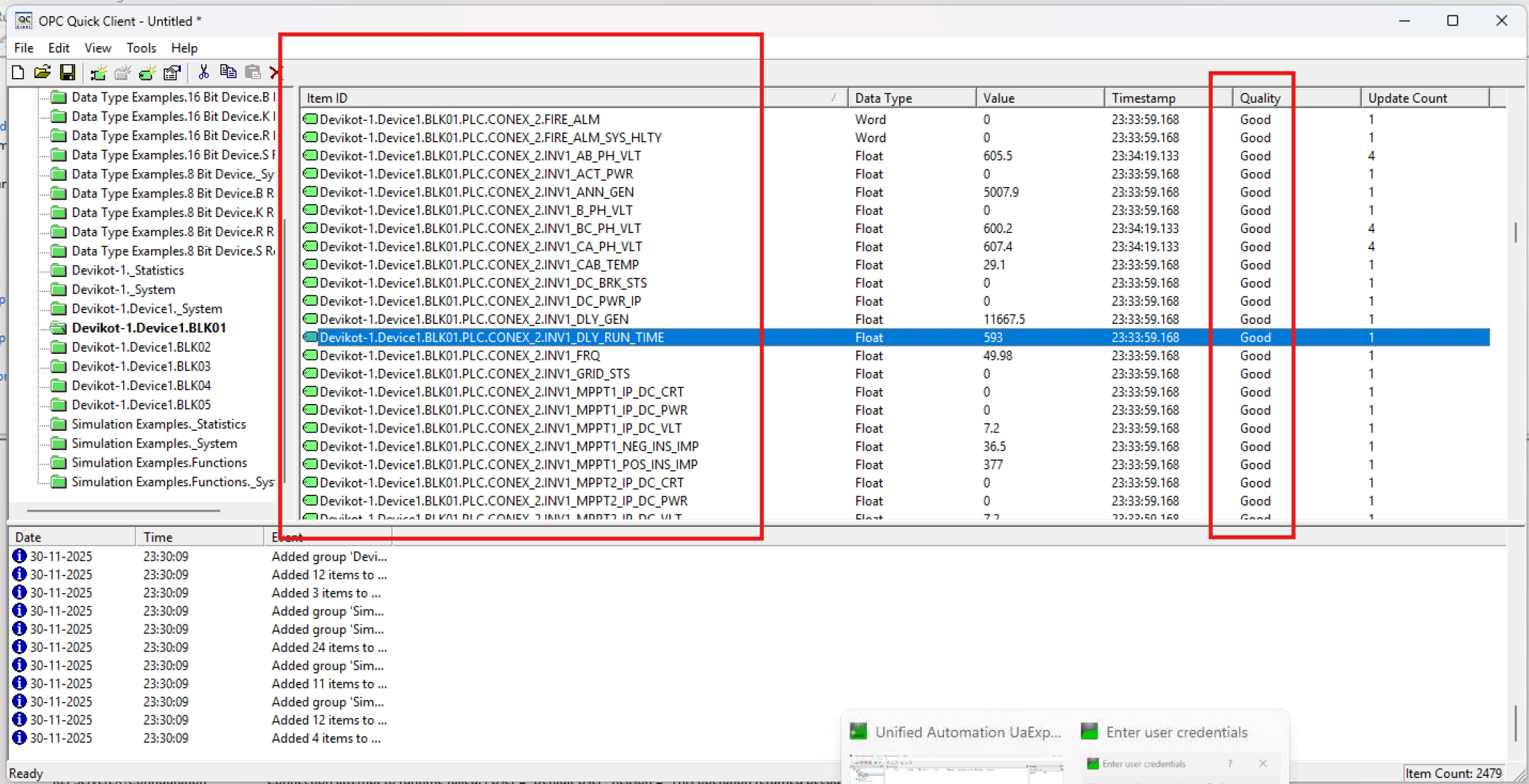
OPC connection failures: Check network connectivity, server status, and client-server communication settings.
Certificate issues: Ensure OPC UA certificates are placed in the trusted folder and not rejected.
License problems: Confirm OPC server/client licenses are valid and aligned with actual usage.
Resolving The Problem
Resolution Steps
1. Verify OPC Server Configuration
Open KEPServerEX 6 Configuration Tool. Go to Connectivity → Channels. Ensure all channels are created and configured correctly. Check Protocol (OPC UA), confirm Server Address / URL, and verify Security Settings. Open each Device and ensure proper configuration. Confirm Tags exist and are correctly mapped to data points.


2. Check Tag Quality
In KEPServerEX, open Quick Client. Select View Tag Quality to see all tags. If tags show Bad or Zero quality, double-check the device and tag configuration and verify the OPC server is online.
3. Resolve Certificate Issues
Navigate to the certificate folder: Windows: C:\ProgramData\OpenAutomationSoftware\pki\rejected\certs, Linux: <OAS Engine path>/pki/rejected/certs. Locate the rejected OPC UA server certificate and move it to the trusted folder: Windows: C:\ProgramData\OpenAutomationSoftware\pki\trusted\certs, Linux: <OAS Engine path>/pki/trusted/certs. Restart KEPServerEX and check communication with the OPC server.

4. Verify OPC Server License
Open KEPServerEX → Help → About → License Information. Check if the license is valid and covers the required duration. If expired or invalid, contact the SCADA or OPC vendor for renewal.
5. Network and Connectivity Check
Ensure the client machine and OPC server are on the same network or properly routed. Check for firewall or security rules blocking OPC UA ports (default: 4840). Test connectivity using ping or OPC UA client tools.
6. Test Data Flow
After completing the above steps, open Quick Client → View Tag Quality. Confirm all tags show Good Quality and verify data updates correctly in IBM Maximo Renewables.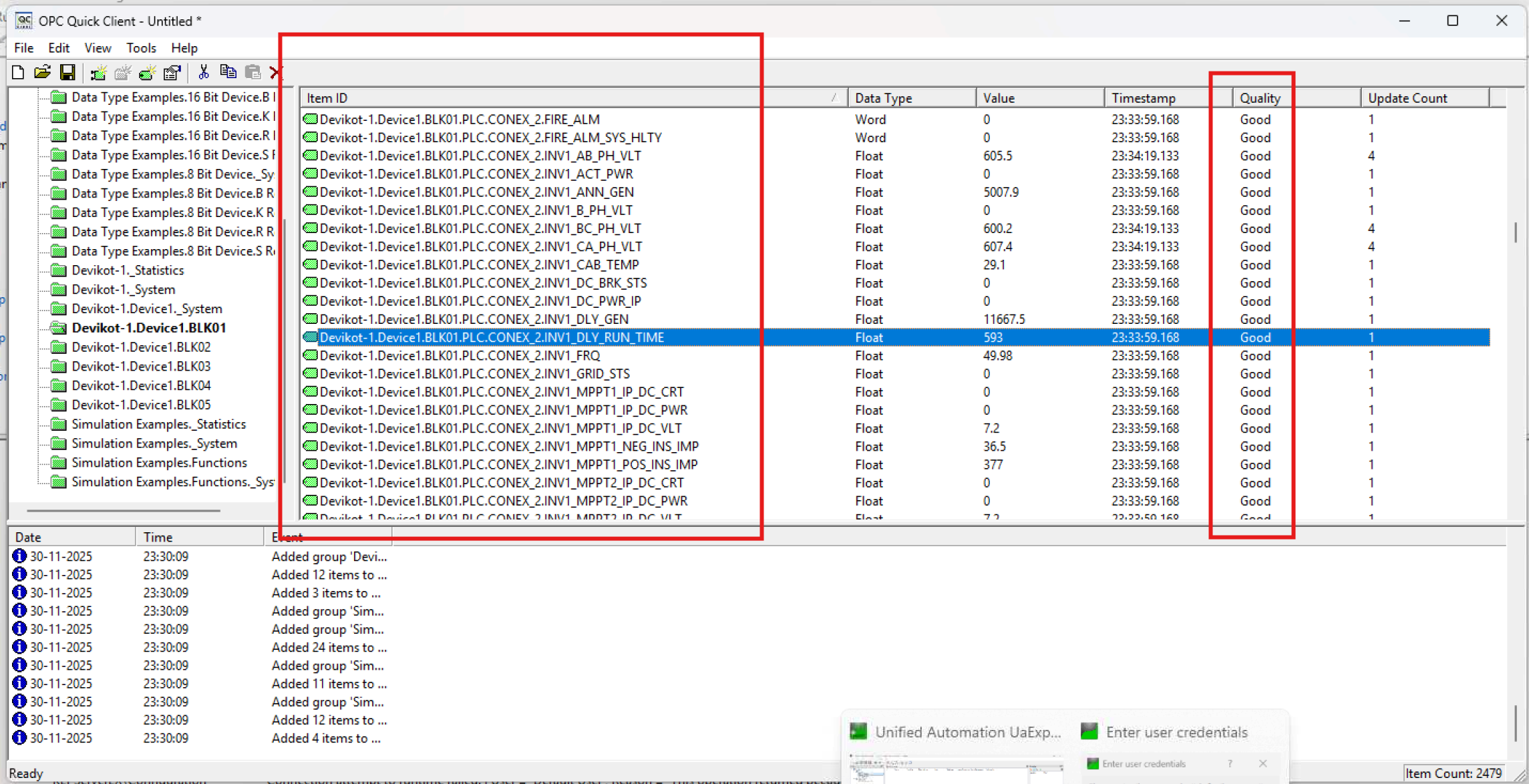
7. Contact Vendor if Issue Persists
If issues continue, collect logs from KEPServerEX, provide certificate, license, and network information, and contact the SCADA/OPC vendor for support.
Document Location
Worldwide
Product Synonym
Prescinto, IBM Maximo Renewables
Was this topic helpful?
Document Information
Modified date:
26 February 2026
UID
ibm17252987