How To
Summary
We will use Android shared device feature to change the owner.
Environment
Android device with or without COSU enabled
Steps
First of all:
Set the device ownership to be Corporate Shared from the device summary page.

If the device is not in kiosk mode:
1. Go to the device > MaaS360 > Settings > tap on top right 3 dots > Sign out
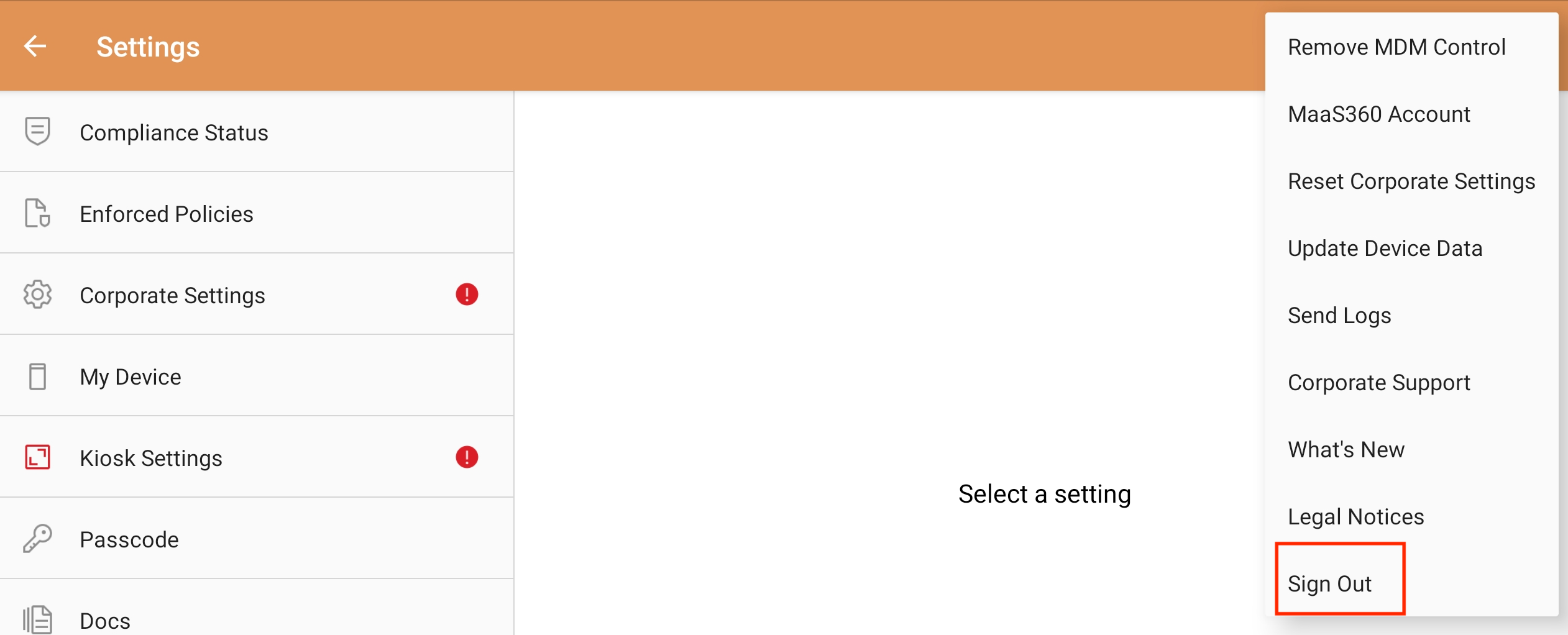
Once the user signs out, the device view in the portal will be updated with the current username removed.
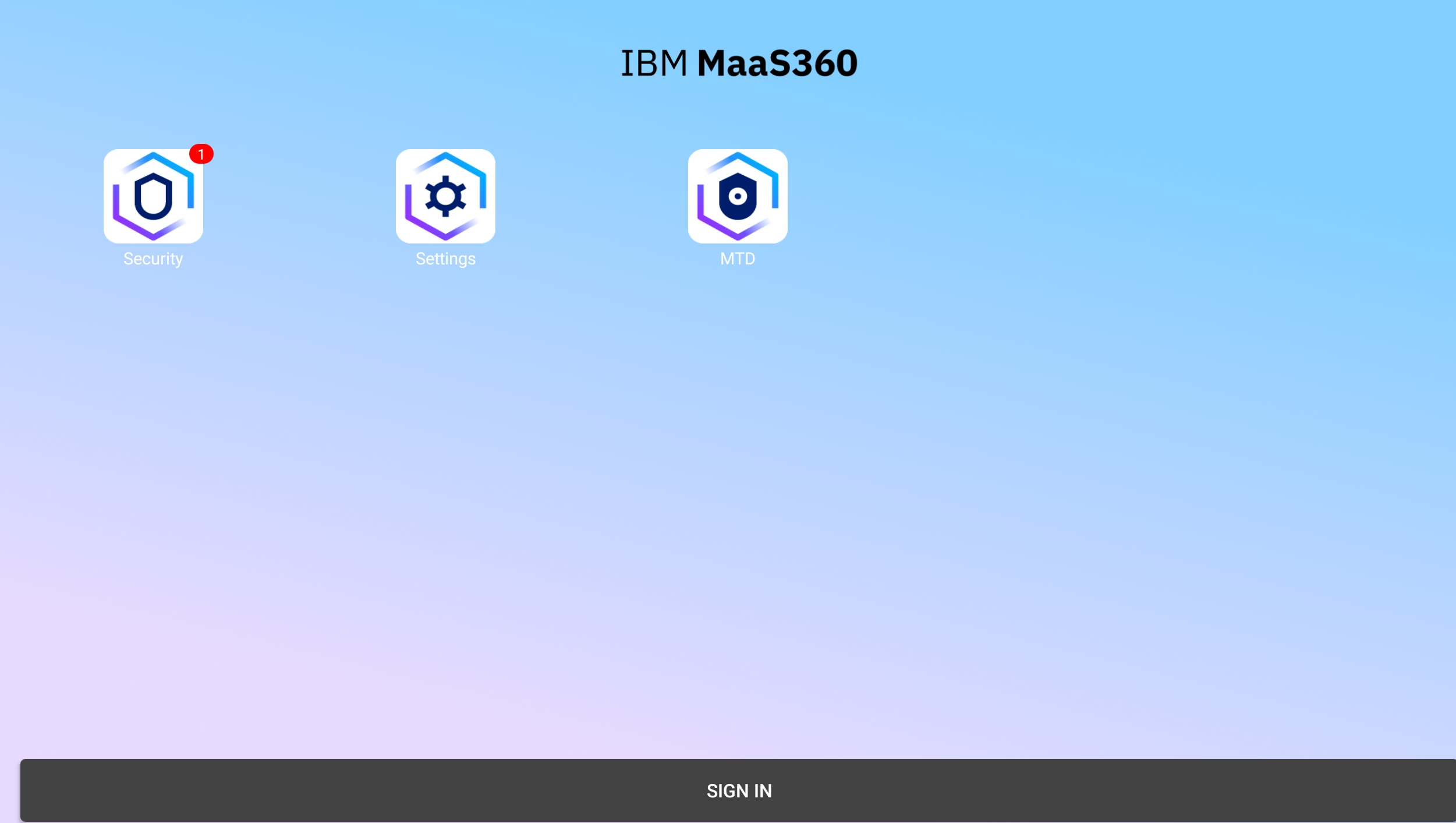
2. Then tap on Sign in on the device to have another user signed in. After that, the device view in the portal will be updated with this new username.
If the device is in kiosk mode:
There is no need to exit the kiosk mode.
1. A policy setting needs to be enabled:
“Show Sign In and Sign Out options for shared devices”
This setting is under Android MDM policy > Android Enterprise Settings > COSU (Kiosk mode) > COSU (Kiosk mode).

2. On the device when it's in kiosk mode, tap on the top right gear icon, select "Sign Out".

Additional Information
For apps behaviour on sign-out from shared devices, please refer to the below TechNote:
https://www.ibm.com/support/pages/node/7169566
Document Location
Worldwide
Was this topic helpful?
Document Information
Modified date:
25 November 2025
UID
ibm17252508