How To
Summary
To improve the user experience, IBM® MaaS360® redesigns the Kiosk Policy framework. A visual interface is introduced that enables administrators to configure and preview the Kiosk Mode more accurately than ever.
The enhanced Kiosk Policy redefines how organizations design, configure, and manage dedicated device experiences. With its interactive designer view, structured settings, and real-time preview capabilities, it transforms a complex, reactive process into a streamlined, proactive, and engaging workflow. Whether deploying thousands of field devices or configuring a single kiosk for the first time, this update empowers administrators to create consistent, branded, and simple interfaces, all from one unified console. The result is a more intuitive configuration process, faster rollouts, and a seamless experience that benefits both IT teams and users alike.
Objective
Efficiency, Accuracy, and Experience
The revamped Kiosk Policy is not only about looks but it also enhances productivity and user experience.
- Faster Configuration - The clear tab layout and real-time preview help admins to reduce the time that is required to create and validate policies.
- Reduced Errors - With immediate visual feedback, administrators can spot and fix design or configuration errors before deployment.
- Consistent Experience - Uniform branding, layout, and configuration provide users with the same polished interface across all devices.
- Simplified Management - Organizing parameters into logical groups makes it simpler to revisit and change configurations as needs shift.
For large enterprises with frequent Kiosk updates across various locations, this update means shorter testing cycles and improved consistency. For smaller organizations or new customers, the intuitive structure reduces confusion and minimizes errors, leading to a smoother onboarding process.
Bridging the gap between Design and Deployment
The new Kiosk Policy seamlessly unifies design, configuration, and validation into a single, cohesive workflow effectively closing the gap between policy creation and real-world deployment. With this improvement, IT administrators can now do the following actions.
- Configure with confidence! - Guided settings and intuitive organization simplify every step of policy creation.
- Visualize instantly! - Preview the complete Kiosk experience in real time, without relying on test hardware.
- Deliver faster! - Build and deploy a polished, brand-aligned Kiosk environment in a fraction of the time.
This advancement not only streamlines the configuration process but also establishes a foundation for more intelligent, adaptive, and user-centric policy management in the future.
New Features
- Designer - The Designer offers a dynamic, real-time preview of the Kiosk home screen precisely mirroring how it appears on the actual device. As administrators make configuration changes, the interface updates instantly, enabling them to visualize the layout, validate functions, and fine-tune the experience before deployment.
- Designer tab > Add Apps - In the Preview section, the admin can select the required apps and add them to the device's home screen. This is a faster intuitive way to select the allowed apps in Kiosk mode.
- Logo - In the logo section, the admin can display the default logo or set a customized logo on the device home screen. The new capabilities are listed as follows.
- Ability to resize the Logo.
- Ability to add a new customized Logo.
- Ability to hide the Logo.
- App name text color - The admin can set the color of the app icon labels, apps or widget tab names, and the device name in the Additional Settings tab.
- Ability to drag and drop applications within the IBM MaaS360 Portal just like one can do in any device launcher. Ability to add any app (including System and MaaS360 apps) to folders.
For more information, see Kiosk Experience Designer.
Roll Out Plan for the Kiosk Designer feature
- The feature is enabled for customers who are created after 21 November 2025.
- For existing customers and customers created before 21 November 2025, the Kiosk Designer feature roll out starts from mid-January 2026, and it will be completed by the end of February 2026.
- The removal of the old UI code will be completed by end of March or early April 2026.
Steps
To begin configuring Kiosk mode, administrators can go to the Android MDM Policy within the IBM® MaaS360® Portal. Under Android Enterprise Settings, select Kiosk Experience Designer.
An intuitive interface is displayed that separates essential configurations into Enablement, Basic, and Advanced, along with a visual design preview - Designer tab that enables real-time validation of changes.
Enablement
The Enablement tab enables administrators to configure and set up devices in either Single app mode or Multiple apps mode directly. This flexibility helps organizations customize the device experience based on their needs.
Single app mode
This mode is for focused devices like check-in kiosks or data terminals. Administrators can select a single application to auto-launch when Kiosk mode is enabled, while the app is installed on the device.
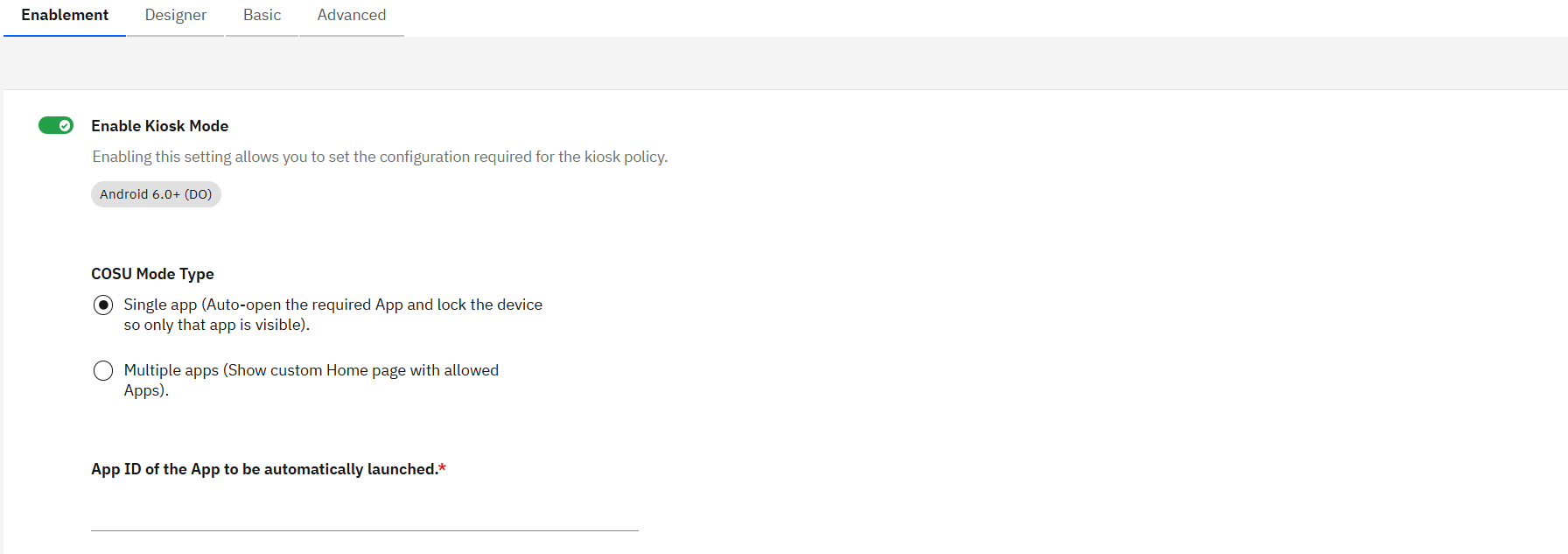
Multiple apps mode
This mode is for cases where the users need access to multiple approved apps. It creates a controlled environment and maintains the level of security and restrictions.

The new Kiosk Policy interface uses clearly defined sections to guide administrators through each stage of configuration without overwhelming them. The configurations section is split into three main categories: Basic, Designer, and Advanced. This setup ensures that the essential configurations are simpler to find, while advanced options are available for administrators who need more control.
Designer
A key feature of the new Kiosk Policy experience is the Designer tab, a visually rich, interactive canvas that brings your configuration to life. In the past, configuring a Kiosk policy meant that administrators had to imagine how changes might look on a device, deploy them to a test device, and verify results. This trial-and-error process leads to inefficiencies and longer testing times. With the introduction of the Designer tab, those challenges are outdated.

Key Functions in the Designer tab
- Multi-App Configuration - Select and arrange multiple apps for the Kiosk home screen.
- Wallpaper selection - Choose and apply backgrounds for a cohesive and visually appealing interface.
- Resize controls - This option enables the administrator to control the app size to be displayed on the preview screen.
- Custom Logos - Upload a company logo, adjust its size, position, ability to hide or show the Logo, and make sure that the Kiosk reflects your organization’s identity.
- Text and Color customization - Change app text colors to align with branding or enhance readability.
- Allow Apps from Catalog - Enables administrators to include and manage applications directly from the IBM® MaaS360® App Catalog, making it simpler to deploy approved apps within the Kiosk environment.
- Widgets - This option enables the Widget tab for the user to add useful tools like clocks, weather updates, or company-specific apps to improve Kiosk experience on the device.
- Allow User to Rearrange Icons - This option enables users to organize app icons on the home screen based on their preferences.
- Allow Auto-Rotate - This option enables the device to automatically adjust screen orientation for a smoother user experience.
- App Badges - This option enables notification badges on app icons, helping users stay informed of important updates.
- System Bar - This option provides visibility to the standard Android system bar for direct navigation when required.
- Custom System Bar - This option offers flexibility to design or limit system bar features, balancing usability with security needs.

The Preview section empowers administrators to easily organize apps through a simple drag-and-drop interface. Users can group apps into a single folder or create multiple folders based on usage, much like the familiar android experience. This flexibility helps design a clean, intuitive layout that aligns with how users interact with their devices.
Every change in the Designer view offers an immediate preview to make sure that the design appears exactly as intended by the administrators.
In the Designer Preview screen, administrators can seamlessly switch between different device views from mobile to tablet, or even to a 10-inch tablet, making sure that the configurations are optimized for various screen sizes. Also, the Designer Preview screen supports orientation changes between Portrait and Landscape modes, along with a customizable zoom level (%), allowing administrators to fine-tune and visualize their Kiosk layout with precision before deployment.
Basic
The Basic tab provides administrators with quick access to the most frequently used configuration options. It is organized into four intuitive sections for simple navigation and setup as follows.
- Apps
- User Permissions
- Visual Preferences
- General Settings
For more information, see Kiosk Experience Designer - Basic.
Advanced
For organizations that aim to unlock the full potential of their Kiosk setup, the Advanced tab delivers powerful customization and control options as follows.
- Manufacturer Settings
- Custom Launch Options
- Additional Attributes
For more information, see Kiosk Experience Designer - Advanced.
This level of control enables administrators to create a truly tailored Kiosk experience, one that aligns seamlessly with enterprise goals and diverse device environments. The clear separation between Basic and Advanced settings helps ensure a focused, intuitive configuration process, allowing administrators to manage essential and complex options with equal ease.
New Kiosk Launcher behavior
With the policy allow users to rearrange icons - end users get the capability to drag and drop apps on the device launcher based on their preference.
Launcher rules
- The user-modified app icon positions are preserved. User-modified positions take precedence over admin defined positions.
- If the user has not moved apps, the policy-defined ordering is applied.
- For newly installed apps, the policy position is followed if untouched by the user.
- Else, the first available empty slot is filled.
- Uninstalled apps do not leave gaps and the icons shift appropriately.
- Admin folder changes apply correctly without leaving gaps.
Folder rules
- If the user has not changed the ordering, the folder follows the policy's order.
- If the user has changed the ordering, their layout is preserved.
- New apps from the policy are appended to the end.
- Removing an app shifts the remaining items to fill the gap.
- The user-added apps remain in their chosen positions.
- The user-removed apps stay removed.
Policy Settings in the Kiosk Experience Designer
The following table is helpful to existing administrators to understand which parameter has moved into which section in the new interface.
| Old location | Policy parameter | New location |
|---|---|---|
| COSU (Kiosk mode) > COSU (Kiosk mode) | Enable Kiosk Mode | Kiosk Experience Designer > Enablement tab |
| COSU (Kiosk mode) > COSU (Kiosk mode) | COSU Mode Type | Kiosk Experience Designer > Enablement tab |
| COSU (Kiosk mode) > COSU (Kiosk mode) | Set device to Kiosk mode | Kiosk Experience Designer > Enablement tab |
| COSU (Kiosk mode) > COSU (Kiosk mode) | App ID of the App to be automatically launched. | Kiosk Experience Designer > Enablement tab |
| New parameter | Resize Controls | Kiosk Experience Designer > Multiple apps mode > Designer tab. |
| COSU (Kiosk mode) > Kiosk Launcher Settings | App icon size (px) | Kiosk Experience Designer > Multiple apps mode > Designer tab > Resize Controls |
| COSU (Kiosk mode) > Kiosk Launcher Settings | App name font size | Kiosk Experience Designer > Multiple apps mode > Designer tab > Resize Controls |
| New parameter | App name text color | Kiosk Experience Designer > Multiple apps mode > Designer tab |
| COSU (Kiosk mode) > Kiosk Launcher Settings | Allow users to change Wallpaper | Kiosk Experience Designer > Multiple apps mode > Designer tab |
| COSU (Kiosk mode) > Kiosk Launcher Settings | Logo | Kiosk Experience Designer > Multiple apps mode > Designer tab |
| COSU (Kiosk mode) > Kiosk Launcher Settings | Size | Kiosk Experience Designer > Multiple apps mode > Designer tab > Logo |
| COSU (Kiosk mode) > Kiosk Launcher Settings | Logo image | Kiosk Experience Designer > Multiple apps mode > Designer tab > Logo |
| COSU (Kiosk mode) > COSU (Kiosk mode) | Allow all apps from app catalog | Kiosk Experience Designer > Multiple apps mode > Designer tab |
| COSU (Kiosk mode) > Kiosk Launcher Settings | Allow users to rearrange icons | Kiosk Experience Designer > Multiple apps mode > Designer tab |
| COSU (Kiosk mode) > Kiosk Launcher Settings | Disable Auto Rotate | Kiosk Experience Designer > Multiple apps mode > Designer tab |
| COSU (Kiosk mode) > Kiosk Launcher Settings | Portrait Mode Earlier used to be called "Screen orientation in Portrait Mode" | Kiosk Experience Designer > Multiple apps mode > Designer tab > Disable Auto Rotate |
| COSU (Kiosk mode) > COSU (Kiosk mode) | Show App Badges | Kiosk Experience Designer > Multiple apps mode > Designer tab |
| COSU (Kiosk mode) > COSU (Kiosk mode) | Widgets | Kiosk Experience Designer > Multiple apps mode > Designer tab |
| COSU (Kiosk mode) > Kiosk Launcher Settings | Show Custom Status Bar | Kiosk Experience Designer > Multiple apps mode > Designer tab |
| COSU (Kiosk mode) > COSU (Kiosk mode) | Hide System Bar | Kiosk Experience Designer > Multiple apps mode > Designer tab |
| COSU (Kiosk mode) > COSU (Kiosk mode) | Hide Navigation Bar | Kiosk Experience Designer > Multiple apps mode > Designer tab |
| COSU (Kiosk mode) > Kiosk Launcher Settings | Add apps (+ icon) > Catalog | Kiosk Experience Designer > Multiple apps mode > Designer tab > Preview screen > + icon |
| COSU (Kiosk mode) > Kiosk Launcher Settings | Add apps (+ icon) > System apps Earlier used to be called "System Apps to be allowed" | Kiosk Experience Designer > Multiple apps mode > Designer tab > Preview screen > + icon |
| COSU (Kiosk mode) > Kiosk Launcher Settings | Add apps (+ icon) > MaaS360 apps Earlier used to be called "Allowed MaaS360 apps" | Kiosk Experience Designer > Multiple apps mode > Designer tab > Preview screen > + icon |
| COSU (Kiosk mode) > Kiosk Launcher Settings | Add apps (+ icon) > Other apps | Kiosk Experience Designer > Multiple apps mode > Designer tab > Preview screen > + icon |
| COSU (Kiosk mode) > Kiosk Launcher Settings | Add apps (+ icon) > Organize > Folder Name | Kiosk Experience Designer > Multiple apps mode > Designer tab > Preview screen > + icon |
| COSU (Kiosk mode) > COSU (Kiosk mode) | Hide System Bar | Kiosk Experience Designer > Single app mode > Designer tab |
| COSU (Kiosk mode) > COSU (Kiosk mode) | Hide Navigation Bar | Kiosk Experience Designer > Single app mode > Designer tab |
| COSU (Kiosk mode) > Kiosk Device Settings | Show custom Bluetooth settings | Kiosk Experience Designer > Single app mode > Designer tab Kiosk Experience Designer > Multiple apps mode > Designer tab > Add Apps > MaaS360 Apps |
| COSU (Kiosk mode) > Kiosk Device Settings | Show custom Wifi settings | Kiosk Experience Designer > Single app mode > Designer tab Kiosk Experience Designer > Multiple apps mode > Designer tab > Add Apps > MaaS360 Apps |
| COSU (Kiosk mode) > COSU (Kiosk mode) | Apps to be allowed to run in the background | Kiosk Experience Designer > Basic tab > Apps |
| COSU (Kiosk mode) > COSU (Kiosk mode) | Allow users to set screen brightness | Kiosk Experience Designer > Basic tab > User Permissions |
| COSU (Kiosk mode) > COSU (Kiosk mode) | Keep device on when plugged in | Kiosk Experience Designer > Basic tab > Visual Preferences |
| COSU (Kiosk mode) > COSU (Kiosk mode) | Hide system UI | Kiosk Experience Designer > Basic tab > Visual Preferences |
| COSU (Kiosk mode) > COSU (Kiosk mode) | Hide system popups | Kiosk Experience Designer > Basic tab > Visual Preferences |
| COSU (Kiosk mode) > COSU (Kiosk mode) | Hide Keyguard | Kiosk Experience Designer > Basic tab > Visual Preferences |
| COSU (Kiosk mode) > COSU (Kiosk mode) | Hide home button | Kiosk Experience Designer > Basic tab > Visual Preferences |
| COSU (Kiosk mode) > COSU (Kiosk mode) | Hide notifications | Kiosk Experience Designer > Basic tab > Visual Preferences |
| COSU (Kiosk mode) > Kiosk Launcher Settings | Show Sign In and Sign Out options for shared devices | Kiosk Experience Designer > Basic tab > Visual Preferences |
| COSU (Kiosk mode) > COSU (Kiosk mode) | Auto update kiosk app only when kiosk mode is exited | Kiosk Experience Designer > Basic tab > General Settings |
| COSU (Kiosk mode) > COSU (Kiosk mode) | Auto update kiosk app without exiting kiosk mode | Kiosk Experience Designer > Basic tab > General Settings |
| COSU (Kiosk mode) > COSU (Kiosk mode) | Show introductory hints on first app launch Earlier used to be called "Allow Introductory Hints on first app launch" | Kiosk Experience Designer > Basic tab > General Settings |
| COSU (Kiosk mode) > COSU (Kiosk mode) | Admin bypass for kiosk mode | Kiosk Experience Designer > Basic tab > General Settings |
| COSU (Kiosk mode) > COSU (Kiosk mode) | Admin-defined Passcode | Kiosk Experience Designer > Basic tab > General Settings > Admin bypass for kiosk mode |
| COSU (Kiosk mode) > COSU (Kiosk mode) | Enable dynamic passcode generation | Kiosk Experience Designer > Basic tab > General Settings > Admin bypass for kiosk mode > Admin-defined Passcode |
| COSU (Kiosk mode) > COSU (Kiosk mode) | Block hardware keys | Kiosk Experience Designer > Basic tab > General Settings |
| COSU (Kiosk mode) > Kiosk Device Settings | Show settings provided by device manufacturers | Kiosk Experience Designer > Advanced tab > Manufacturer Settings |
| COSU (Kiosk mode) > Kiosk Device Settings | Accessibility settings | Kiosk Experience Designer > Advanced tab > Manufacturer Settings > Show settings provided by device manufacturers |
| COSU (Kiosk mode) > Kiosk Device Settings | Biometrics and passcode settings | Kiosk Experience Designer > Advanced tab > Manufacturer Settings > Show settings provided by device manufacturers |
| COSU (Kiosk mode) > Kiosk Device Settings | Bluetooth settings | Kiosk Experience Designer > Advanced tab > Manufacturer Settings > Show settings provided by device manufacturers |
| COSU (Kiosk mode) > Kiosk Device Settings | Location settings | Kiosk Experience Designer > Advanced tab > Manufacturer Settings > Show settings provided by device manufacturers |
| COSU (Kiosk mode) > Kiosk Device Settings | NFC settings | Kiosk Experience Designer > Advanced tab > Manufacturer Settings > Show settings provided by device manufacturers |
| COSU (Kiosk mode) > Kiosk Device Settings | Add custom launch item | Kiosk Experience Designer > Advanced tab > Custom Launch |
| COSU (Kiosk mode) > Kiosk Device Settings | Location on device | Kiosk Experience Designer > Advanced tab > Custom Launch > Add custom launch item |
| COSU (Kiosk mode) > Kiosk Device Settings | Name | Kiosk Experience Designer > Advanced tab > Custom Launch > Add custom launch item |
| COSU (Kiosk mode) > Kiosk Device Settings | Description (optional) | Kiosk Experience Designer > Advanced tab > Custom Launch > Add custom launch item |
| COSU (Kiosk mode) > Kiosk Device Settings | Custom intent Earlier it was called "Add custom launch item" | Kiosk Experience Designer > Advanced tab > Custom Launch > Add custom launch item |
| COSU (Kiosk mode) > Kiosk Additional Settings | Kiosk additional attributes | Kiosk Experience Designer > Advanced tab > Additional attributes |
Document Location
Worldwide
Was this topic helpful?
Document Information
Modified date:
26 March 2026
UID
ibm17249647