News
Abstract
IBM MaaS360 announces the upcoming release of the new Managed Google Play Store Layout Designer in December 2023. This feature helps you remotely arrange and organize how apps appear in the managed Google Play Store on Android devices.
Google Play Developer API for creating store layout clusters is deprecated and will be turned off on December 31, 2023. MaaS360 migrated to the new Layout Designer, which offers two modes: Basic and Advanced. For new customers, Basic mode is enabled by default, while existing customers have Advanced mode enabled by default.
Content
The new Managed Google Play Store Layout Designer feature gives more control over the layout and design of managed Google Play Store, allowing creation of a more personalized and engaging experience for users.
To access the Store Layout Designer, go to Apps > Catalog > App Catalog page > More > Managed Google Play Store Layout Designer.
Requirements:
- Android Enterprise must be enabled in the MaaS360 Portal with a managed Google Play account or Google Workspace account.
MaaS360 supports two modes for the Store Layout Designer:
- Basic mode
- Advanced mode
Basic mode
The Basic mode is enabled by default and is the simplest way to customize the store layout. It displays all apps distributed by administrators on a single page. The Basic mode is a good option for customers with few apps or for customers that do not want to spend time customizing the store layout.
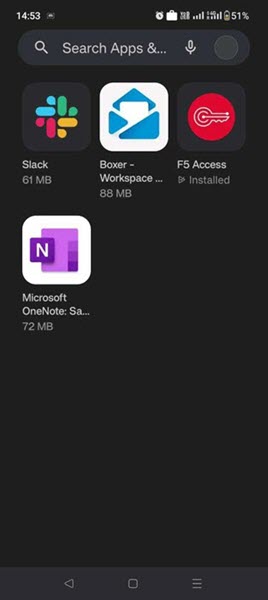
Advanced mode
The Advanced mode gives more control over the store layout. Customers can create a collection of related apps and display those collections to users in the managed Google Play app. Collections allow administrators to group related apps. For example, a page can be created for work-related apps that contains an Essentials cluster and a Communications cluster. The Essentials collection could contain apps such as Notepad+, Google Slides, etc. The Communications collection could include apps like Slack, Outlook, and Webex.
There is the ability to also add or remove apps from collections, and even switch to the Basic mode at any time. The Advanced mode is a good option for customers that have many apps or if you want to organize apps by category. It is also a good option to highlight important apps on the home page of the managed Google Play app.

Important:
- The apps that are not added to a collection are not displayed to the end-users in the managed Google Play app.
- To avoid the additional step of adding apps to a collection, switch to the Basic mode.
- The customers who switch to the Basic mode lose their collection configuration and the apps that were added to those collections.
Detailed comparison of the Basic and Advanced modes of the Store Layout Designer:
| Feature | Basic mode | Advanced mode |
|---|---|---|
| Layout | Pre-defined layout with limited customization options | Full control over layout and design |
| Number of clusters | 1 | Up to 30 clusters per page, up to 100 pages |
| Number of apps | Up to 1000 | Up to 100 apps per collection |
| Apps displayed | All apps distributed by administrators | Apps that are manually added to clusters |
Understanding the behavior of collections in the Google iframe
- By default, the Google iframe displays the My Work App collection in the Basic mode. In Basic mode, you cannot add custom collections or apps. However, you can rename the default collection or add apps to it. If you do either of these things, the iframe will automatically switch to the Advanced mode.
- In Advanced mode, you can add, remove, and rearrange custom collections and apps. You can also switch back to Basic mode, but this will remove all of your custom collections and apps. Any private apps or web apps that you added to other collections will still be displayed in the My Work App collection.
- Before you can add an app to a collection, it must be distributed to the device. Once an app is distributed, it may take up to 2 minutes for it to appear in the managed Google Play Store. If you don't see the app in the Play Store, you can manually clear the cache of the managed Google Play Store app from the device settings.
To clear the managed Google Play app cache:
- Open device Settings.
- Tap Apps and notifications.
- Tap Work.
- Tap the Google Play app.
- Tap clear cache.
Switching modes
Follow these steps to switch modes
- From the MaaS360 Portal Home page, navigate to Apps > Catalog. The App Catalog page is displayed.
- Click More > Managed Google Play Store Layout Designer. The Managed Google Play Store Layout Designer page is displayed.
- Click Change Mode. The Change Mode window is displayed. Note: The Change Mode button is displayed only in Advanced mode. If you are in Basic mode, modifying the default My Work App collection or adding new collections will automatically switch you to Advanced mode.
- Click Confirm.
Creating collections
Important: In Advanced mode, apps you add and distribute to devices must be manually added to a collection. Otherwise, they won't be displayed in the managed Google Play app.
Follow these steps to create new collections
- From the MaaS360 Portal Home page, navigate to Apps > Catalog. The App Catalog page is displayed.
- Click More > Managed Google Play Store Layout Designer. The Managed Google Play Store Layout Designer page is displayed.
- Click Create a collection in the Google Play iframe.
- Give your collection a name and click Next.
- Search for the apps that you want to add to your collection.
- Click Add apps.
Availability of Store Layout for existing vs new customers
New customers: New customers have the Basic mode enabled by default. They can switch to the Advanced mode at any time.
Existing customers: Existing customers have the Advanced mode enabled by default. The customers who are currently using the Popular and New and Updated clusters continue to see those collections in the Managed Google Play Store Layout Designer and the Managed App Catalog app. Administrators can edit the cluster name, add new clusters, add or remove apps from clusters, or even switch to the Basic mode at any time.

Was this topic helpful?
Document Information
Modified date:
14 November 2023
UID
ibm17069066