Troubleshooting
Problem
This document provides information on setting up an HP LaserJet printer to bypass the Manual Feed Tray, which is also know as the MP Feeder, the Multi-Purpose Tray, and Tray 1.
Resolving The Problem
This document provides information on setting up an HP LaserJet printer to attempt to bypass the Manual Feed Tray, which is also know as the MP Feeder, the Multi-Purpose Tray, the Auxiliary Tray, the Bypass Tray, and Tray 1. There is also information on setting up AUTO CONTINUE, which sets up the printer so it will automatically switch to another paper tray when the current tray is empty.
Note: This works for many HP LaserJet printers; however, not all have the Settings tab when browsing in it. If these instructions do not resolve the issue, you may need to contact the printer manufacturer or your third-party vendor for assistance with your printer hardware.
USE REQUESTED TRAY and MANUALLY FEED PROMPT settings in the Printer Hardware
If you are having issues with the printer pulling from Tray 1 (MP Feeder), you can bring up the printer hardware settings in a Web browser to set USE REQUESTED TRAY to FIRST and to set MANUALLY FEED PROMPT to UNLESS LOADED to have the printer avoid using the manual tray. For example:
| 1. | Bring up a Web browser (such as Internet Explorer, Firefox, Chrome, or Safari). |
| 2. | Type the printer IP address or host name in the Address in the browser,and press the Enter key. |
| 3. | Click on the Settings tab. |
| 4. | Expand Configure Device, expand System Setup, and then expand Tray Behavior. |
| 5. | Set the USE REQUESTED TRAY option to FIRST, set the MANUALLY FEED PROMPT option to UNLESS LOADED, and click on Apply. For example: |
| 6. | Test printing from the IBM i system to verify that the printer no longer pulls from the MP Feeder Tray. Note: Sometimes it helps to end and restart the writer; however, it should no longer try to pull from MP Feeder tray. |
AUTO CONTINUE setting in the Printer Hardware
It may also help to bring up the printer hardware settings in a Web browser to set AUTO CONTINUE to ON to have the printer automatically switch to another paper tray when the current tray is empty. For example:
| 1. | Bring up a Web browser (such as Internet Explorer, Firefox, Chrome, or Safari). |
| 2. | Type the printer IP address or host name in the Address in the browser, and press the Enter key. |
| 3. | Click on the Settings tab. |
| 4. | Expand Configure Device, and then expand System Setup. |
| 5. | Set the AUTO CONTINUE option to ON, and then click Apply. For example: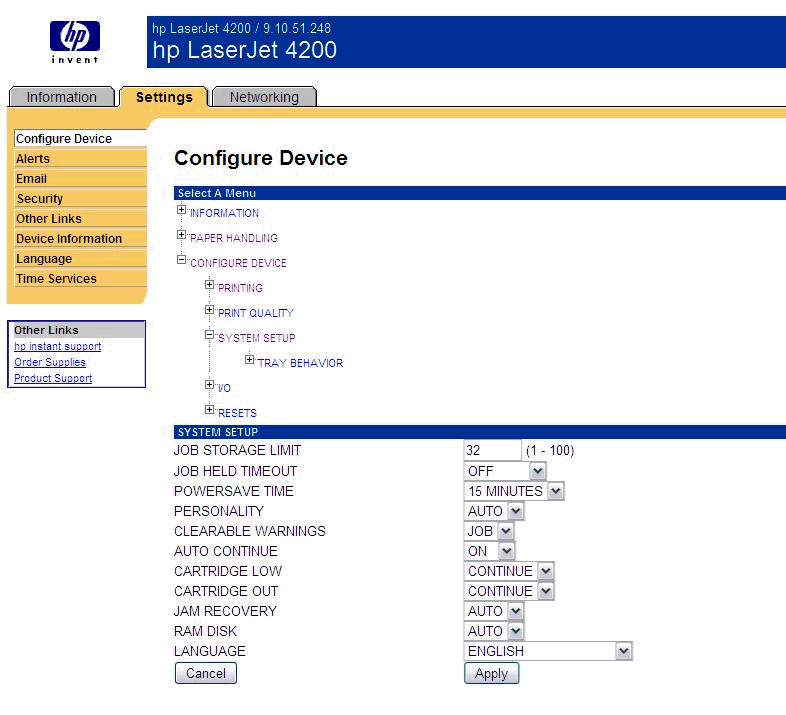 |
| 6. | Test printing from the IBM i system to verify that the printer hardware automatically switches to another paper tray when the current tray is empty. |
Historical Number
614713001
Was this topic helpful?
Document Information
Modified date:
18 December 2019
UID
nas8N1011295