How To
Summary
This document shows the procedure to update the BMC, and PNOR images on the 7063-CR2 HMC.
Objective

Environment
Steps
Updating Firmware
The 7063-CR2 firmware is made up of two separate components
- BMC - image for the Baseboard Management Controller
- Server image - PNOR
A boot priority system, allows for the selection of a previous image to be used. It useful when there is a need to revert to a prior image.
On the OpenBMC UI, the image file that is listed at the top (for each stack, BMC, and PNOR), the image with the highest boot priority, is used the next time the device is booted. You can change the boot order for the image file by clicking the arrow icons.
Image State Definitions
- Functional: The running image on the device.
- Active: The image is available to boot from, but is not currently the running image. If the image is the top image in the relevant table, it becomes the functional image the next time the device is rebooted.
- Activating: The image is being activated and becomes either Active or Failed.
- Failed: The image failed to activate.
- Ready: The image is ready to be activated.
- Invalid: This image is an invalid image and cannot be activated.
The OpenBMC UI or the openbmctool commands can be used to both view or update the firmware images.
IMPORTANT: Updating the BMC and PNOR firmware images is a disruptive process for the HMC. The HMC must be powered off before updating the BMC or PNOR firmware. It is recommended that both BMC and PNOR firmware images are updated before powering the HMC back on. This does not affect the systems managed by the HMC.
Updating Firmware Using OpenBMC

1. If the BMC is reachable on the network, continue on step 7.
2. For a BMC that is not yet reachable on the network or if the system backplane was replaced, connect an Ethernet cable from a workstation to the shared BMC port, eth0 (labeled 1) on the rear of the HMC.
3. Configure the LAN interface of that workstation with the following settings:
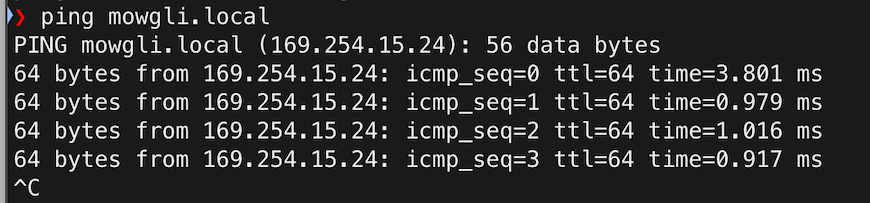
In this example, the IP shows to be 169.254.15.24.
The IP shown in your case, will be different.
NOTE: You are prompted to immediately change the default password.
The first prompt asks to reenter the current password, which is the default one. The next step prompts for the new password.
Simplistic passwords fail. Do not attempt to set a password containing "abc" or "123", for example. Multiple failed attempts to modify the password, results in the root user being locked. If the root user is locked, suspend further login attempts for 5 minutes (300 seconds).
The password must:
- Be different from the current password
- Be 8 - 20 characters long
- Include at least one uppercase letter, one lowercase letter, one numeric digit and it cannot contain spaces.
- Must not be simplistic (ex. "abc", or "123").
Example of a password that would comply with the rules: 0penBmc0 (zeros instead of letter O).
8. Ensure the HMC is powered off. See the "Server Power" status on the top of the BMC web GUI.
9. Access Server configuration -> Firmware
The previous image shows the state before firmware update.

10. Scroll down on the page to locate the section to upload the firmware image.
11. Click Choose a file and browse your local file system for the location of the BMC image (ex. obmc-mowgli-op940.hmc-36.ubi.mtd.tar).
12. Click Upload firmware

The Upload in progress... message is displayed

A confirmation message is displayed when the upload is complete.

13. The new image is now in a Ready state. Click Activate, under the Action column to activate it.

The user is presented with a confirmation panel with the options to "ACTIVATE FIRMWARE FILE WITHOUT REBOOTING BMC" and "ACTIVATE FIRMWARE FILE AND AUTOMATICALLY REBOOT BMC".
14. Select ACTIVATE FIRMWARE FILE AND AUTOMATICALLY REBOOT BMC and click Continue

The image state shows Activating

The image moves to Functional state (the running image on the device)

If successful, a message is displayed on the upper right of the session, showing Success! BMC is rebooting.

After the BMC comes back up and the UI is refreshed, the new image is now listed on the top line (first in boot priority), and the previous image is now listed second. The original second image was removed.
The BMC portion of the update is now complete.

The next image to update is the PNOR or Server image.
1. Scroll down on the page to locate the section to upload the firmware image.
2. Click Choose a file and browse your local file system for the location of the PNOR image (ex. mowgli-IBM-OP9_v2.5_4.140_prod.pnor.squashfs.tar).
3. Click Upload firmware

The Upload in progress... message is displayed

A confirmation message is displayed when the upload is complete.
4. The new image is now in a Ready state. Click Activate, under the Action column to activate it.
The user is presented with a confirmation panel with the options to "ACTIVATE FIRMWARE FILE WITHOUT BOOTING SERVER" and "ACTIVATE FIRMWARE FILE AND AUTOMATICALLY BOOT SERVER".

5. Select ACTIVATE FIRMWARE FILE AND AUTOMATICALLY BOOT SERVER and click Continue

The image state shows Activating

The image moves to Functional state (the running image on the device)

Related Information
Document Location
Worldwide
Was this topic helpful?
Document Information
Modified date:
23 March 2026
UID
ibm16611249