Troubleshooting
Problem
This document provides information on configuring a PC5250 printer session to print to a PC text file.
Resolving The Problem
| Important Note: This document discusses the IBM i Access for Windows, IBM iSeries Access for Windows, Client Access Express for Windows, and Client Access for Microsoft Windows 95 and Windows NT products. These names essentially refer to the same product; however, the functionality and name changed over the last several releases. For the purposes of this document, these terms may be used interchangeably. Where a difference is important, the version of the product is used to identify the differences. |
This document provides instructions for configuring a Personal Communications 5250 (PC5250) printer session to convert *SCS spooled files to a PC text file when using 7.1 IBM i Access for Windows (5770XE1), 6.1 IBM i Access for Windows (5761XE1), or V5R4M0 (R540), V5R3M0 (R530) or V5R2M0 (R520) iSeries Access for Windows (5722XE1).
For general instructions on configuring a PC5250 printer session profile for other types of printers, please refer to the following document:
N1018716: IBM i Access for Windows: Configuring a PC5250 Printer Session
A PC5250 printer session can be used to print an operating system spooled file to a virtual printer that can be accessed from the PC. This includes printers that are directly attached to the PC and printers that are attached to the network. Of course, there are exceptions to this. In general, if you can print to the printer from a specific PC, you should be able to print through a PC5250 printer session to the same printer.
This document was last updated on 13 May 2014.
Options for Configuring a PC5250 Printer Session
The following methods can be used to configure a PC5250 printer session, each with its own benefits:
| o | Configure the PC5250 printer session to use a Windows printer driver. This is the easiest way to configure a PC5250 printer session; however, it gives you only a small amount of control over how the output is printed. This is done by selecting File > Printer Control > Text on the menu bar and clicking on the Options or Advanced button (depending on the version of IBM i Access for Windows you are using). |
| o | Configure the PC5250 Printer Session to use a Printer Definition Table (PDT). This gives you control over how the output is printed by allowing you to copy and modify a Printer Definition Source File (PDF) and then create your own PDT file. |
| o | Configure the PC5250 printer session to use Host Print Transform (HPT). This causes the conversion from the SCS printer data stream of the operating system to the data stream for the printer to be done on the operating system. This is especially beneficial if several different printer emulation packages are being used (for example, PC5250, RUMBA/400, WSF, and others) because all of the output would look very similar. This also provides control over how the output is printed by allowing you to retrieve, modify, and create your own Workstation Customization Table (WSCST). |
This document shows the steps required to configure the PC5250 printer session to use the Generic Text Only printer driver within Windows and to select "Transform print data to ASCII on iSeries" with the Printer model set to *WSCSTCONT132 and the Customizing object set to QWPDEFAULT in library QSYS. The printer session could be configured to use the Generic Text Only printer driver without Host Print Transform (HPT) or a Printer Definition Table (PDT) file (Option 1 above) or, it could be configured to use the basic_ascii.pdt file (Option 2 above); however, the best results are generally acheived using HPT with QWPDEFAULT (Option 3 above).
PC5250 printer sessions support device naming (requesting a particular operating system device description name) by specifying a workstation ID under Communication > Configure. For example:
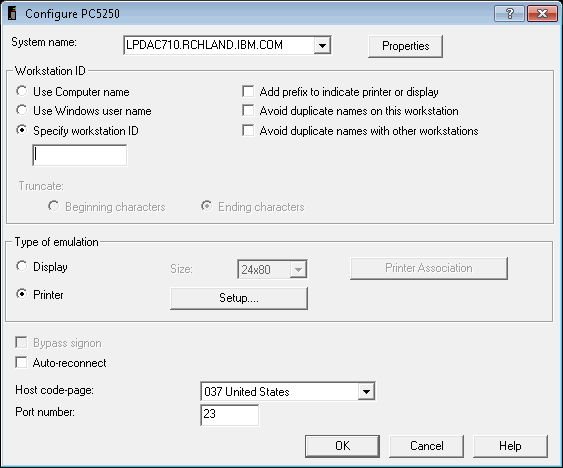
It is recommended that you specify a specific workstation ID for your PC5250 printer sessions so you can rely on it always having the same name. Otherwise, your printer session could connect with a generic device description name one day (such as QPADEV0023) and a different generic device name the next day. If a specific name is used all the time, that name can be specified in a user profile or a printer file to direct output to that specific printer.
The workstation ID must follow the same rules as any other operating system device description:
| o | Must be 10 characters or less. |
| o | Must start with an alphabetic character (A through Z). |
| o | The remaining characters can be an alphabetic character (A through Z), a numeric character (0 through 9), "$", "#", "@", "_" or ".". |
IBM i Access for Windows supports TCP/IP connections only. Therefore, if you configure a PC5250 printer session and do not specify a Workstation ID, the operating system printer device description name defaults to one of the QPADEVxxxx device descriptions. These are normally reserved for Telnet display sessions. However, if device naming is not used, one of the existing QPADEVxxxx device descriptions is changed from a display device description to a printer device description.
Note: V5R1M0 Client Access Express added several enhancements for specifying a workstation ID. These enhancements include:
| o | Use computer name. Use the name of the computer as defined on the Identification tab of the Network properties page of the Windows Control Panel. |
| o | Use Windows user name. Use your Windows logon user ID. |
| o | Specify workstation ID. Provides a space for you to type the name of this workstation (up to 10 characters, must not start with a numeric, and cannot contain a blank or any of the following characters: &, *, %, =, +). |
| o | Add prefix to indicate printer or display. Specify this option to append a P or an S to the beginning of the device name. |
| o | Avoid duplicate names on this workstation. Specify this option to append a short session ID (A, B, C, and so on) to the end of the device name. This ensures that your workstation ID will not conflict on this workstation. |
| o | Avoid duplicate names with other workstations. Specify this option to append a character in the range of 1 through 9 and A through Z to the end of the device name. This ensures that your workstation ID does not conflict with the workstation IDs from other workstations. If you specify Avoid duplicate names on this workstation in addition to this option, the short session ID is appended first. |
| o | Truncate. Specify to truncate from the beginning or from the end of the workstation ID, when necessary. The workstation ID must not exceed 10 characters. This includes the characters that are added if you select Add prefix to indicate printer or display, Avoid duplicate names on this workstation, and Avoid duplicate names with other workstations. By default, the Ending characters of the workstation ID are truncated. |
Adding a Windows Print Queue That Uses the Generic / Text Only Printer Driver
This section provides step-by-step instructions for adding a Windows print queue that uses the Generic / Text Only printer driver to point to "FILE: (Print to File)". This will cause Windows to prompt the user for the PC file name each time a spooled file is processed by the PC5250 printer session.
Note: The instructions in this document are specific to Windows 7. However, the steps are similar in other versions of Windows.
| 1 | Click on the Windows Start button, then click on Devices and Printers. |
| 2 | Click on Add a printer at the top of the Devices and Printers windows. |
| 3 | After completing Step 2, Windows launches the Windows Add Printer Wizard. Select "Add a local printer". |
| 4a | Select "FILE: (Print to File)" from the list of existing ports, then click on Next. |
| 4b | One alternative to printing to "FILE: (Print to File" would be to print to a specific path and file name, such as "C:\Print_to_File.txt". To setup the Generic / Text Only printer to print to a specific path and file name, select Create a new port, and select Local Port for the Type of port, then click Next... and then type the printer path and file name, and click OK.  Warning: This option prevents the user from being prompted for the file name each time they print to the Generic /Text Only printer. However, each successive print will overwrite the previous contents of the file unless the file is copied, moved or renamed first. |
| 5 | On the Install the printer driver screen, scroll through the list of manufacturers and select Generic, then select Generic / Text Only under the list of Printers and click on Next.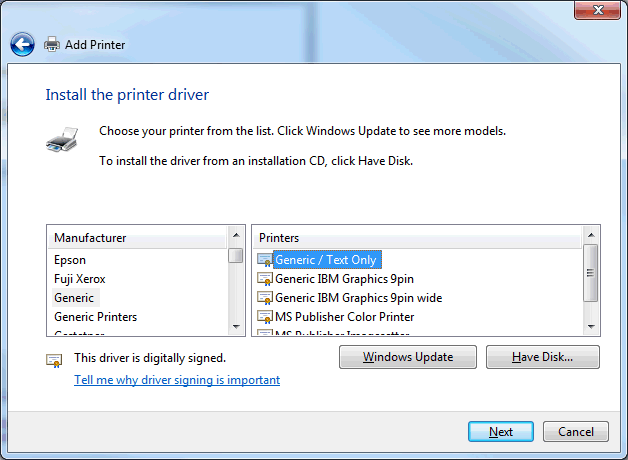 |
| 6 | If the Which version of the driver do you want to use? screen appears, select Use the driver that is currently installed (recommended) and then click on Next. |
| 7 | On the Type a printer name screen, type your preferred Printer name, or leave it at the default of "Generic / Text Only", then click Next. |
| 8 | On the Printer Sharing screen, leave Do not share this printer selected, then click Next. Note: There is typically is no need to share a printer that is setup to print to "FILE: (Print to File)". |
| 9 | On the You've successfully added Generic / Text Only screen, you are asked whether you want to set this as the default printer and whether you want to print a test page. The Windows default printer would typically be reserved for a laser or ink jet printer, and there is typically no need to print a test page to "FILE: (Print to File)", so it is recommended that you uncheck Set as the default printer and click Finish without clicking on Print a test page.  |
| 10 | After clicking on Finish, the "Generic / Text Only" printer should show up under Devices and Printers. |
Configuring a PC5250 Printer Session to use Host Print Transform (HPT) with QWPDEFAULT
This section provides step-by-step instructions for configuring the PC5250 printer session to use the system-supplied QWPDEFAULT *WSCST object in library QSYS.
These steps must be completed only after going through the instructions in Adding a Windows Print Queue that Uses the Generic / Text Only Printer Driver to add a Windows print queue that uses the Generic / Text Only printer driver to point to "FILE: (Print to File)".
| 1 | Click on the Windows Start button. Then, click on All Programs > IBM i Access for Windows > Emulator > Start or Configure Session. |
| 2 | Click on the New Session button. |
| 3 | A new session is started, and the Configure PC5250 dialog box is opened to start configuring that new session. Select the System name from the pulldown list (or type the name of the system), select Specify workstation ID, and type the preferred name for the printer device description on the System i™ system (for example "PRT2FILE"), select Printer for the Type of emulation, and then click on the Setup button. Notes: It is strongly recommended that PC5250 printer sessions be configured with unique name specified under "Specify workstation ID". The other options ("Use Computer name", "Use Windows user name", "Add prefix to indicate printer or display", "Avoid duplicate names on this workstation", and "Avoid duplicate names with other workstations") are intended to be used with PC5250 display sessions rather than PC5250 printer sessions. Select "Auto-reconnect" if you want the session to automatically attempt to reconnect to the system if the session gets disconnected for some reason other than a normal disconnect. The Host code-page indicates the default translation table that is to be used to map IBM i EBCDIC codes from the IBM i system to the appropriate ANSI graphics on the PC. The Port number is typically set to 23 unless a Secure Sockets Layer (SSL) connection is needed, in which case it should be set to 992. |
| 4 | Leave the Message Queue at the default value of QSYSOPR in library *LIBL unless you prefer to use a specific message queue other than QSYSOPR and that message queue has already been created using the Create Message Queue (CRTMSGQ) command. Then: a Select "Transform print data to ASCII on iSeries". b Select the Printer model setting of *WSCSTCONT132 from the pulldown list. c Select the Drawer 1 setting of "Continuous form (13.2 inches)" from the pulldown list. d Set the Customizing Object to QWPDEFAULT. e Set the Library to QSYS (or *LIBL). f Click OK to exit the PC5250 Printer Emulation Setup dialog box. 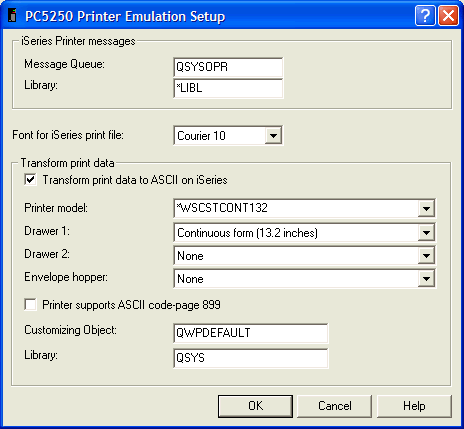 |
| 5 | Click OK again to exit the Configure PC5250 dialog box. |
| 6 | The PC5250 printer session shows a Printer Control dialog box showing the system name and printer device description (or workstation ID) name. If the Ready and On-Line lights are on, the printer session has successfully connected to the system, and a printer writer has been started. Printote: When a more recent version of IBM i Access for Windows is installed, the PC5250 printer session contains Print Session Information displaying the Connection Status, Host Name, Host Type, Workstation ID, HPT, HPT Printer Model, Printer, PDT File, Margin-Let/Top, and Bestfit Scaling settings. |
| 7 | Select File > Printer Setup from the PC5250 printer session menu bar. Select the Generic / Text Only print queue from the list, click on the Setup button, and click OK to exit the Windows print queue Properties dialog box, Then, click OK to exit the Printer Setup dialog box. |
| 8 | Select File > Save from the PC5250 printer session menu bar to save the new PC5250 printer session. Assign the printer session profile an appropriate name (for example, printer.ws, prt05.ws, p5.ws, or "Label Printer.ws"), and specify a description (for example, "Label or bar code printer") if desired. Then, click OK. |
| 9 | An icon for the new PC5250 printer session is automatically added to the "IBM Personal Communications - Session Manager" dialog box. To add an icon for the new PC5250 printer session to your Desktop, point to the new session, click and hold the right mouse button, drag the icon to the Desktop, and release the button. Then, select Create Shortcuts Here from the context or popup menu. |
Configuring a PC5250 printer session to use the basic_ascii.pdt file
This section provides step-by-step instructions for configuring the PC5250 printer session to use the basic_ascii.pdt file.
These steps must be completed only after going through the instructions in Adding a Windows Print Queue that Uses the Generic / Text Only Printer Driver to add a Windows print queue that uses the Generic / Text Only printer driver to point to "FILE: (Print to File)".
| 1. | Select File > Printer Setup on the menu bar to bring up the Printer Setup screen. Place a check on Use PDT, and then click on the Select PDT button to bring up the Select PDT file screen. Note: When selecting to use a PDT file, you can choose to select either Print to Disk - Append or Print to Disk - Separate instead of a Windows printer driver. The Print to Disk - Append option allows you to save your print jobs to a single file on the PC, with each subsequent print job appended to the end of the file. The Print to Disk - Separate option allows you to save your print jobs to a set of files on the PC, where each file has the exact same name except for a file number. |
| 2. | Look through the list of file names for a PDT file that corresponds to the Windows printer driver being used (for example, hpdskjt.pdt for most of the HP DeskJet printers). Click on the PDT file to select it, and click OK to exit the Select PDT file dialog box. Note: Not all printers are supported with a Printer Definition Table (PDT) file. If you cannot find a PDT file that corresponds to your printer, check the printer manual to see what other types of printers that your printer emulates. For example, there are no PDT files listed for the Lexmark Optra printers or the HP LaserJet 5, 6, 4000, or 8000 printers; however, because they all emulate the HP LaserJet 4 printer, you can use the hplj4.pdt file. Another option would be to look through the Rochester Support Center Knowledgebase documents for information on your particular model of printer, starting with the following document: N1019605: Information on Printers from Various Manufacturers |
| 3. | Click OK to exit the Printer Setup dialog box. |
| 4. | Select File > Save on the menu bar to save the changes. |
[{"Type":"MASTER","Line of Business":{"code":"LOB57","label":"Power"},"Business Unit":{"code":"BU058","label":"IBM Infrastructure w\/TPS"},"Product":{"code":"SWG60","label":"IBM i"},"Platform":[{"code":"PF012","label":"IBM i"}],"Version":"7.1.0"}]
Historical Number
16941958
Was this topic helpful?
Document Information
Modified date:
18 December 2019
UID
nas8N1019617