Troubleshooting
Problem
Resolving The Problem
Wireshark is a free, open source network protocol analyzer that is readily available online (at www.wireshark.org). When paired with WinPCap (www.winpcap.org, which is a freely distributed library for capturing Microsoft Windows packets), Wireshark is a network sniffer trace running on a PC that is experiencing communication problems. Other traces (such as those packaged with IBM i Access Client Solutions) do not always provide the necessary detail to identify the source of a communications problem. In these cases, a Wireshark trace might be requested.
The following steps can be used to collect a Wireshark trace on a Windows PC. The following instructions are based on Wireshark Version 0.99.5 bundled with WinPCap Version 4.0. For more detailed instructions for using the Wireshark program, visit the Wireshark web page. Older versions of this product were known as Ethereal.Step 1: Install Wireshark
Do the following to install Wireshark:
| 1. | Obtain the latest version of the Wireshark installation program from the Wireshark website (www.wireshark.org). |
| 2. | Install the program: a. Launch the installation program (Wireshark-*.exe). b. Click Next to begin the installation. c. Review the license agreement, and click I Agree/Noted. d. Accept the default component selection, and click Next. e. Select the options you want. Allow Wireshark to associate with sniffer traces. Click Next. f. If you want to specify a non-default installation directory, specify it, then click Next. g. On the final installation panel, insure that the Install WinPCap option is selected, and click Install. h. During the installation, the WinPCap installer launches. Click Next to begin the WinPCap installation. i. Click Next to begin the installation wizard. j. Review the license agreement, and click I Agree. k. Click Finish to complete the installation of WinPCap. l. Click Next on the installation complete message for Wireshark. |
Step 2: Collect a Wireshark Trace
Do the following to collect a Wireshark trace:
| 1. | Launch the Wireshark program. |
| 2. | Select the menu option Capture > Options... (or press Ctrl+K) to configure the options for collecting a trace. |
| 3. | Uncheck Promiscuous on all interface options under the Input tab. This option prevents collecting data that is not sent directly to or from the PC. For 5250 Console problems, check Promiscuous on the pertinent adapter unless directed to clear it by IBM Support. |
| 4. | Click the Output tab, select the pcapng output format, Capture to a permanent file, and specify one. If the trace will or might be large, check the option to Create a new file automatically after... and select a value 50 - 100 megabytes. Also, check the option to Use a ring buffer with 5 or more files. The dialog box with these options looks like this:  |
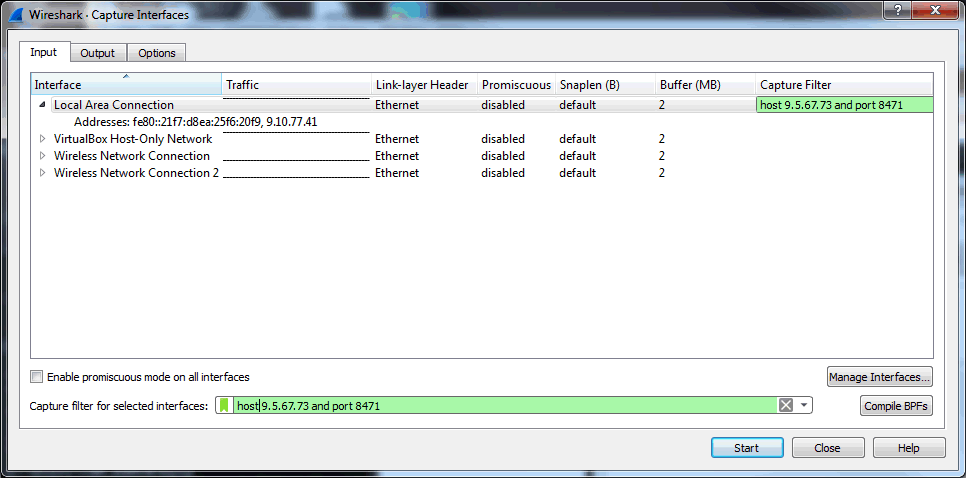
| 5. | Select the interface that the system uses to make the connection.
 |
| 6. | Click Start. |
| 7. | Leave the trace running until the problem under investigation is re-created. |
| 8. | Select the menu option Capture > Stop (or press Ctrl+E) to end the collection of packets. |
| 9. | The trace file is available in the directory specified. If multiple files were selected, the name has extra time information included in the filename. Submit the Wireshark trace to IBM Support by using ECuRep: http://www.ecurep.ibm.com |
Related Information
Historical Number
452214885
Was this topic helpful?
Document Information
Modified date:
10 December 2025
UID
nas8N1014338