How To
Summary
This document covers how to import self-signed and signed certificates into the IBM i Access Client Solutions Windows Application Package (ACS WinAP) proprietary key database.
Objective
Environment
Steps
Certificate Basics
- Self-Signed Certificate
- Signed Certificate
- Wild Card Certificate
- User Certificate.
Methods to import the certificate(s)
- Push to Windows from the ACS Key Management tool
- CWBCOSSL
- GSK CLI (Sections Tips and tricks and GSK9 CLI To Manage Certificates for ACS Winap near bottom of this document)
Push to Windows


CWBCOSSL (Not available after March 2026 update versions 13.64.29.00 / 13.00.29.00)
The CWBCOSSL tool has been removed in the March 2026 update.
You must use the Push to Windows via the ACS base client or manual GSK9 CLI can be used.
See bottom section GSK9 CLI To Manage Certificates for ACS Winap.


I have a PFX or P12 file, how do I covert to a CRT or CER file?


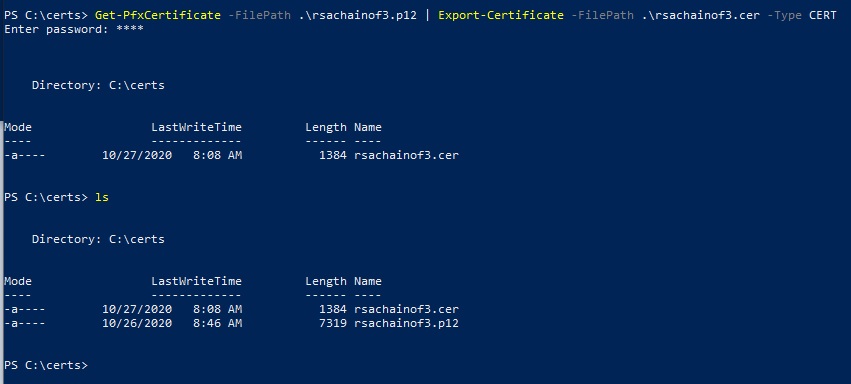


I have a chained CER or CRT file, how do I create separate certificates in the chain for import to ACS WinAP?


How do I view what is stored in the IBM i ACS WinAP CMS key Database?
I'm going to use one of the certs as an example.
Tips and Tricks
Note: All the following information is AS-IS. IBM i support does not support any of this.
This is being provided for assisting Administrators in automation.
Obtaining the Certificate with OpenSSL
OpenSSL is a framework that is recognized industry wide. In fact the IBM i has it available.
OpenSSL is a Swiss army knife for SSL, one of the many options is the s_client option.
This option allows you to connect to a system port and analyze TLS/SSL.
Some Windows 10 (and above) PCs have OpenSSL already installed, however it's likely not to be available on Windows based PCs by default.
WSL (Windows Subsystem for Linux) can be installed on a Windows based system..
WSL allows you to run a Linux terminal directly on your Wintel based PC or Server. This allows the installation of Linux tools like OpenSSL and ability to run Linux commands.
Since WSL is on your PC, it allows direct access between Windows and Linux environments files.
The two utilities/commands used to process the OpenSSL output are sed and awk. These are great tools for parsing and manipulating data. Those two tools are available on the IBM i in both the PASE and QSHELL environments on the IBM i system.
Example 1
Use OpenSSL to display the certificate(s) for port 9471:
openssl s_client -connect mySystem.com:9471This will display all the details about the public key.
This in itself is nice, but what if you want this for use with the IBM i Access Client Solutions (ACS) Windows Application Package (WinAP)?
We can take the output from the above command and use a stream editor called sed. sed is available on most if not all POSIX based systems. With sed we can extract the ASCII PEM based certificate and store that in a file for use with ACS WinAP.
Example 2
Generates a ASCII PEM based certificate, cert.cer:
echo|openssl s_client -connect mySystem.com:9471| sed -ne '/-BEGIN CERTIFICATE-/,/-END CERTIFICATE-/p'>cert.cerThe ACS WinAP will require you to have the intermediate and signer certificate in separate files.
Example 3
Break apart the single certificate created in Example 2:
The awk command is used to generate the multiple .cer files for a chained certificate.
awk is not just a command, it's powerful language for processing data.
cat cert.cer | awk '/BEGIN CERTIFICATE/,/END CERTIFICATE/{ if(/BEGIN CERTIFICATE/){a++}; out="cert"a".cer"; print >out}'If the certificate is a chained certificate, the above command will create cert1.cer, cert2.cer, etc.
Once you have these certificates, you can then use one of the commands previously mentioned in this document to import into the CMS Key Store.
Note: Using OpenSSL and connecting to a specific port of a system FQDN (Fully Qualified Domain Name) provided the certificate assigned to that specific server (port). If your system as multiple certificates assigned, the command would need to be ran against multiple ports. The other risk, while low, is a DNS hijack, where you believe your connecting to your system, but it's an attackers system. Make sure that you know what your connecting to.
Automation of Certificate Deployment
No supported methods to automate the importing of certificates to the CMS key store for the Windows Application Package exist.
Both the CMS database (AKA: key store/key database) and the password stash file can be copied from a working PC to another PC that needs to use the same certificate(s).
The location of the those two files are will be at this path: C:\Users\Public\Documents\IBM\Client Access
The two files names will be: cwbssldf.kdb and cwbssldf.sth
The problems that can come into play are:
1 - A mismatch in the CMS versions.
This can be avoided by simply making sure you are using the same version of the Windows Application Package.
2 - Overwriting a key store that has existing certificates used to connect to different IBM i systems.
There is no fix for this. See the next section, Using GSK CLI to find out how to import using command line.
Using GSK8 CLI
Note: GSK9 is in section GSK9 CLI To Manage Certificates for ACS Winap. GSK8 is used only in previous releases from the March 2026 release 13.x.29.0.
GSK is the IBM Global Security Kit.
This is a framework for all things SSL related.
GSK is used both on the IBM i and on the client side.
This covers a specific topic of GSK CLI (Command Line Interface).
GSK is a large topic and this section just touches the surface, but it should be enough for a savvy administrator to use.
The ACS WinAP uses GSK8 currently.
It only uses GSK for the client side of things.
Keep in mind that IBM i Support doesn't support GSK nor does it support using it. This section was written for administrators to use for coming up with ideas on automating certificate imports as a post install procedure.
This is a link to the full documentation for GSK8:
IBM Global Security Kit GSKit version 8
See section above the tips and tricks "How do I view what is stored in the IBM i ACS WinAP CMS key Database?" for setup to use gsk8capicmd.exe.
This is command allows you to add a certificate to the ACS WinAP key store:
gsk8capicmd.exe -cert -add -db "C:\Users\Public\Documents\IBM\Client Access\cwbssldf.kdb" -pw ca400 -label "My Cert Label" -file "C:\certs\mycert.cer"The label "My Cert Label" can be what ever you want. It just needs to be unique for each certificate added.
If you have a chained certificate this command would be ran for each part in the chain. IE: root, intermediate, signer.
With this command method, you can put together an automated process to add individual certificates to the key store without impacting existing certificates or adding unwanted additional certificates.
GSK9 CLI To Manage Certificates for ACS Winap
Starting with the Access Client Solutions Windows Application Package (ACS WinAP) version 13.0.29.0 / 13.64.29.0 released in March 2026, the CWBCOSSL tool has been removed. This was done because most of the tool was not functional and it offered very little value add to the product.
In addition to the CWBCOSSL tool being removed, the SSL/TLS framework was upgraded from using GSK8 to using GSK9.
GSK9 is not supported by IBM i support.
This is a product that is supported by another IBM group.
This part of the document was put together to provide example usage. This was created to assist customers who can not load the ACS base product onto their Windows environment and need a way to manually manage certificates.
It is strongly recommend to deploy the ACS Base product and use the Push to Windows method to move certs into the CMS database used by the ACS WinAP. See the Push to Windows section of this document.
There is even a simplified document, here's the link:
Simplified SSL / TLS enablement for IBM i Access Client Solutions Windows Application Package
The GSK9 tool is documented for public reference here:
The gsk9certutil_64 tool
There are a few minor changes to the GSK9 tool installed by the ACS WinAP from the previous versions.
1. The executable name (Binary) changed to gsk9certutil_64exe.
2. You are no longer required to set the path before running the command, it will be set globally by default.
To start, you need to know where the CMS key database is located for the ACS WinAP.
As of today, the default location is in the following path:
C:\Users\Public\Documents\IBM\Client Access
There are two files that you must be aware of in the above path:
cwbssldf.kdb - The name of the CMS database used by the ACS WinAP.
cwbssldf.sth - The password stash file for the CMS key database.
The default password for the CMS database is ca400.
If that is changed or lost, there is no recovery.
You will need to reinstall the ACS WinAP or delete and recreate the CMS database.
I would recommend opening a command prompt to the location of the cwbssldf.kdb and cwbssldf.sth files before running the commands to manage your certificates. It would be recommended to move your certificate(s) to that same location as well. If you don't do that your command line entries will get very large and perhaps unmanageable.
The following are examples of various tasks to perform using the GSK9 CLI:
Listing all certs, showing just labels:
gsk9certutil_64 -cert -list all -db cwbssldf.kdb -pw ca400If you know the label name and want to see if the cert exists:
gsk9certutil_64 -cert -list all -db cwbssldf.kdb -pw ca400|findstr "<search_string>"If you tack on a -v it will provide full details of the certificate(s):
gsk9certutil_64 -cert -list all -v -db cwbssldf.kdb -pw ca400|findstr "<search_string>"To remove a cert from the key database, you must know the label of the certificate.
This is done by analyzing the search results from the above.
gsk9certutil_64 -cert -delete -db cwbssldf.kdb -label "<label>" -pw ca400<label> Always include the double quotes.
To add the cert I would recommend to move the cert file(s) to the same path as the CMS database first.
Again, this keeps the paths short and you don't have to qualify the names.
gsk9certutil_64 -cert -add -db cwbssldf.kdb -pw ca400 -label "<my_label>" -file root.cergsk9certutil_64 -cert -add -db cwbssldf.kdb -pw ca400 -label "<my_label2>" -file intermediate.cerWhere <my_label> and <my_label2> are unique names you arbitrarily choose, but use one that makes sense for your environment.
The certificate names are arbitrary as well.
In the above scenario, we are assuming a chained certificate including an intermediate and root.
You always want to bring in the root first.
If the password is lost for the CMS database there is no recovery.
You can recreate it in a couple ways.
The first method would be to uninstall the ACS WinAP and manually delete the old database and password stash files.
Also, if there are another files that have different extensions but the same name cwbssodf.* delete those as well.
Then reinstall the product.
The second method you can do the aforementioned manual deletion of all the cwbssldf.* files, then run the following to recreate the CMS database.
gsk9certutil_64 -keydb -create -db cwbssldf.kdb -pw ca400 -stash -type cms -populateThe above command will create the following files:
cwbssldf.crl
cwbssldf.rdb
cwbssldf.kdb
cwbssldf.sth
You only need to keep the cwbssldf.kdb and cwbssldf.sth.
Once created, you can proceed to populate it with your certificates.
Document Location
Worldwide
Was this topic helpful?
Document Information
Modified date:
08 March 2026
UID
ibm16350999