How To
Summary
The BMC on the 7063-CR1 HMC provides a virtual storage function that can be used to remotely mount an ISO image which will appear as either a local USB or CD-ROM device depending on the method selected.
Objective
This document explains how to use the 7063-CR1 BMC's virtual storage features.
Environment
7063-CR1 HMC: All Supported Versions
BMC: All Supported Versions
Steps
The virtual storage feature of the 7063-CR1 BMC allows a remote ISO image to show as a local USB drive or CD-ROM drive on the HMC depending on which type of virtual media session is used.
There are two types of virtual media sessions available:
I. Remote ISO mounted via the JavaTM iKVM Viewer (remote mount of user's workstation ISO file)
- Access the BMC via a supported browser as an Administrator or Operator user
- Launch the JavaTM Viewer in one of two ways:
- From the System panel, by clicking on the Remote Console Preview image.

- From the Remote Control menu by selecting the Console Redirection option

- From the System panel, by clicking on the Remote Console Preview image.
- A Java Network Launch Protocol (JNLP) file (extension .jnlp) will either be downloaded or automatically launched by the browser depending on the browser settings. If it is not automatically launched, locate the file in the default downloads folder and execute it. (Tip: on Mac, it may be necessary to hold the Control key when running the .jnlp file for it to provide the Open button.)

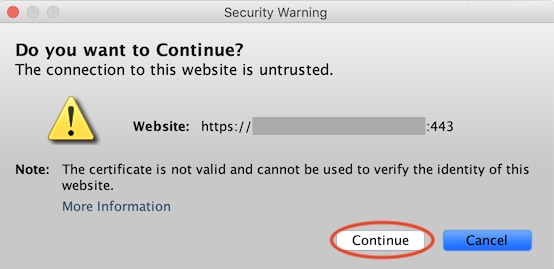
- If presented with a Security Warning panel, click Continue
- Once the JavaTM iKVM Viewer launches, wait a second or so for the menu bar to show up.

- Click Virtual Media and select Virtual Storage

- In the Virtual Storage panel, click Logical Drive Type and select ISO File (image label 1).
Click Open Image (image label 2) to browse for the ISO file.
Finally, click Plug in (image label 3) to remotely connect the file as a USB drive.
Confirm the Plug in operation completes successfully (image label 4.)

- The ISO file will be visible to the operating system. On the HMC, the user can enter the lsmediadev command to see the file now available as a USB device (/dev/sda).

To disconnect the media, click Plug Out from the Virtual Storage panel
- If the ISO file mounted is a Recovery Media ISO, the HMC will list it as a boot option in the Petitboot menu.
II. Remote ISO exported from an NFS server (remote mount of an NFS exported ISO file)
The following are restrictions and recommendations for this method:
- Supports up to NFS v3
- Directory hosting the files can only be one level deep (no nested directories)
- Good case: /myisofiles/myiso.iso
- Bad case: /myisofiles/hmc/myiso.iso
- Export settings of the NFS server should contain the following.
AIX Example: /hmcisofiles -sec=sys:krb5p:krb5i:krb5:dh,rw,root=<ip of BMC>
Linux Example: /hmcisos *(rw,sync,no_root_squash,subtree_check) - Add the BMC IP to /etc/hosts on the NFS server
- Access the BMC via a supported browser as an Administrator or Operator user
- Click Virtual Media and select CD-ROM Image

- Complete the value for the Share host prefixed by nfs:// (image label 1)
Complete the Path to image (image label 2)
Click Save (image label 3)
Click Mount (image label 4)

- The device will become available to the HMC as /dev/sr0
- To unmount the device, click the Unmount button
Additional Information
Important note about data encryption for virtual storage traffic.
Starting with BMC v3.13, all virtual storage traffic is routed through an encrypted tunnel for security. While encryption adds increased protection to the system, it will also impact the speed with which data will be transferred over the virtual storage session. As a result, any operation that needs to move large amounts of data, for example, when installing an HMC with recovery media or installing a large service pack, will take a considerable amount of time.
In the interest of providing a faster connection, starting with BMC v3.20, a new option was added to the Virtual Media section of the BMC UI. The new option, Secure Encryption, will provide a mechanism to temporarily disable the routing of virtual storage data through the encrypted tunnel. IBM strongly recommends this option is only used if the system resides within internal networks that are deemed secure.
How to disable encryption for Virtual Storage?
- Access the BMC via a supported browser as an Administrator or Operator user
- Click Virtual Media and then click Secure Encryption
- Uncheck the Enable Encryption box
If there are active virtual storage sessions, or active iKVM sessions, the user will receive an error:

If there are no active sessions, the user is presented with a warning pop-up message that alerts that encryption will be re-enabled after the timer expires and all iKVM and Virtual Storage sessions will be terminated.

- Adjust the duration of the timeout in minutes, if necessary (min=5, max=240, default=120.)
Once a value is selected it cannot be modified without first re-enabling encryption, either manually or after a timeout of a previously set value. This mechanism was designed with safety in mind. - Click Save to save the options. The timer does not start until an iKVM session starts.
- Once a session is started, the Remaining time value will update regularly. In this example, the Timeout time was 5 minutes. The Remaining time shows there is 1 minute left.

- Any user that opens an iKVM session after encryption has been disabled will be shown a message describing that encryption is currently disabled and how long until that session is terminated due to timeout.

- Any user connected to an active iKVM session, will receive a warning message two minutes before the session times out.

Related Information
Document Location
Worldwide
[{"Business Unit":{"code":"BU058","label":"IBM Infrastructure w\/TPS"},"Product":{"code":"7063-CR1","label":"Hardware Management Console (7063-CR1)"},"ARM Category":[{"code":"a8m0z000000GnS5AAK","label":"HMC"}],"ARM Case Number":"","Platform":[{"code":"PF025","label":"Platform Independent"}],"Version":"All Version(s)","Line of Business":{"code":"LOB57","label":"Power"}}]
Was this topic helpful?
Document Information
Modified date:
29 March 2022
UID
ibm16242338