Product Documentation
Abstract
You can customize the default style of a coach view component using the information in this document.
Content
The default style of a Coach view component, which is a Coach view that is custom developed or a stock control, is defined by the coach_ng_controls.css file. This file exists in the Coaches Toolkit, on which your application has a dependency. The following screen shot shows that this file is read-only:
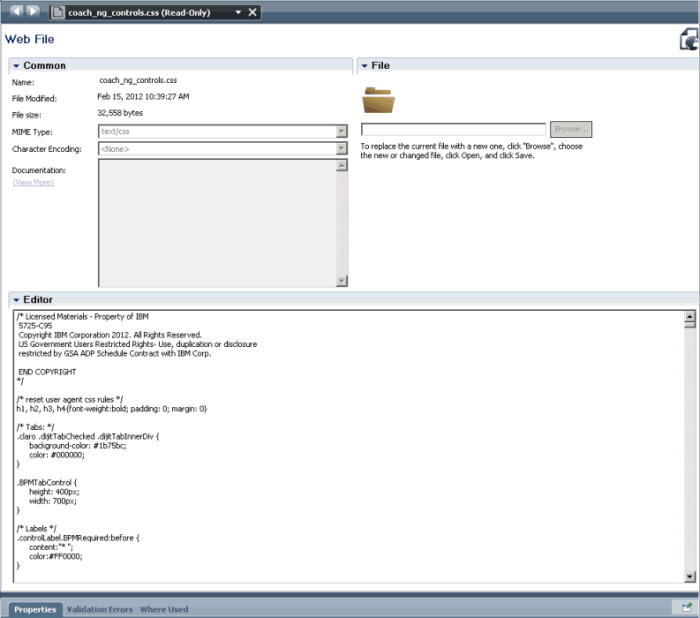
The reason that the file is read-only is that changes made in the coach_ng_controls.css file affect the style of all Coach views. Changes in that file affect Coach views including the views that are defined in other applications, have a dependency on the Coaches toolkit, and are styled by this style sheet. Therefore, to localize the customization to your Coach view only, you need to use Inline CSS, a managed external CSS style sheet, or the class definition of HTML attributes. See the following screen shot:

The default style of a Stock Control Button is defined as shown in the following code sample:
.BPMButton {
height:30px;
color:#f2f2f2;
background-color: #1b75bc;
-moz-border-radius: 4px;
border-radius: 4px;
text-align:center;
font-size:14px;
font-weight:bold;
….......
background-position: 0px 0px;
background-image: linear-gradient(bottom, #124B80 0%, #1B76BC 100%);
background-image: -o-linear-gradient(bottom, #124B80 0%, #1B76BC 100%);
background-image: -moz-linear-gradient(bottom, #124B80 0%, #1B76BC 100%);
background-image: -webkit-linear-gradient(bottom, #124B80 0%, #1B76BC 100%);
background-image: -ms-linear-gradient(bottom, #124B80 0%, #1B76BC 100%);
background-image: -webkit-gradient(
linear,
left bottom,
left top,
color-stop(0, #124B80),
color-stop(1, #1B76BC)
);
}
Note: The background is defined as linear-gradient, which is a browser dependent styling.
Furthermore, the following screen shots show that the Button label inherits its definition from its parent, which is the body. The font of the Button label is Helvetica, Arial, or sans-serif. The former font is substituted if the definition does not exist. .
Note: The following two screen shots show the left and right side of the same window.


A Coach View, which is called the My Custom Button, is created with the default look and feel as shown in the following screen shot:

In this scenario, you want to use one background color for the My Custom Button and a different font for its label. You can make these changes using Inline CSS, a managed internal CSS style sheet, or the class definition of the HTML attributes.
Using Inline CSS
To change the font of the My Custom Button label, add the following inline style into the Coach View Behavior,
.BPMButton {
font-family:"Times New Roman",Georgia,Serif;
font-style: italic;
font-size: 20px;
}
You can see this addition in the following screen shot:

When you execute the Human Service using the My Custom Button, the font of the label of this Coach View is changed as shown in the following screen shot:

To change the background color of the My Custom Button, you can use a gradient tool to discover the proper styling across all of the supported browsers. For example, you can add the following style code to the Inline CSS:
background: #b5bdc8; /* Old browsers */
background: -moz-linear-gradient(top, #b5bdc8 0%, #828c95 36%, #28343b 100%); /* FF3.6+ */
background: -webkit-gradient(linear, left top, left bottom, color-stop(0%,#b5bdc8), color-stop(36%,#828c95), color-stop(100%,#28343b)); /* Chrome,Safari4+ */
background: -webkit-linear-gradient(top, #b5bdc8 0%,#828c95 36%,#28343b 100%); /* Chrome10+,Safari5.1+ */
background: -o-linear-gradient(top, #b5bdc8 0%,#828c95 36%,#28343b 100%); /* Opera 11.10+ */
background: -ms-linear-gradient(top, #b5bdc8 0%,#828c95 36%,#28343b 100%); /* IE10+ */
background: linear-gradient(to bottom, #b5bdc8 0%,#828c95 36%,#28343b 100%); /* W3C */
filter: progid:DXImageTransform.Microsoft.gradient( startColorstr='#b5bdc8', endColorstr='#28343b',GradientType=0 ); /* IE6-9 */
The following screen shot shows this style code in the Inline CSS:

The new style shows the grey background as shown in the following screen shot.
Note: The current browser only recognizes browser-specific background styling while it ignores the styling for other browsers.

Using a managed external CSS style sheet
Now, you want to place the customization into an external style sheet file. That way, this CSS file can serve not only the My Custom Button but also other coach views, which achieves the same benefits of using external CSS in a HTML file. Complete the following steps:
- Copy and paste all of the Inline CSS content into an external file and name it, For example, these steps use C:\demo\my_custom.css for the name.
- Designate the my_custom.css file as a managed web file for the application. See the following screen shot as an example:

- Click the plus (+) character next to Files and select the Web File option from the menu as shown in the following screen shot:

- Click Browse and select the file as shown in the following screen shots:


- Click Open > Finish, so that the my_custom.css file becomes a web file that is managed by the application. See the following screen shot:

- Open the My Custom button.
- Click the plus (+) character next to Included Scripts. See the following screen shot:

- Select the my_custom.css file as shown in the following screen shot:

The customization defines the Coach view styling as shown in the following screen shots.
Note: The following two screen shots show the left and right side of the same window.


Testing results show that the style instruction comes from the external my_custom.css file. See the following screen shot.
Note: The following two screen shots show the left and right side of the same window.


Styling Priority Order
The following screen shot shows a Coach view that is styled by both Inline CSS and a managed external CSS file. The Inline CSS defines the background color to be pink and the external CSS file defines background color to be grey. See the following screen shot:

The styling in Inline CSS takes precedence as shown in the following screen shot:
Note: The following two screen shots show the left and right side of the same window.


The style that is defined in the Inline CSS precedes the definition in the external CSS file. Therefore, it dictates the customization result.
Class Definition of HTML Attributes
The styling that was previously described overrides the default CSS fille. Therefore, the definition affects all of the Coach instances created from the Coach view. If you want only certain instances derived from the Coach view to manifest the customization while other instances do not use it, you must rely on the class definition of HTML Attributes.
A Coach view and a My Class custom button are created with Inline CSS defined as shown in the following code:
.ClassButton .BPMButton {
font-family:"Times New Roman",Georgia,Serif;
font-style: italic;
font-size: 20px;
background: #b5bdc8; /* Old browsers */
background: -moz-linear-gradient(top, #b5bdc8 0%, #828c95 36%, #28343b 100%); /* FF3.6+ */
background: -webkit-gradient(linear, left top, left bottom, color-stop(0%,#b5bdc8), color-stop(36%,#828c95), color-stop(100%,#28343b)); /* Chrome,Safari4+ */
background: -webkit-linear-gradient(top, #b5bdc8 0%,#828c95 36%,#28343b 100%); /* Chrome10+,Safari5.1+ */
background: -o-linear-gradient(top, #b5bdc8 0%,#828c95 36%,#28343b 100%); /* Opera 11.10+ */
background: -ms-linear-gradient(top, #b5bdc8 0%,#828c95 36%,#28343b 100%); /* IE10+ */
background: linear-gradient(to bottom, #b5bdc8 0%,#828c95 36%,#28343b 100%); /* W3C */
filter: progid:DXImageTransform.Microsoft.gradient( startColorstr='#b5bdc8', endColorstr='#28343b',GradientType=0 ); /* IE6-9 */
}
See the following screen capture:

In a test, there are two buttons that have been created from the Coach View. The top button does not have its HTML attributes defined and the bottom button uses Class overriding. See the following screen capture:

Note: The class name should be identical to the definition in the inline CSS. The result shows that the bottom button is customized with the style that is defined in the Inline CSS. See the following screen shot:
Note: The following two screen shots show the left and right side of the same window.


In conclusion, to customize the style of a user-defined Coach view, you can use Inline CSS or managed external CSS file to overwrite the default styling in the coach_ng_controls.css file. Styling in Inline CSS takes precedence over the definition in the external CSS file. To customize a Coach instance without affecting other instances, you can use a class definition of HTML attributes.
Related Information
Webcast replay: Developing Human Services with Coaches in IBM Business Process Manager 8 --- What to do, when it does not work?
Product Synonym
BPM
Was this topic helpful?
Document Information
Modified date:
17 June 2018
UID
swg27039544