News
Abstract
Materialized view is now supported in IBM InfoSphere Data Architect. Materialized view can be treated as a regular table. Primary key and unique index from table can be marked in materialized view. Materialized view can have foreign key relationship with other tables. Relationship can be established through models as well as diagrams.
Content
Materialized view feature is available in IBM InfoSphere Data Architect for the following scenarios:
- Reverse Engineering
- Physical Data Model
- Data Diagrams
- Comparison between Database and Model
- Delta DDL Generation
- DDL Generation
The following simple example demonstrates the usage of the materialized view feature:
- Open IBM InfoSphere Data Architect.
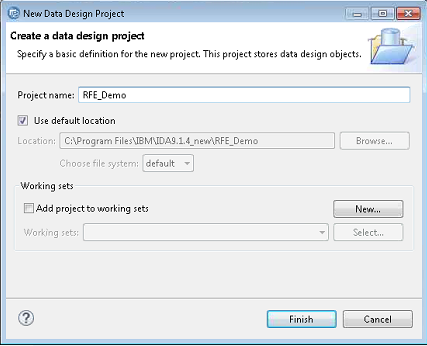
- From the main menu, click File > New > Data Design Project (or else, click the
 icon). The New Data Design Project wizard opens.
- In the Project Name field, type the project name, then click Finish.
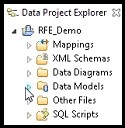
- The project is displayed in the Data Project Explorer.
- In the Project Name field, type the project name, then click Finish.
- In the Data Project Explorer, right-click Data Models and click New > Physical Data Model. The New Physical Data Model wizard opens.
- In the Destination folder and File name fields, type the appropriate values.
- In the Database field, select Oracle and in the Version field, select 11, and then click Finish.

- The Data Model is displayed in the Data Project Explorer.
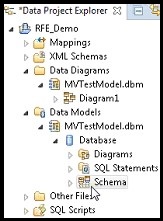
- In the Data Project Explorer, right-click Schema and click Add Data Object > Table. The table is created in the Data Project Explorer, and the properties of the table open in the Properties view.
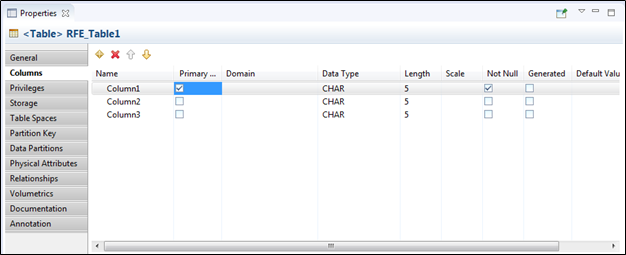
- Click the
 icon to add columns to the table.
 - Select the Primary key check box to designate a column as a primary key column.
- Click the
- In the Data Project Explorer, right-click Schema and click Add Data Object > Materialized View. The materialized view is created in the Data Project Explorer, and the properties of the materialized view open in the Properties view.
- In the Properties view, click SQL and add the following query:
Select Column1, Column2, Column3 from RFE_Table1 - Click Validate. The materialized view is generated from the SQL statement.
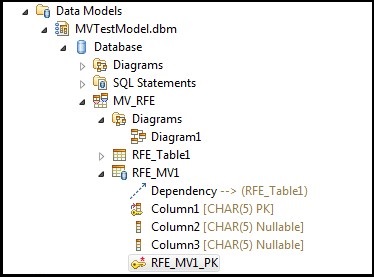
- The Properties view displays the dependency of the materialized view.
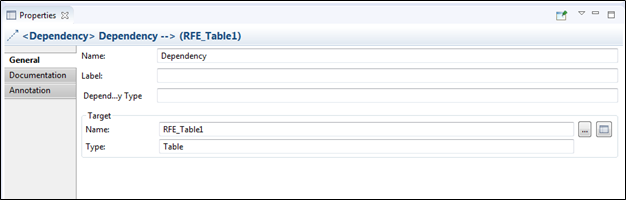
- The Properties view displays the columns and primary key of the materialized view.
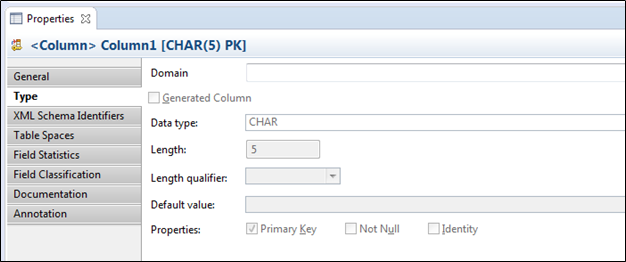
- The Properties view displays the dependency of the materialized view.
- In the Properties view, click SQL and add the following query:
- In the Data Project Explorer, right-click Schema and click Add Data Object > Table. The second table is created in the Data Project Explorer, and the properties of the table open in the Properties view.
- Add columns in the second table.

- Add columns in the second table.
- In the Data Project Explorer, right-click the second table and click Add Data Object > Foreign Key. The Select the parent table window opens.

- Select the materialized view as the parent table and click OK.
- In the Properties view, click Details.

- Click Schema > Diagrams > New Overview Diagram. The Overview Diagram Selection window opens.

- Select the schema and click OK. The overview diagram is created.
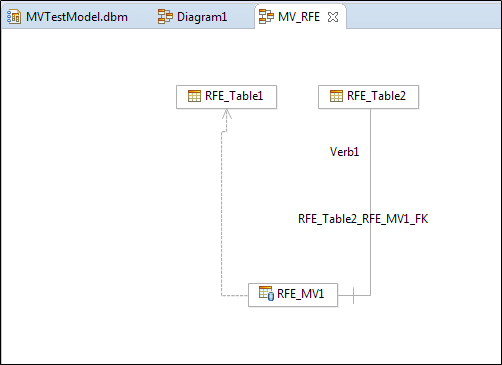
- You can delete the foreign key relation from diagram and model.
- Before Deletion:

- After Deletion:
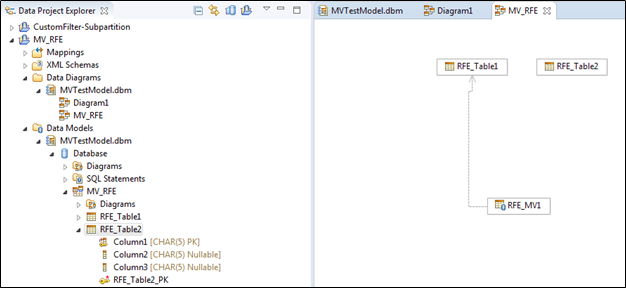
- Before Deletion:
- You can create a foreign key relationship between table and materialized view by using an object diagram.

- Select the schema and click OK. The overview diagram is created.
Related Information
[{"Business Unit":{"code":"BU059","label":"IBM Software w\/o TPS"},"Product":{"code":"SS9UM9","label":"IBM InfoSphere Data Architect"},"Component":"","Platform":[{"code":"PF033","label":"Windows"}],"Version":"9.1.4","Edition":"","Line of Business":{"code":"LOB10","label":"Data and AI"}}]
Was this topic helpful?
Document Information
Modified date:
13 January 2021
UID
ibm10719789