Troubleshooting
Problem
Attempts to log into IBM i2 Analysis Repository Schema Designer results in Error: "Failed to log in to Analysis Repository."
Symptom
From SystemOut.log:
i2.Apollo.Common.Exceptions.ServerException: Unknown error: The HTTP
request was forbidden with client authentication scheme 'Negotiate'. ---
> System.ServiceModel.Security.MessageSecurityException: The HTTP
request was forbidden with client authentication scheme 'Negotiate'. ---
> System.Net.WebException: The remote server returned an error: (403)
Forbidden.
at System.Net.HttpWebRequest.EndGetResponse(IAsyncResult asyncResult)
at System.ServiceModel.Channels.HttpChannelFactory`1.
HttpRequestChannel.HttpChannelAsyncRequest.CompleteGetResponse
(IAsyncResult result)
--- End of inner exception stack trace ---
Server stack trace:
at System.Runtime.AsyncResult.End[TAsyncResult](IAsyncResult result)
at System.ServiceModel.Channels.ServiceChannel.SendAsyncResult.End
(SendAsyncResult result)
at System.ServiceModel.Channels.ServiceChannel.EndCall(String
action, Object[] outs, IAsyncResult result)
at System.ServiceModel.Channels.ServiceChannelProxy.InvokeEndService
(IMethodCallMessage methodCall, ProxyOperationRuntime operation)
at System.ServiceModel.Channels.ServiceChannelProxy.Invoke(IMessage
message)
Exception rethrown at [0]:
at System.Runtime.Remoting.Proxies.RealProxy.HandleReturnMessage
(IMessage reqMsg, IMessage retMsg)
at System.Runtime.Remoting.Proxies.RealProxy.PrivateInvoke
(MessageData& msgData, Int32 type)
at i2.Apollo.Services.Internal.Admin.AutoGen.AdminService.
EndGetSchema(IAsyncResult result)
at i2.Apollo.Services.Internal.Admin.AutoGen.AdminServiceClient.i2.
Apollo.Services.Internal.Admin.AutoGen.AdminService.EndGetSchema
(IAsyncResult result)
at i2.Apollo.Services.Internal.Admin.AutoGen.AdminServiceClient.i2.
Apollo.Services.Internal.AdminService.IAdminServiceInternals.
EndGetSchema(IAsyncResult result)
at i2.Apollo.Services.AdminService.AdminServiceFacade.
CompleteAndMarshalGetSchema(IAdminServiceInternals client, IAsyncResult
resultToken)
at i2.Apollo.Services.AsynchronousCallCompleter`2.GetResponse
(IAsyncResult asyncResult, TResult& successResult, Exception&
failureException)
--- End of inner exception stack trace ---
Cause
This error message can occur if the user credentials are not given the proper permissions in IBM i2 Analyze (formerly named Intelligence Analysis Platform)
Environment
This procedure applies to IBM i2 Analyze versions prior to v3.0.11 and within a Windows operating system environment.
Diagnosing The Problem
Attempting to log into IBM i2 Analysis Repository Schema Designer using a username that does not have the correct permissions to do so will create this error.
Resolving The Problem
On the i2 Analyze READ server, open a Websphere Administrator Console (Websphere Integrated Solutions Console)
1. Expand “Applications”
2. Expand “Application Types”
3. Select “Websphere enterprise applications”

4. Select “ApolloGarEar”

5. Select “Security role to user/group mapping”
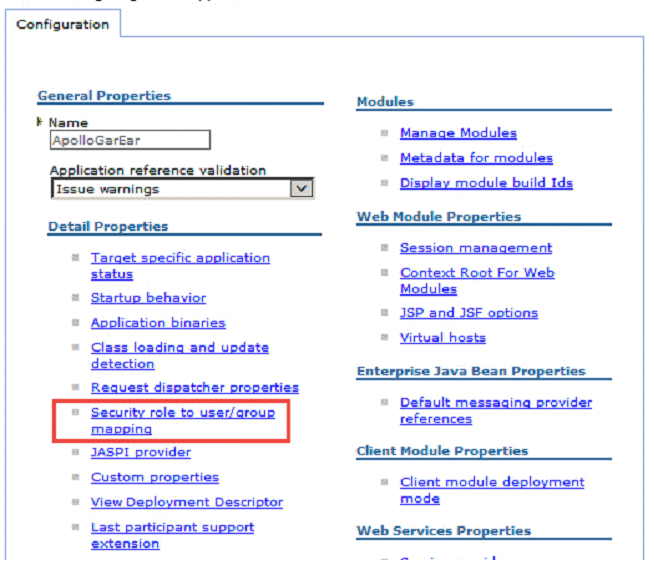
6. Tick (Check, Select) the box to the left of the “Administrator” role
7. Select the “Map Users…” button

8. In the “Search string” text entry box, input the username desired
9. Select the “Search” button
10. Select the user in the “Available” column and click the right facing arrow to add to the “Selected” column

Once the desired user or users are listed in the “Selected” column, select the “OK” button at the bottom of the page.

You will then be placed back at the “Security role to user/group mapping” screen. Verify that the user or users desired are listed in the “Mapped users” column directly to the right of the “Administrator” role. Select the “OK” button
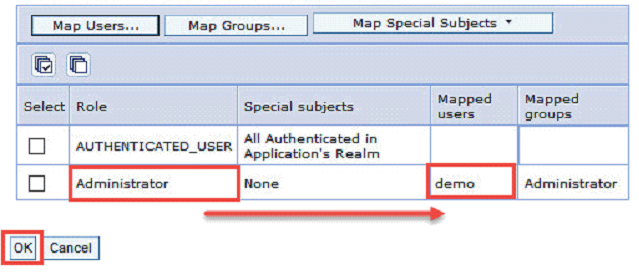
After clicking “OK”, you will then be put back at the main Configuration screen for the ApolloGarEar.
11. Select “Save directly to the master configuration” link to save the changes appropriately. This link is located in the “Messages” box at the top of the screen.

**Note** If the “Messages” box does not appear, that is fine, it will have saved.
Perform the same above procedure on the i2 Analyze WRITE server, ensuring you put the same exact user or users.
A system restart should not be necessary, but can be performed if the first test does not work.
If initial testing does not work for desired users:
1. Restart the READ and WRITE servers per approved procedures within the product documentation.
2. Go back into the Websphere Console using the above procedure and verify the user is still listed in the “Selected” column within the “Security role to user/group mapping” screen.
3. Test functionality.
Was this topic helpful?
Document Information
Modified date:
16 June 2018
UID
swg21986052