Product Documentation
Abstract
Overview
Configuring and troubleshooting load balancer as it relates to Secret Servers falls out of scope for our support policy and would require Professional Services for in-depth assistance. However, this article is provided as a broad level information on specific load balancers that can be used as guide lines. Version information has been included with each vendor where settings have been tested to work. Though, there will always be variations in each environment that could contribute to a problem or mis configuration within the environment.
Content
Ensuring Client IPs are Passed to Secret Server for Audit Logs
As of Secret Server 10.5, you can manage X-Forwarded-For settings directly through the hidden Advanced configuration URL. This should be set first before finalizing your load balancer configuration. This is the only setting that needs altered on the web application/Secret Server side. The characters are case sensitive:
Example URL: https://yourinstancename/ConfigurationAdvanced.aspx
Before: IP Address Header < Not Sect >
After: IP Address Header X-Forwarded-For
While load balancers are fundamentally very similar, each vendor is proprietary in its own way and has different ways of passing these settings properly to our application. Below are some examples of 3rd party vendors and ways to configure X-Forward-For on the load balancer to pass through the client IP headers correctly. For all testing purposes, ensure you are logging in with a user to test through your finalized load balanced URL. For all examples below, we are terminating SSL at the load balancer, and re-encrypting traffic to the web servers.
Detailed Information
Kemp – Version 7.2.43.0.16425.RELEASE
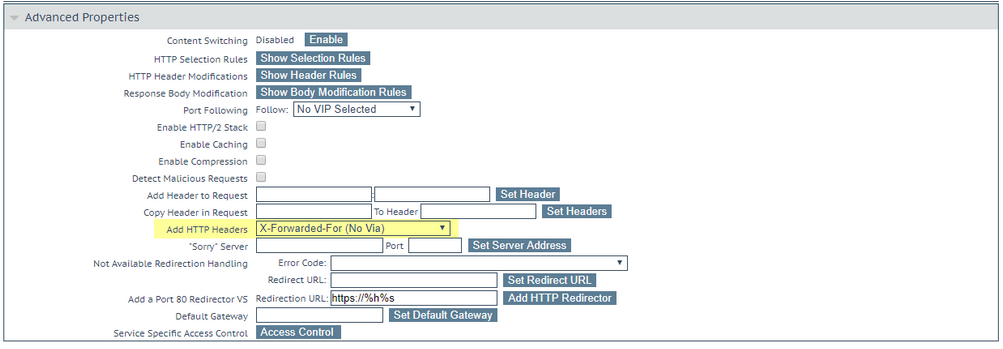
For KEMP load balancers, we have observed that this Headers setting in your virtual services configuration will pass through the correct IP address. Other X-Forwarded-For settings such as the Legacy Operation (X-Forwarded-For) do not appear to pass through the real client IP correctly:
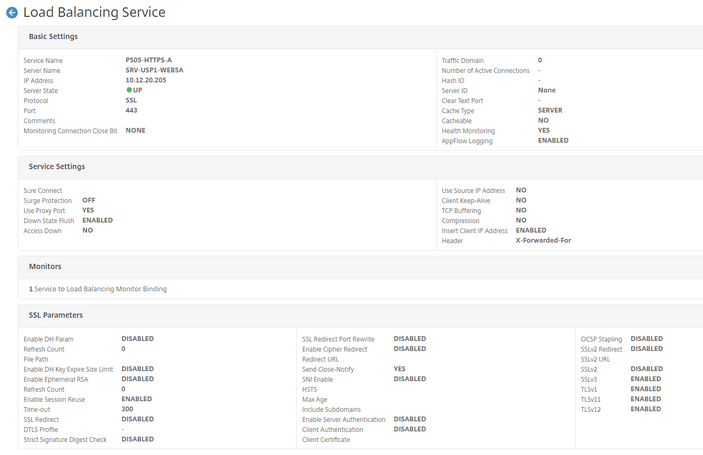
For NetScaler load balancers, we have observed that the easiest way to get X-Forwarded-For working is through a configuration as seen below. Please note that we took a fresh virtual NetScaler appliance and enabled the following basic features:

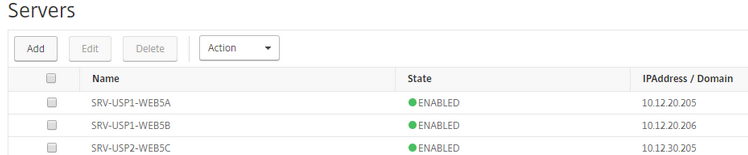
Add the Services:

Add the Virtual Servers:

F5
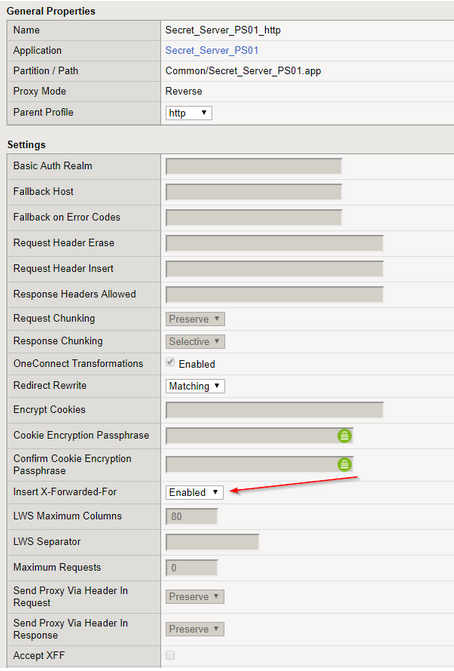
To add X-Forwarded-For to an F5 configuration, you simply need to ensure that the Local Traffic Virtual Server Profile is inserting it. To validate this, go to Local Traffic > Virtual Servers > Profiles. Then, select your Secret Server Profile:
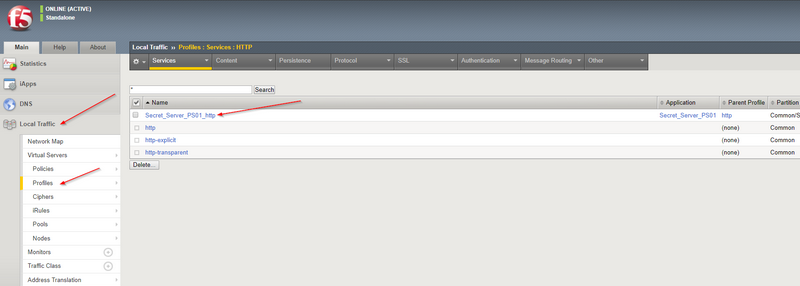
Ensure that Insert X-Forwarded-For is set to Enabled:
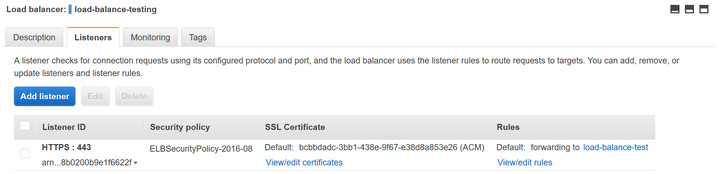
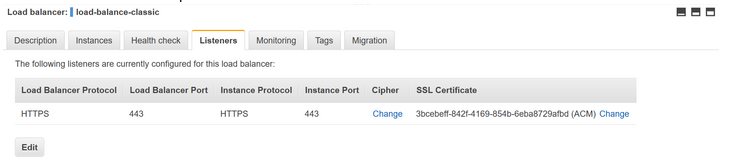
By default with Amazon ELB either Classic Load Balancer or Application Load Balancer configurations, X-Forwarded-For is included in the headers by default without additional configuration for HTTPS configurations. The listener configuration must be HTTPS. X-Forwarded-For will not work with a TCP listener.
Verifying IP client IP address in Secret Server
The easiest way to verify that the real client IP is being passed to Secret Server after configuring these settings on both your load balancer and on the application side is to go to Admin > Users. Click on a user in which you logged in to the load balancer URL with. The, click the View Audit button on the individual user to see log in IP information:
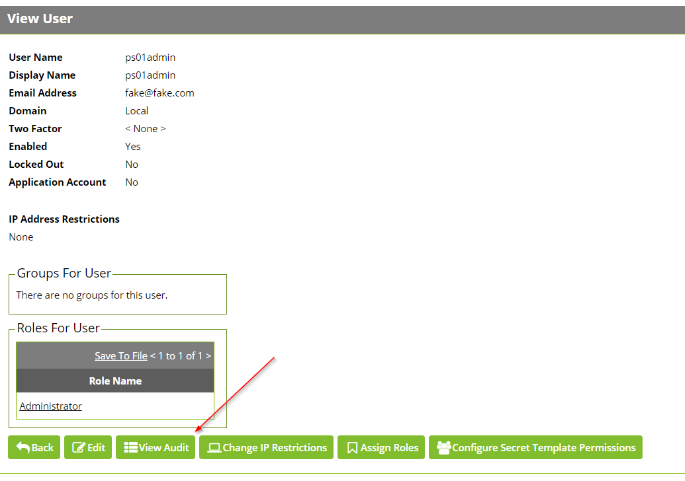
The IP address in the the audit should reflect the real client IP. If it reflects a different address such as the load balancer's IP, this means there are problems with your configuration.
Document Location
Worldwide
Was this topic helpful?
Document Information
Modified date:
04 October 2019
UID
ibm11078545