How To
Summary
Lightweight Directory Access Protocol (LDAP) configuration for Data Management Console (DMC)
Objective
This guide will help you install and configure OpenLDAP on Linux and set it up for the Data Management Console using Ubuntu as an example.
Steps
1. Installing and configuring OpenLDAP
https://www.ibm.com/docs/en/rpa/23.0?topic=ldap-installing-configuring-openldap
Install OpenLDAP
sudo apt-get install ldap-utils slapdReconfigure slapd
sudo dpkg-reconfigure slapdThis command allows you to configure the slapd server after installation. You'll be prompted to set various options:
- Omit OpenLDAP server configuration? : No
- DNS Domain name : Specify your domain name (e.g., example.com). This will form your base DN (Distinguished Name) . The DNS domain name is used to construct the base DN of the LDAP directory. For example,
foo.example.orgwill create the directory withdc=foo, dc=example,dc=orgasbase DN - Organization name : This is usually your company or organization name.
- Admin password : Set or reset the password for the LDAP admin user.
Start the slapd Service
sudo systemctl start slapd.serviceCheck slapd Service Status
sudo systemctl status slapd.serviceAllow LDAP through the Firewall
sudo ufw allow ldap2. Create a Bind Account
https://www.ibm.com/docs/en/db2-data-mgr-console/3.1.x?topic=mapping-configure-ldap-user-information
Create an LDIF file for the bind account: bind_user.ldif
dn: cn=admin,dc=user1-test-machine1,dc=host,dc=ibm,dc=com
objectClass: organizationalPerson
objectClass: top
cn: admin
sn: NA
userPassword: bind_password
description: Bind user for LDAP authentication
| Note: For this example, to view and manage the LDAP server, we are using Directory Studio. |
Add the bind account to the LDAP directory:
ldapadd -x -D "cn=admin,dc=user1-test-machine1,dc=host,dc=ibm,dc=com" -W -f bind_user.ldif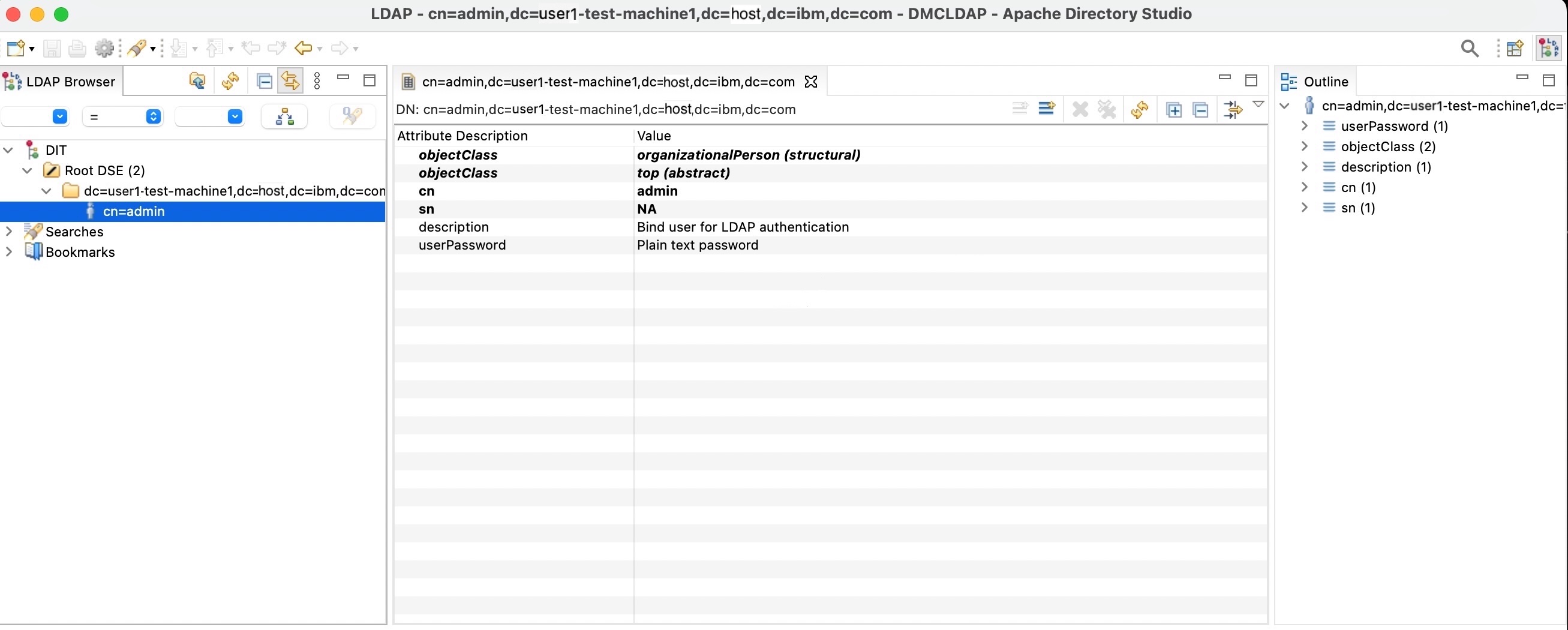
DMC configuration parameters :
Bind DN :
cn=admin,dc=user1-test-machine1,dc=host,dc=ibm,dc=com
Bind password :
bind_password
3. Create the Users Organizational Unit
https://www.ibm.com/docs/en/db2-data-mgr-console/3.1.x?topic=mapping-configure-ldap-user-information
Create an LDIF file for the users organizational unit : ou_users.ldif
dn: ou=users,dc=user1-test-machine1,dc=host,dc=ibm,dc=com
objectClass: organizationalUnit
ou: users
Add the users organizational unit to the LDAP directory :
ldapadd -x -D "cn=admin,dc=user1-test-machine1,dc=host,dc=ibm,dc=com" -W -f ou_users.ldif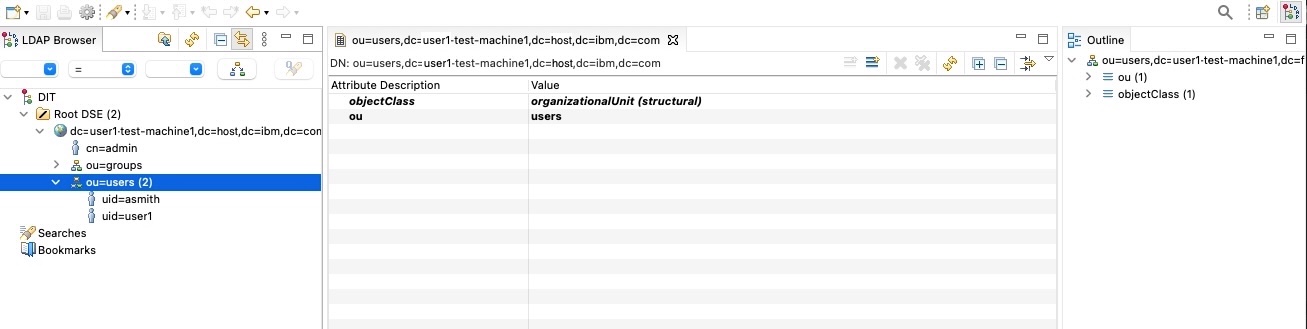
DMC configuration parameters :
User info : User base DN :
ou=users,dc=user1-test-machine1,dc=host,dc=ibm,dc=com
4. Add User Entries
Create an LDIF file for the users : users.ldif
dn: uid=user1,ou=users,dc=user1-test-machine1,dc=host,dc=ibm,dc=com
objectClass: inetOrgPerson
objectClass: organizationalPerson
objectClass: top
uid: user1
cn: user1 Last
sn: Last
userPassword: password
mail: user1@example.com

dn: uid=asmith,ou=users,dc=user1-test-machine1,dc=host,dc=ibm,dc=com
objectClass: inetOrgPerson
objectClass: organizationalPerson
objectClass: top
uid: asmith
cn: Abcd Smith
sn: Smith
userPassword: password
mail: jsmith@example.com
Add the user entries to the LDAP directory :
ldapadd -x -D "cn=admin,dc=user1-test-machine1,dc=host,dc=ibm,dc=com" -W -f users.ldif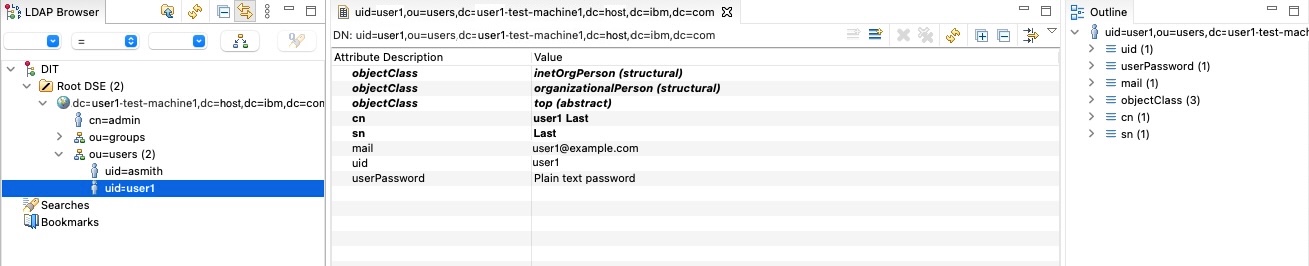
DMC configuration parameters :
User info : User login attribute type :
uid
5. Create the Groups Organizational Unit
Create an LDIF file for the groups organizational unit : ou_groups.ldif
dn: ou=groups,dc=user1-test-machine1,dc=host,dc=ibm,dc=com
objectClass: organizationalUnit
ou: groups
Add the groups organizational unit to the LDAP directory :
ldapadd -x -D "cn=admin,dc=user1-test-machine1,dc=host,dc=ibm,dc=com" -W -f ou_groups.ldif
6. Create Groups in LDAP
Create an LDIF file for the groups : groups.ldif
dn: cn=admin_group,ou=groups,dc=user1-test-machine1,dc=host,dc=ibm,dc=com
objectClass: groupOfUniqueNames
cn: admin_group
uniqueMember: uid=user1,ou=users,dc=user1-test-machine1,dc=host,dc=ibm,dc=com
uniqueMember: uid=asmith,ou=users,dc=user1-test-machine1,dc=host,dc=ibm,dc=com

dn: cn=dba_group,ou=groups,dc=user1-test-machine1,dc=host,dc=ibm,dc=com
objectClass: groupOfUniqueNames
cn: dba_group
uniqueMember: uid=user1,ou=users,dc=user1-test-machine1,dc=host,dc=ibm,dc=com

dn: cn=user_group,ou=groups,dc=user1-test-machine1,dc=host,dc=ibm,dc=com
objectClass: groupOfUniqueNames
cn: user_group
uniqueMember: uid=asmith,ou=users,dc=user1-test-machine1,dc=host,dc=ibm,dc=com
Add the group entries to the LDAP directory :
ldapadd -x -D "cn=admin,dc=user1-test-machine1,dc=host,dc=ibm,dc=com" -W -f groups.ldif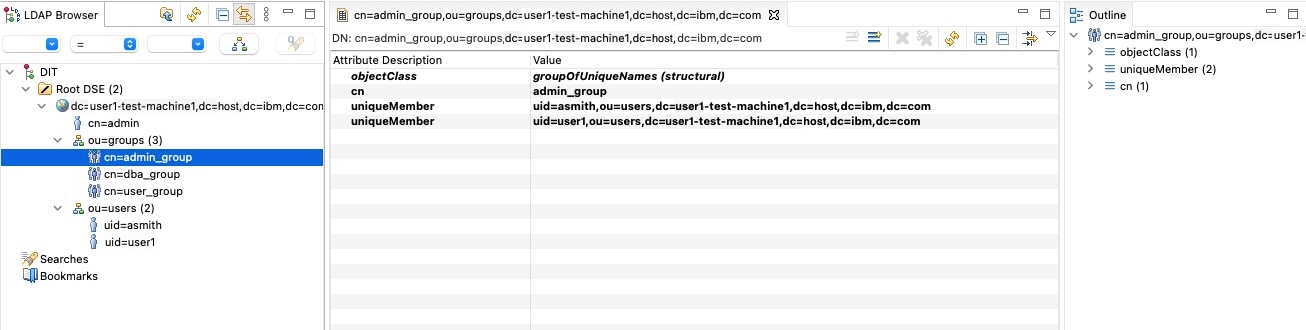
DMC configuration parameters :
Console Administrator : Group DN :
cn=admin_group,ou=groups,dc=user1-test-machine1,dc=host,dc=ibm,dc=com
Console Administrator : Member attribute type :
uniqueMember
Console Administrator : Member attribute type :
dn
| Note: The steps above shows the configuration for the DMC Console Administrator group only. Repeat the same steps for DMC Database Administrator group and/or DMC Database User group as needed. |
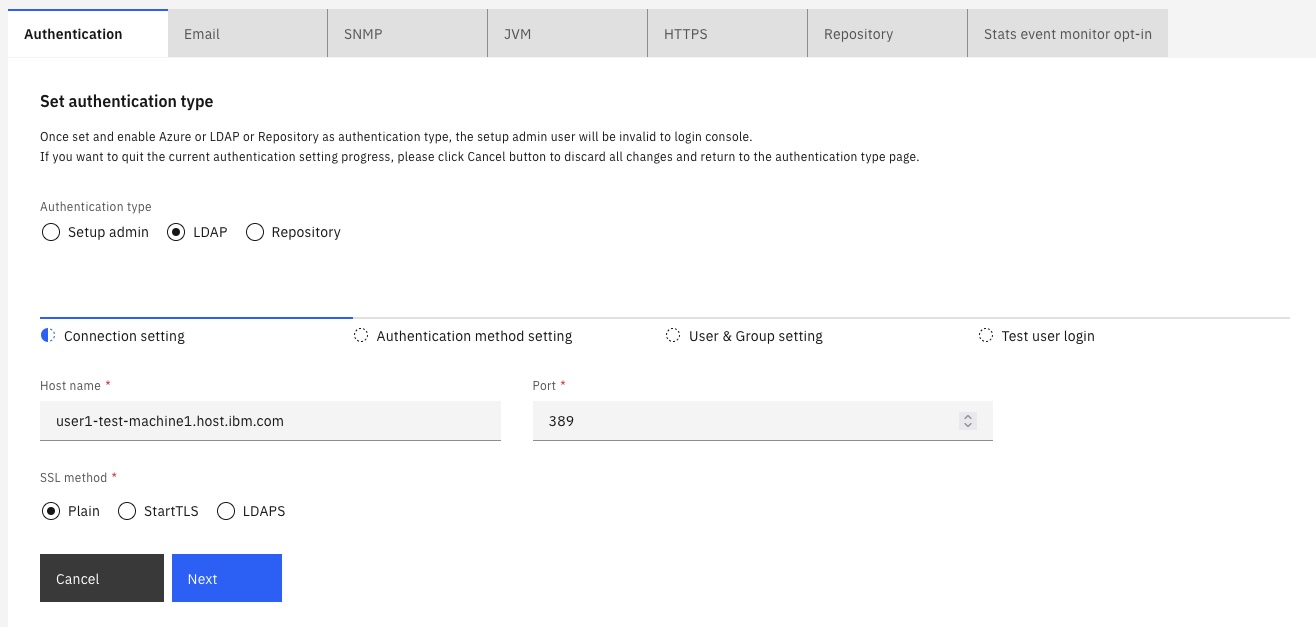
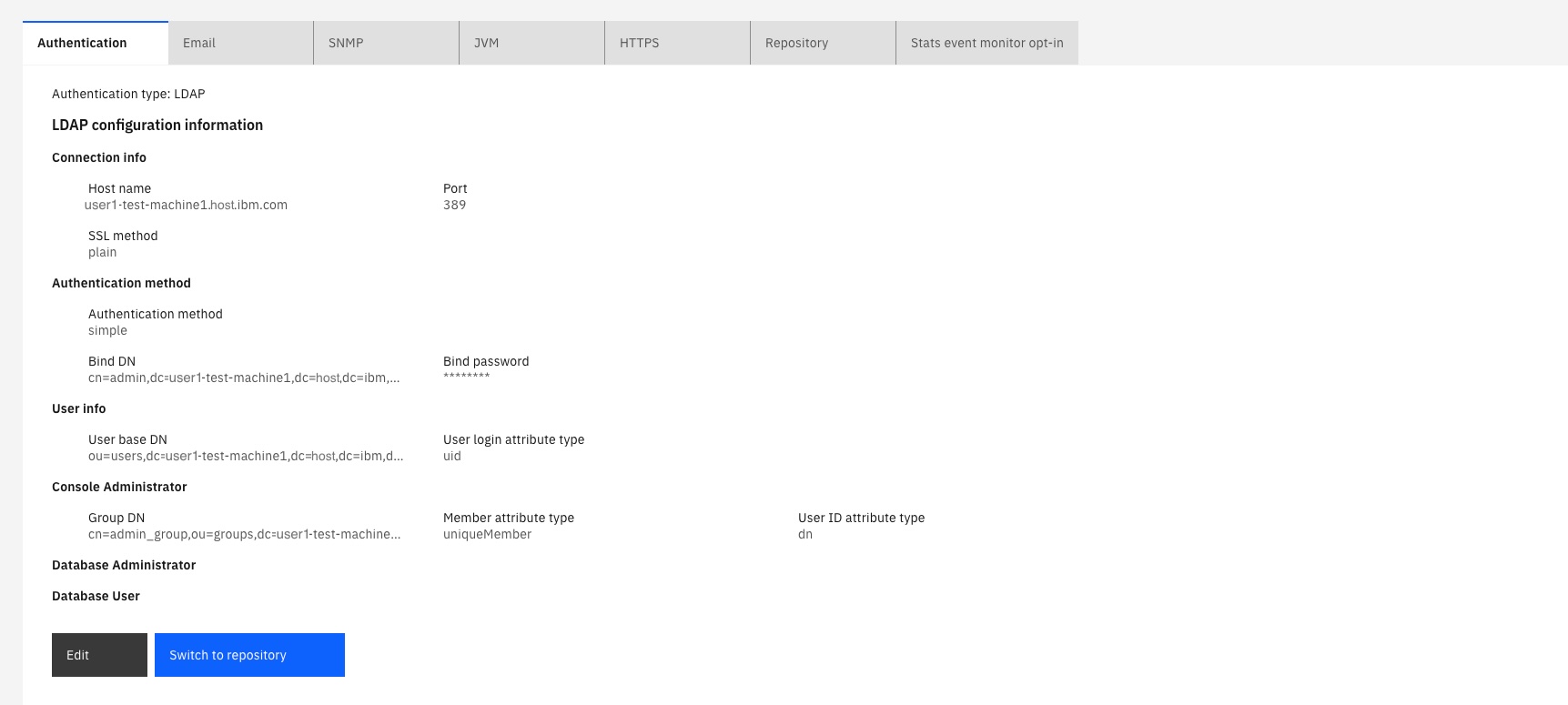
7. Configure LDAP on DMC like this.
Host name :
user1-test-machine1.host.ibm.com
Port :
389
Bind DN :
cn=admin,dc=user1-test-machine1,dc=host,dc=ibm,dc=com
Bind password :
bind_password

User info : User base DN :
ou=users,dc=user1-test-machine1,dc=host,dc=ibm,dc=com
User info : User login attribute type :
uid
Console Administrator : Group DN :
cn=admin_group,ou=groups,dc=user1-test-machine1,dc=host,dc=ibm,dc=com
Console Administrator : Member attribute type :
uniqueMember
Console Administrator : Member attribute type :
dn

8. One-step configuration for all LDAP LDIF files.
#!/bin/bash

# Define the LDAP admin credentials
LDAP_ADMIN="cn=admin,dc=user1-test-machine1,dc=host,dc=ibm,dc=com"
# Prompt for password
read -sp "Enter LDAP admin password: " LDAP_PASS
echo

# Array of LDIF files to be added in the specified order
LDIF_FILES=(
    "bind_user.ldif"
    "ou_users.ldif"
    "users.ldif"
    "ou_groups.ldif"
    "groups.ldif"
)

# Loop through each LDIF file and add it to the LDAP directory
for LDIF_FILE in "${LDIF_FILES[@]}"; do
    echo "Adding $LDIF_FILE..."
    ldapadd -x -D "$LDAP_ADMIN" -f "$LDIF_FILE" -w "$LDAP_PASS"

    if [ $? -eq 0 ]; then
        echo "$LDIF_FILE added successfully."
    else
        echo "Failed to add $LDIF_FILE."
    fi
done

echo "All LDIF files processed."
Switch LDAP back to the default admin setup in DMC
https://www.ibm.com/docs/en/db2-data-mgr-console/3.1.x?topic=configuration-resetting-authentication
Document Location
Worldwide
Was this topic helpful?
Document Information
Modified date:
21 May 2026
UID
ibm17270419