News
Abstract
The IBM Security QRadar User Behavior Analytics (UBA) app provides an efficient means for detecting anomalous or malicious behaviors that occur on your network. This document provides information about integrating UBA with Identity Governance and Intelligence.
Content
Integration overview
The Identity Governance and Intelligence integration with QRadar User Behavior Analytics app enables organizations to suspend user accounts in IGI to neutralize a network threat whenever a given user's email and AccountID have a matching UserName and email in UBA. Once a match has been identified, the IGI user is suspended.
The integration is initiated by IGI. A task that is running in IGI will read events captured in the UBA. The task schedule and the UBA events history timeline is configured in IGI.
This integration supports the following UBA events:
Prerequisites
This integration is supported with the following software versions:
Configuration steps
Download the QRadar certificate
Note: The steps below are executed using a Firefox browser. If you use a different browser, the steps might vary.
Import the QRadar certificate into IGI
Generate the QRadar authentication token (or use an existing token)
Set up the IGI Job communication to UBA
The IGI-to-UBA integration is performed by the SuspendAccount job that is defined in the IGI Task Planner. To set up the communication to UBA, complete these steps:
Set up the IGI scheduler and start the UBA integration task
Note: Before you perform this step, you must Set up the IGI Job communication to UBA as defined above.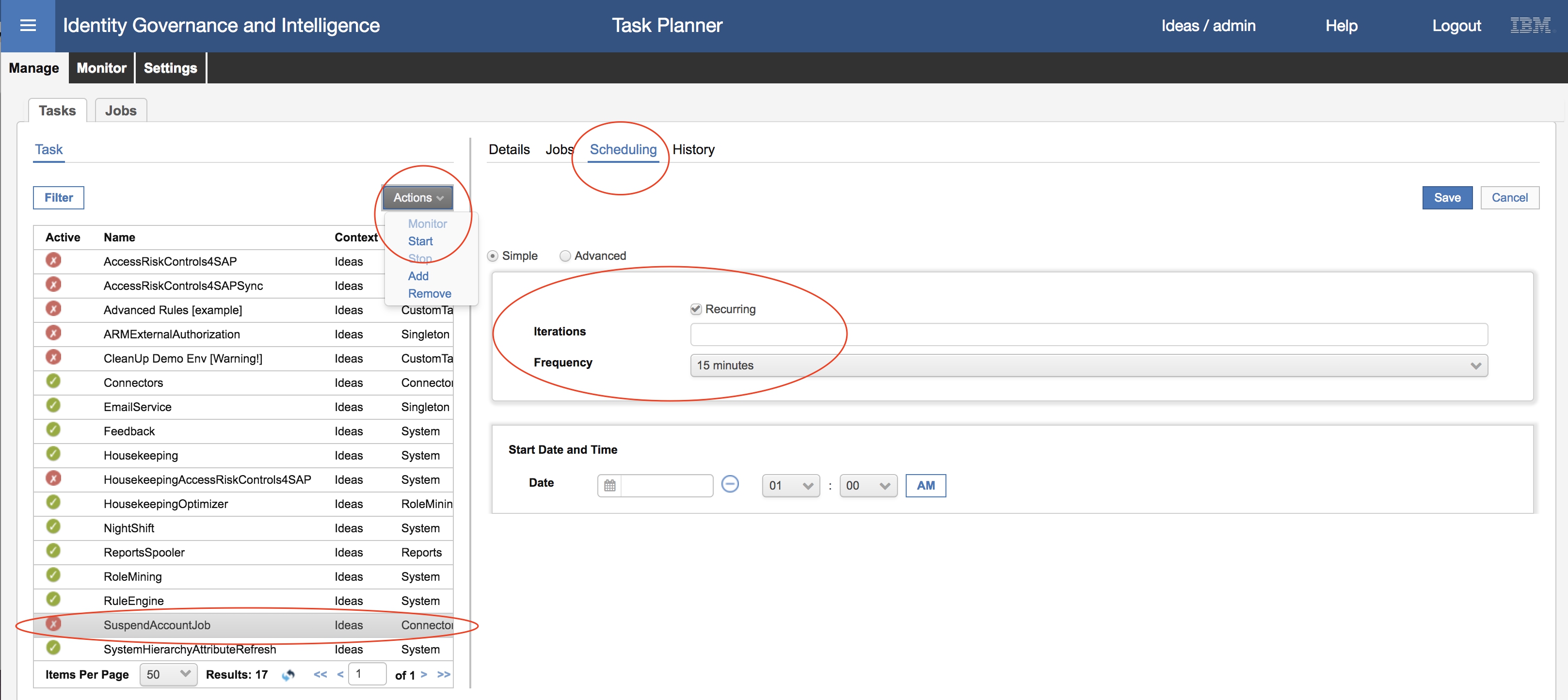
Troubleshooting
You can view the log files from the IBM Security Identity Governance and Intelligence Virtual Appliance Dashboard. See "Retrieving logs" in the Identity Governance and Intelligence Knowledge Center:
https://www.ibm.com/support/knowledgecenter/SSGHJR_5.2.3.1/com.ibm.igi.doc/installing/tsk/t_retrieving_logs.html
Known Issues
Limitations
The Identity Governance and Intelligence integration with QRadar User Behavior Analytics app enables organizations to suspend user accounts in IGI to neutralize a network threat whenever a given user's email and AccountID have a matching UserName and email in UBA. Once a match has been identified, the IGI user is suspended.
The integration is initiated by IGI. A task that is running in IGI will read events captured in the UBA. The task schedule and the UBA events history timeline is configured in IGI.
This integration supports the following UBA events:
- UBA : Orphaned or Revoked or Suspended Account Used
- UBA : Login Anomaly
- UBA : User Anomalous Geography
- UBA : High Risk Geography
- UBA : User Attempt to Use a Suspended Account
Prerequisites
This integration is supported with the following software versions:
- IBM Security Identity Governance and Intelligence V5.2.3.1 and later
- QRadar User Behavior Analytics App V2.2.0
Configuration steps
-
- Download the QRadar certificate.
- Import the QRadar certificate into IGI.
- Generate the QRadar authentication token (or use an existing token).
- Set up the IGI Job communication to UBA.
- Set up the IGI scheduler, and start the UBA integration task.
Download the QRadar certificate
Note: The steps below are executed using a Firefox browser. If you use a different browser, the steps might vary.
- From the QRadar login console page, click the "lock" icon on the URL.
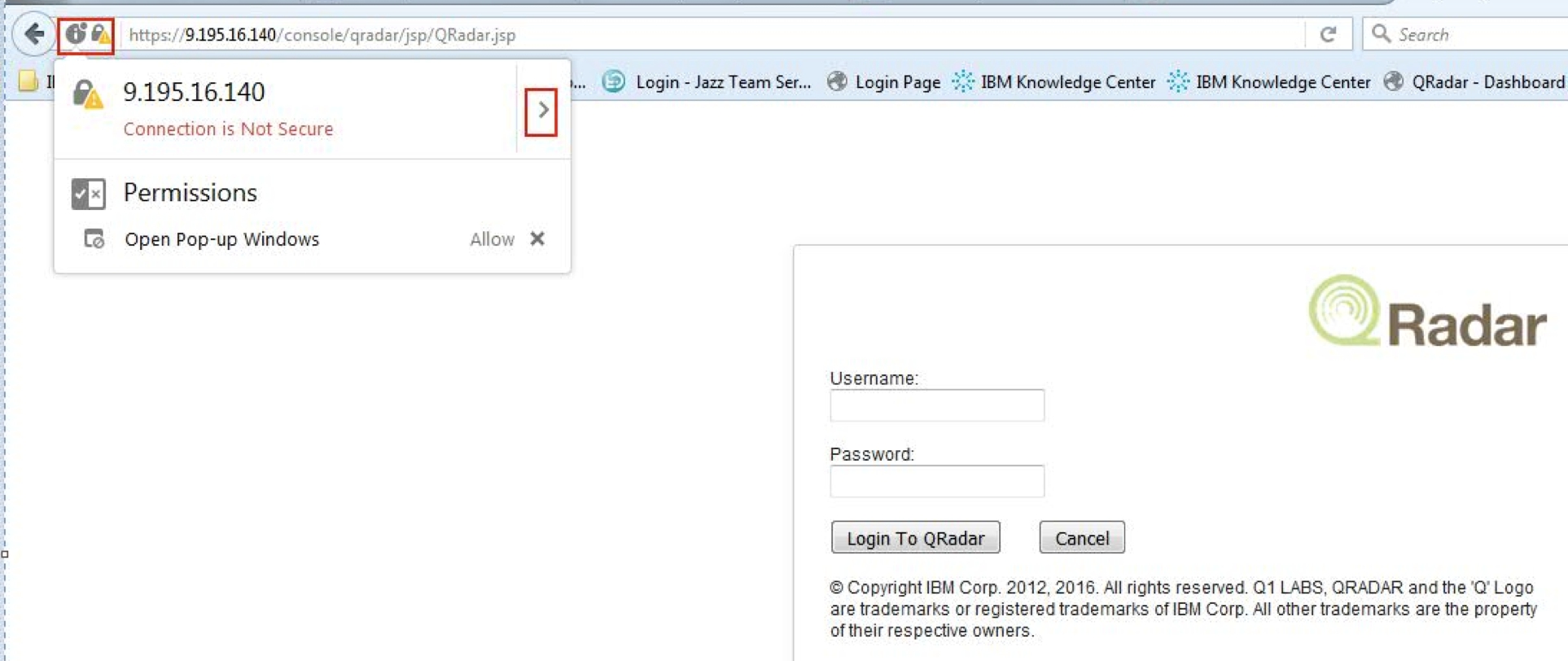
- Click More Information.

- Click View Certificate.
- Select the Details tab, and then click Export.

- Select the type as PEM, and save the certificate file with the .pem extension (for example, QRadar-cert.pem).
Import the QRadar certificate into IGI
- Log in to the Identity Governance and Intelligence VA console.
- Navigate to Configure > Certificates > Select Identity Governance and Intelligence key store > Signer > Upload.
- Upload the certificate by specifying the downloaded QRadar certificate location and label (for example, QRadar-cert.pem).
- From the IGI VA Home page, restart the Security Identity Governance and Intelligence server.
Generate the QRadar authentication token (or use an existing token)
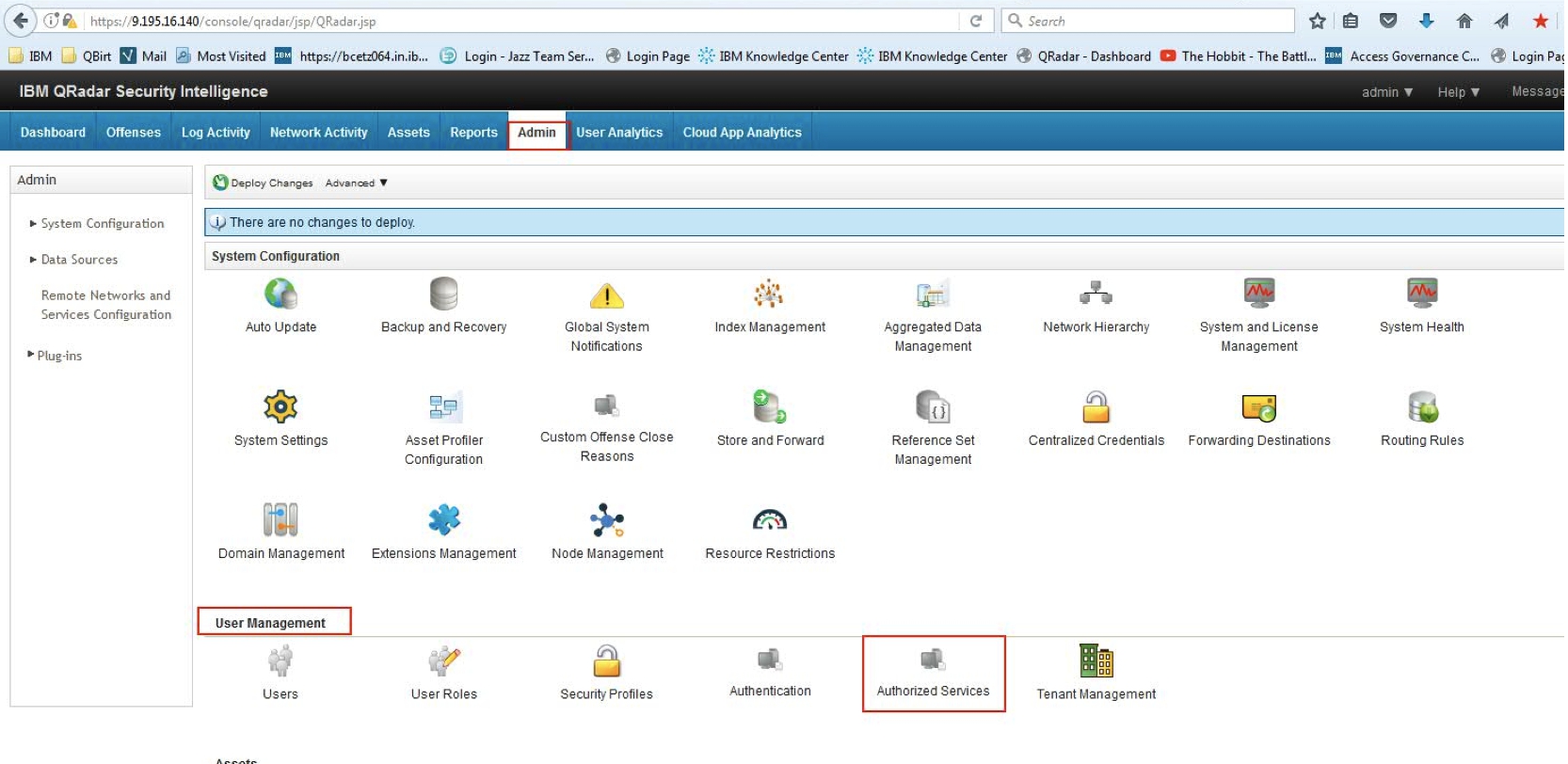
- Log in to the QRadar console, and navigate to Admin > User Management > Authorized Services.
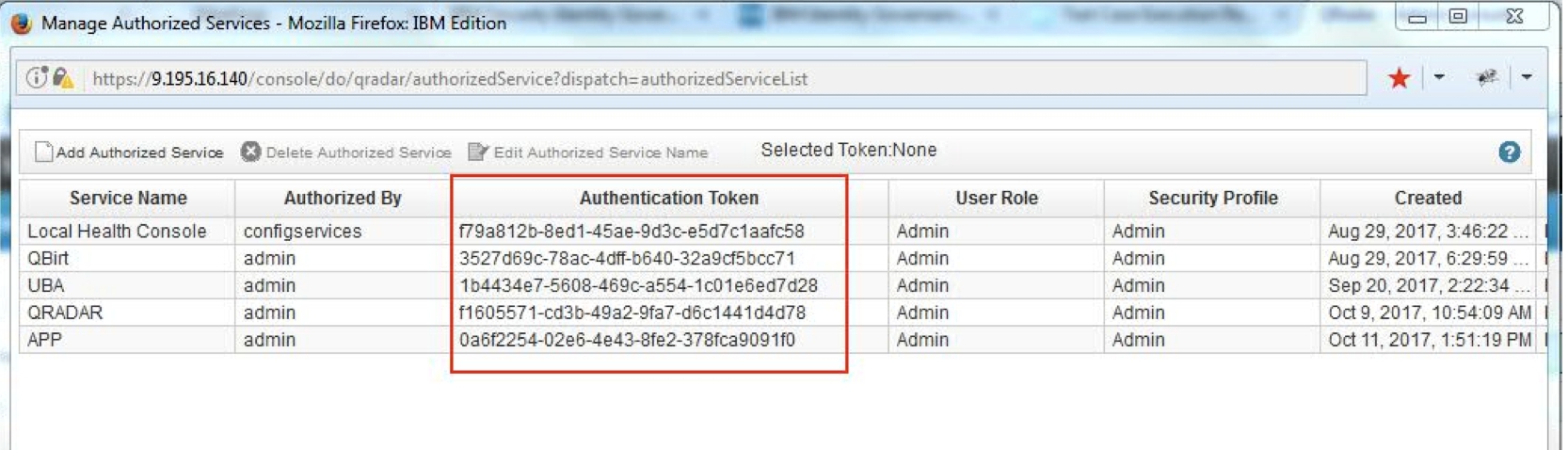
- Copy the Authentication Token from any existing Service Name, or create a new Service.
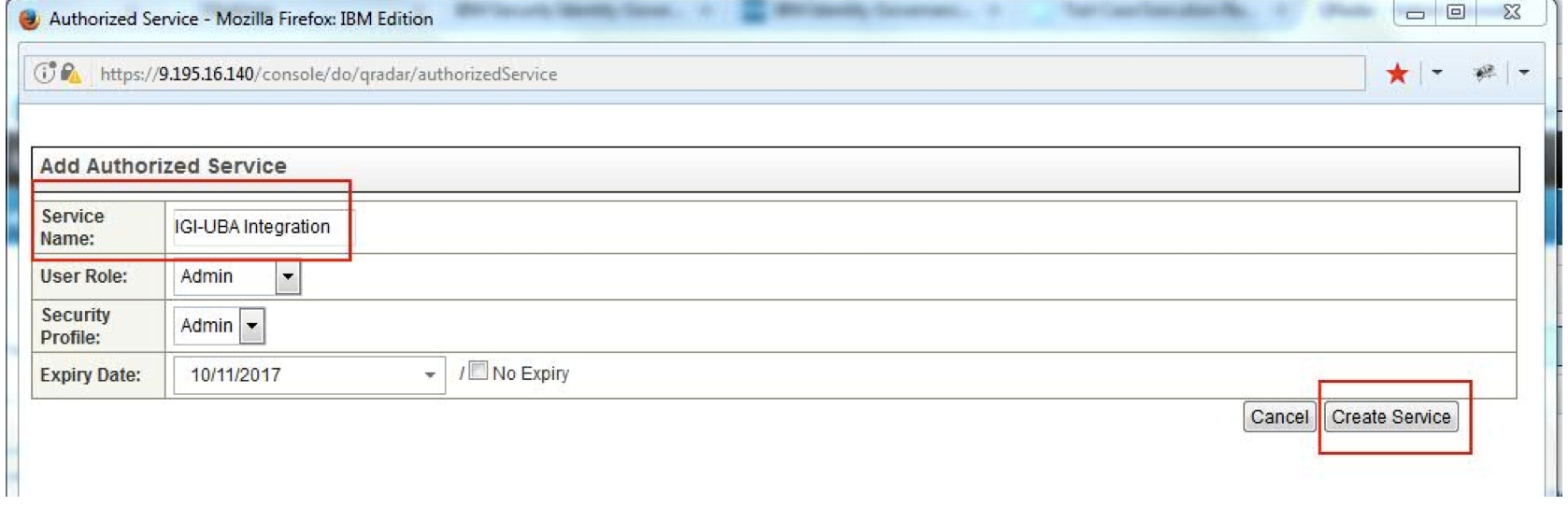
- To create a new Service, click Add Authorization Service.
- Specify the Service Name, Admin User Role, and Admin Security Profile. Click Create Service.
- Use the Authentication Token from an existing service or the newly created service.
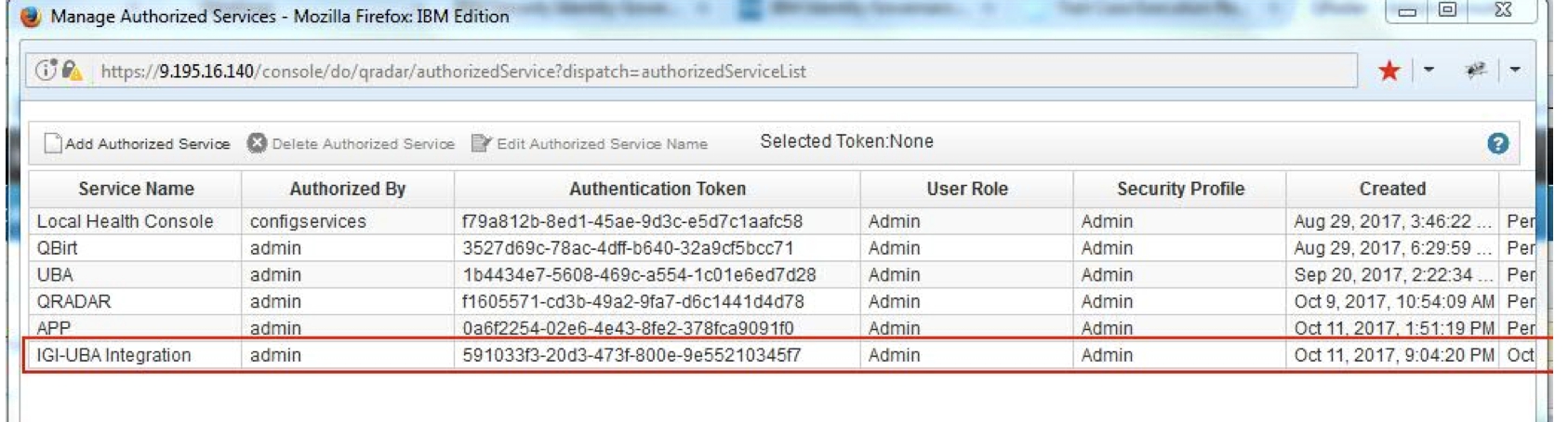
- Save the Authentication Token value. It will be needed to configure the IGI Job.
Set up the IGI Job communication to UBA
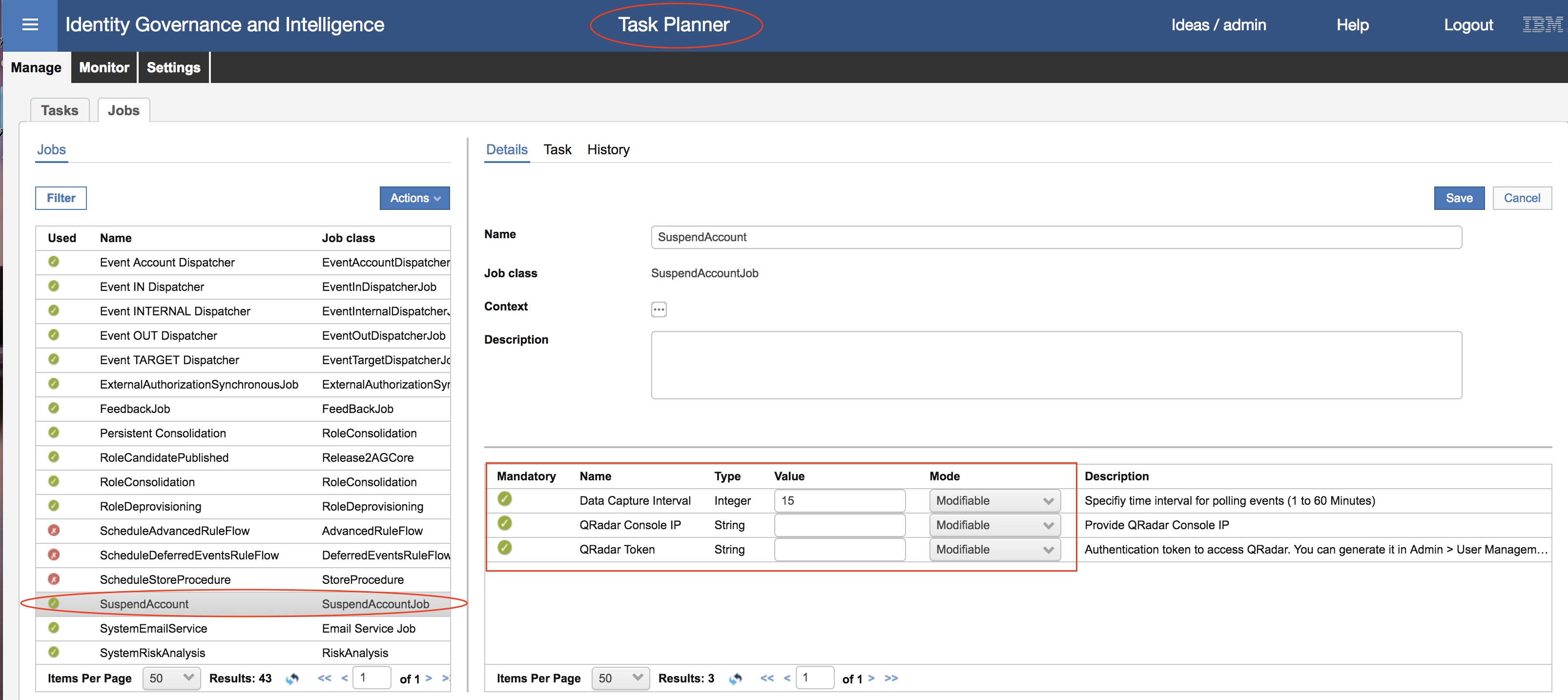
The IGI-to-UBA integration is performed by the SuspendAccount job that is defined in the IGI Task Planner. To set up the communication to UBA, complete these steps:
- Log in to the IGI Administration Console.
- From the Task Planner, navigate to Manage > Jobs.
- Select the SuspendAccount job.
- Enter the mandatory job parameters:
- Data Capture Interval: Minutes - Look at the QRadar event that occurred in the last minutes specified (see Known Issues section)
- QRadar Console IO: QRadar console IP address
- QRadar Authentication Token: The Authentication token
- Click Save.
Set up the IGI scheduler and start the UBA integration task
Note: Before you perform this step, you must Set up the IGI Job communication to UBA as defined above.
- Log in to the IGI Administration Console.
- From the Task Planner, navigate to Manage > Tasks.
- Select the SuspendAccountJob task.
- On the right pane, select the Scheduling tab.
- Set up the task schedule to meet your business need. An ideal setting is to have the task run at the same time interval as the Data Capture Interval that is defined in the SuspendAccount job.
- Set up the schedule, and click Save.
- You must start the task after saving the schedule.
- Select the SuspendAccountJob task.
- From the Action menu, select Start.
Troubleshooting
You can view the log files from the IBM Security Identity Governance and Intelligence Virtual Appliance Dashboard. See "Retrieving logs" in the Identity Governance and Intelligence Knowledge Center:
https://www.ibm.com/support/knowledgecenter/SSGHJR_5.2.3.1/com.ibm.igi.doc/installing/tsk/t_retrieving_logs.html
Known Issues
- The default value of the Data Capture Interval parameter on the SuspendAccount job configuration is set to 15 (minutes). Changing this value does not have any effect. The SuspendAccount job will continue to use the 15 minutes default value.
Limitations
None
Related Information
[{"Product":{"code":"SSGHJR","label":"IBM Security Identity Governance and Intelligence"},"Business Unit":{"code":"BU059","label":"IBM Software w\/o TPS"},"Component":"Integrations - IBM","Platform":[{"code":"PF004","label":"Appliance"},{"code":"PF025","label":"Platform Independent"}],"Version":"5.2.3.1","Edition":"","Line of Business":{"code":"LOB24","label":"Security Software"}}]
Was this topic helpful?
Document Information
Modified date:
04 March 2021
UID
swg22008495