How To
Summary
This document covers how to import self-signed and signed certificates into the IBM i Access Client Solutions Windows Application Package (ACS WinAP) proprietary key database.
Objective
Environment
Steps
Certificate Basics
- Self-Signed Certificate
- Signed Certificate
- Wild Card Certificate
- User Certificate.
Methods to import the certificate(s)
- Push to Windows from the ACS Key Management tool
- CWBCOSSL
Push to Windows


CWBCOSSL


I have a PFX or P12 file, how do I covert to a CRT or CER file?


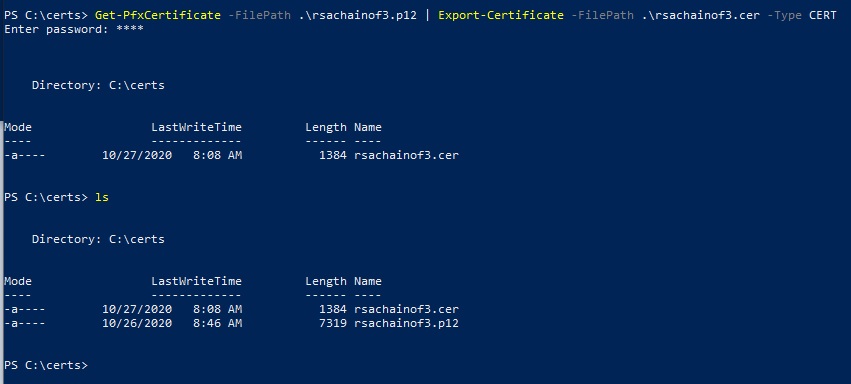


I have a chained CER or CRT file, how do I create separate certificates in the chain for import to ACS WinAP?


How do I view what is stored in the IBM i ACS WinAP CMS key Database?
I'm going to use one of the certs as an example.
Tips and Tricks
Note: All the following information is AS-IS. IBM i support does not support any of this.
This is being provided for assisting Administrators in automation.
Obtaining the Certificate with OpenSSL
OpenSSL is a framework that is recognized industry wide. In fact the IBM i has it available.
OpenSSL is a Swiss army knife for SSL, one of the many options is the s_client option.
This option allows you to connect to a system port and analyze TLS/SSL.
Some Windows 10 (and above) PCs have OpenSSL already installed, however it's likely not to be available on Windows based PCs by default.
WSL (Windows Subsystem for Linux) can be installed on a Windows based system..
WSL allows you to run a Linux terminal directly on your Wintel based PC or Server. This allows the installation of Linux tools like OpenSSL and ability to run Linux commands.
Since WSL is on your PC, it allows direct access between Windows and Linux environments files.
The two utilities/commands used to process the OpenSSL output are sed and awk. These are great tools for parsing and manipulating data. Those two tools are available on the IBM i in both the PASE and QSHELL environments on the IBM i system.
Example 1
Use OpenSSL to display the certificate(s) for port 9471:
openssl s_client -connect mySystem.com:9471
This will display all the details about the public key.
This in itself is nice, but what if you want this for use with the IBM i Access Client Solutions (ACS) Windows Application Package (WinAP)?
We can take the output from the above command and use a stream editor called sed. sed is available on most if not all POSIX based systems. With sed we can extract the ASCII PEM based certificate and store that in a file for use with ACS WinAP.
Example 2
Generates a ASCII PEM based certificate, cert.cer:
echo|openssl s_client -connect mySystem.com:9471| sed -ne '/-BEGIN CERTIFICATE-/,/-END CERTIFICATE-/p'>cert.cer
The ACS WinAP will require you to have the intermediate and signer certificate in separate files.
Example 3
Break apart the single certificate created in Example 2:
The awk command is used to generate the multiple .cer files for a chained certificate.
awk is not just a command, it's powerful language for processing data.
cat cert.cer | awk '/BEGIN CERTIFICATE/,/END CERTIFICATE/{ if(/BEGIN CERTIFICATE/){a++}; out="cert"a".cer"; print >out}'
If the certificate is a chained certificate, the above command will create cert1.cer, cert2.cer, etc.
Once you have these certificates, you can then use one of the commands previously mentioned in this document to import into the CMS Key Store.
Note: Using OpenSSL and connecting to a specific port of a system FQDN (Fully Qualified Domain Name) provided the certificate assigned to that specific server (port). If your system as multiple certificates assigned, the command would need to be ran against multiple ports. The other risk, while low, is a DNS hijack, where you believe your connecting to your system, but it's an attackers system. Make sure that you know what your connecting to.
Automation of Certificate Deployment
No supported methods to automate the importing of certificates to the CMS key store for the Windows Application Package exist.
Both the CMS database (AKA: key store/key database) and the password stash file can be copied from a working PC to another PC that needs to use the same certificate(s).
The location of the those two files are will be at this path: C:\Users\Public\Documents\IBM\Client Access
The two files names will be: cwbssldf.kdb and cwbssldf.sth
The problems that can come into play are:
1 - A mismatch in the CMS versions.
This can be avoided by simply making sure you are using the same version of the Windows Application Package.
2 - Overwriting a key store that has existing certificates used to connect to different IBM i systems.
There is no fix for this. See the next section, Using GSK CLI to find out how to import using command line.
Using GSK CLI
GSK is the IBM Global Security Kit.
This is a framework for all things SSL related.
GSK is used both on the IBM i and on the client side.
This covers a specific topic of GSK CLI (Command Line Interface).
GSK is a large topic and this section just touches the surface, but it should be enough for a savvy administrator to use.
The ACS WinAP uses GSK8 currently.
It only uses GSK for the client side of things.
Keep in mind that IBM i Support doesn't support GSK nor does it support using it. This section was written for administrators to use for coming up with ideas on automating certificate imports as a post install procedure.
This is a link to the full documentation for GSK8:
IBM Global Security Kit GSKit version 8
See section above the tips and tricks "How do I view what is stored in the IBM i ACS WinAP CMS key Database?" for setup to use gsk8capicmd.exe.
This is command allows you to add a certificate to the ACS WinAP key store:
gsk8capicmd.exe -cert -add -db "C:\Users\Public\Documents\IBM\Client Access\cwbssldf.kdb" -pw ca400 -label "My Cert Label" -file "C:\certs\mycert.cer"
The label "My Cert Label" can be what ever you want. It just needs to be unique for each certificate added.
If you have a chained certificate this command would be ran for each part in the chain. IE: root, intermediate, signer.
With this command method, you can put together an automated process to add individual certificates to the key store without impacting existing certificates or adding unwanted additional certificates.
Document Location
Worldwide
Was this topic helpful?
Document Information
Modified date:
23 April 2025
UID
ibm16350999