General Page
The steps on how to Register with the IBM Support Site
Register with the IBM Support Site
When you visit the IBM Support site (https://www.ibm.com/mysupport) but are not already logged in, the site prompts you to provide your IBMid. If this is your first time on the IBM Support site you may not have one. You must have an IBMid to use most of the features on the IBM Support site.
To register with the IBM Support site:
Figure 3. Search for your products and services

When the process is complete, click Manage Support Account from the Support site's header bar, and then click Product Resources. Your available products display under in the "My Products" section of the page.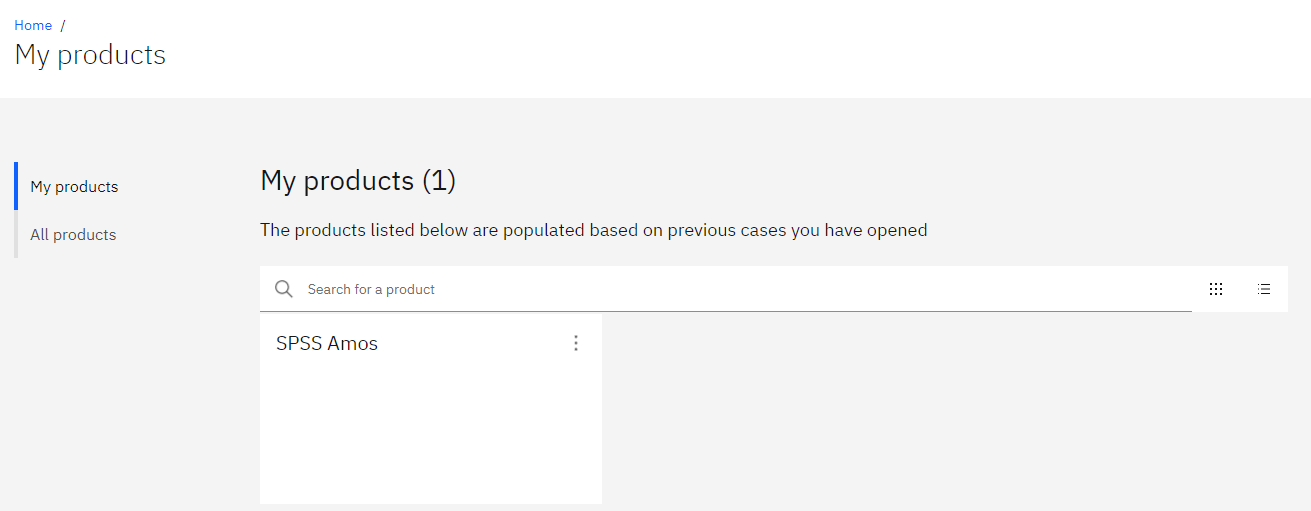
Figure 5. My Products page with your product listed as Pending Approval
When you visit the IBM Support site (https://www.ibm.com/mysupport) but are not already logged in, the site prompts you to provide your IBMid. If this is your first time on the IBM Support site you may not have one. You must have an IBMid to use most of the features on the IBM Support site.
To register with the IBM Support site:
- Visit the IBM Support site at https://www.ibm.com/mysupport.
- If you have an IBMid: Enter your IBMid in the text box, then click Continue, and then enter your password to log in to the IBM Support site.
Figure 1. Log into the Support Site - If you do not have an IBMid, create an IBMid to interact with the IBM Support site:
- Create a new IBMid.
- Complete the fields in section 1 of the Create Your IBM Account page. Your email address becomes your IBMid, which you use to log into IBM.com.
- Click Next. The Support site sends a a 7-digit verification code to the email you entered, which expires in 30 minutes.
Note: If you do not receive the verification email, check your spam or junk email folders for an email from ibmacct@iam.ibm.com. - Enter the Verification token in section 2, and then select whether IBM may contact you regarding products, services, and offerings.
- Click Create Account.
- Read the information on the About your IBMid Account Privacy window, and then click Proceed. The system creates your account and sends you a confirmation message.
Figure 2. The Sign Up for an IBMid window -
If you are unsure of your IBMid credentials, click Forgot your IBMid? The Helpdesk page provides contact information for the IBM Registration Helpdesk. From here, find your region and then choose your preferred contact method, either phone or email.
Register for Products in the IBM Support Site
After you register and log into the Support site, click the avatar icon, then click Support Access, and then click Request Access to register your products and services.Figure 3. Search for your products and services
Figure 4. Register a product or service.
- Use the search bar to find your IBM product.
- Provide the necessary information so IBM Support can identify you and verify your access, and then click Submit.
When the process is complete, click Manage Support Account from the Support site's header bar, and then click Product Resources. Your available products display under in the "My Products" section of the page.
Figure 5. My Products page with your product listed as Pending Approval
[{"Type":"MASTER","Line of Business":{"code":"LOB33","label":"N\/A"},"Business Unit":{"code":"BU051","label":"N\/A"},"Product":{"code":"IBMSUPPORT","label":"IBM Support"},"ARM Category":[],"Platform":[{"code":"PF025","label":"Platform Independent"}],"Version":"All Versions"}]
Was this topic helpful?
Document Information
Modified date:
25 April 2025
UID
ibm17231844