Follow the below guide to troubleshoot and resolve the problem. This guide will be split into two sections; Section A and Section B. Firstly, walk through Section A, and if the problem persists, then use Section B.
Section A: Double check that you have correctly configured the groups and users in the Microsoft Active Directory
Make sure the groups in the security schema that you are using are created in the Microsoft Active Directory. Afterwards, make sure you assign your user to be the members of these groups.
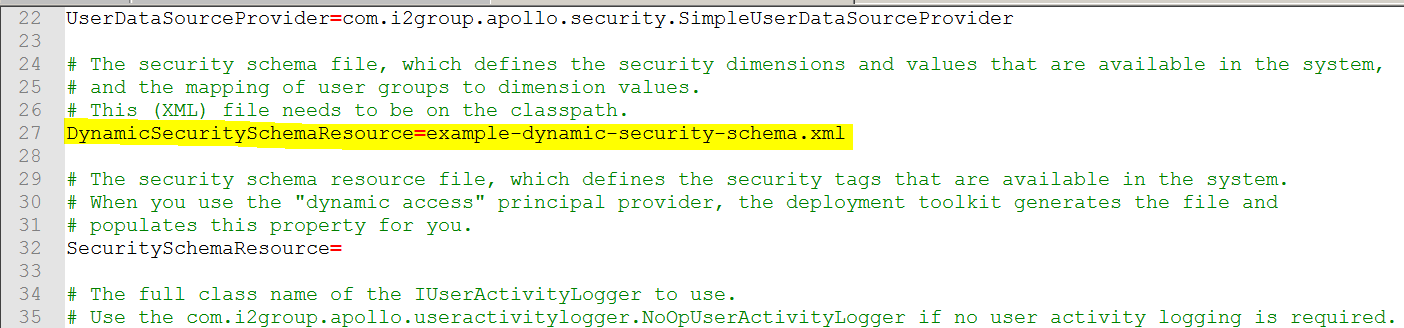
- Go to IBM\i2EIA\toolkit\configuration\fragments\common\WEB-INF\classes, and open ApolloServerSettingsMandatory.properties, and confirm the name of your security schema. For example:
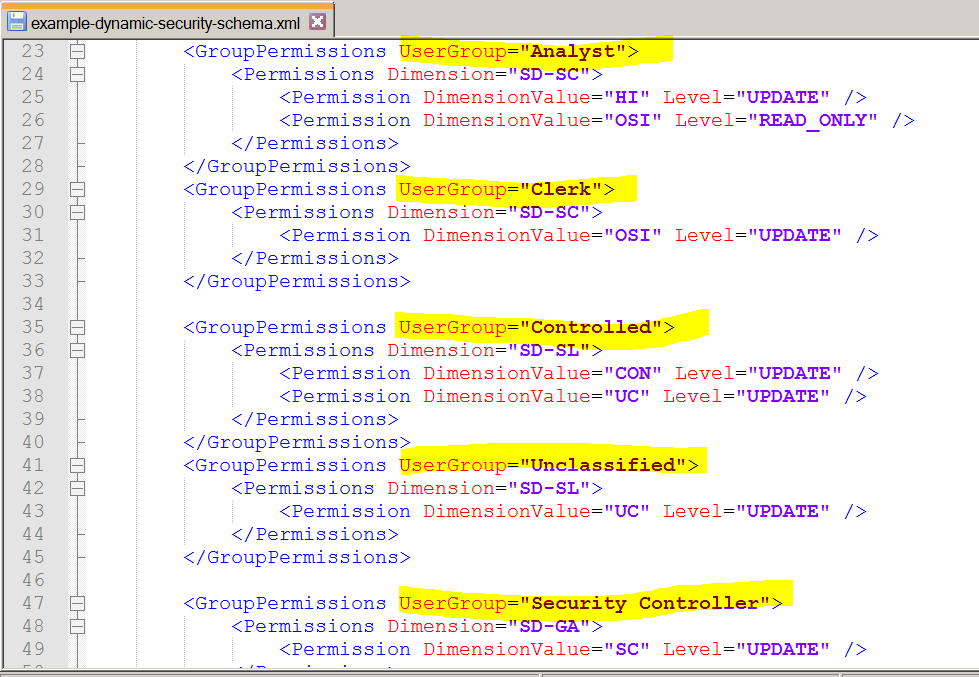
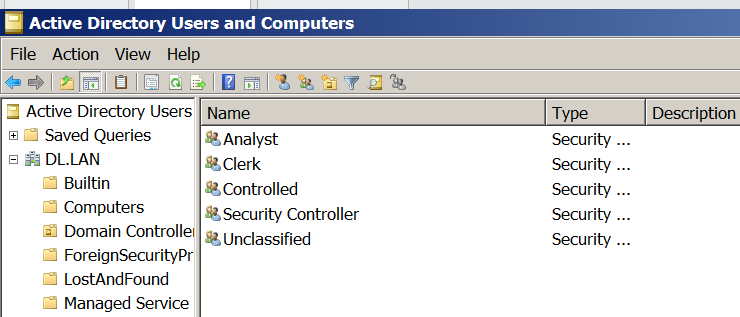
- Then open your security schema, and make sure that you have created the groups in MS AD that matches the groups in your security schema. Then assign the user to the member of these groups.
You can follow the instructions here to configure Microsoft Active Directory - https://www.ibm.com/support/knowledgecenter/SSXVTH_4.3.2/com.ibm.i2.eia.go.live.doc/t_configuring_domain_controller.html?cp=SSXVXZ_2.3.2
For example:
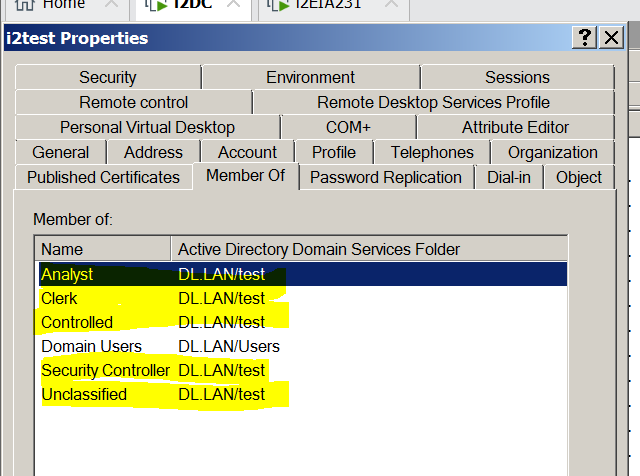
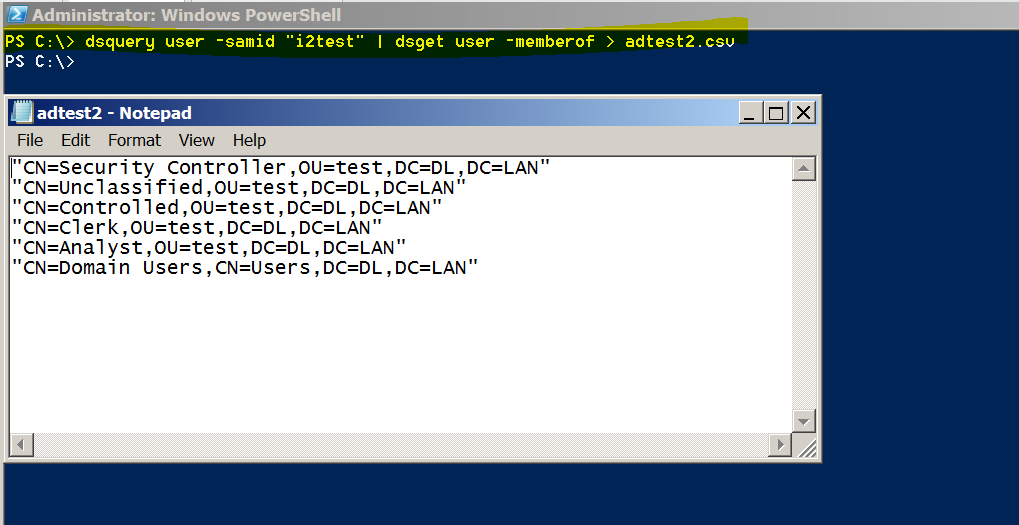
- If you want to double check the users are correctly assigned to be the members of the AD groups, you can also run this command in powershell to get the information of all members of the user - "dsquery user -samid "user id" | dsget user -memberof > <insert your csv file name>. You can cross compare this information against your AD user and group membership assignments. For example:
After you performed the above checks and made sure the AD groups and users are all configured correctly, but the problem persists, then continue on to Section B of this problem solving guide to resolve the problem.
Section B: Checking the LDAP registries
- You have already made sure the groups and users are correctly assigned in the MS AD, but the problem continues. So next, we will troubleshoot the LDAP configurations and find out why the AD lookup is not returning the group names for the user.
- For a starter, please make sure you have followed step 2 and 3 of this guide to configure Webpshere Liberty application server profile - https://www.ibm.com/support/knowledgecenter/SSXVTH_4.3.2/com.ibm.i2.eia.go.live.doc/t_prep_environment.html?cp=SSXVXZ_2.3.2
- That means you should also make sure you followed step 1 and step 4 of this guide to configure LDAP registries in Liberty - https://www.ibm.com/support/knowledgecenter/SSD28V_liberty/com.ibm.websphere.wlp.core.doc/ae/twlp_sec_ldap.html
- After you followed the above guides and configured Liberty, if the problem persists. Then it is time to enable the debug mode and dig deeper into the probelm.
To enable the debug log:
- Stop WebSphere Liberty by entering the command, "setup -t stop".
- Then go to this folder deploy\wlp\usr\servers\opal-server\apps\opal-services-is.war\WEB-INF\classes
- Find and edit log4j.properties. Change this default section:
From
# Uncomment one of the following four lines to set up a logger for Apollo logging
log4j.logger.com.i2group=WARN, APOLLOLOG
#log4j.logger.com.i2group=DEBUG, CONSOLE, APOLLOLOG
#log4j.logger.com.i2group=ERROR, APOLLOLOG
#log4j.logger.com.i2group=ERROR, CONSOLE, APOLLOLOG
log4j.additivity.com.i2group=false
To
# Uncomment one of the following four lines to set up a logger for Apollo logging
#log4j.logger.com.i2group=WARN, APOLLOLOG
log4j.logger.com.i2group=DEBUG, CONSOLE, APOLLOLOG
#log4j.logger.com.i2group=ERROR, APOLLOLOG
#log4j.logger.com.i2group=ERROR, CONSOLE, APOLLOLOG
log4j.additivity.com.i2group=false
- Save the file. And restart Webpshere Liberty by entering the command, "setup -t start"
- Now go to \IBM\i2analyze\deploy\wlp\usr\servers\opal-server\logs\opal-services-is
- Find and open the log called "IBM_i2_Analysis_Repository.log"
- Look through this log, and look for the forbidden exception again. With the debug mode enabled, the log will contain a lot more information, including information on what groups (if any) the user is a member of. The information will be in this line:
User 'User X" is a member of the following groups: [your group names].
There are two scenarios:
Scenario 1:
- If one or more of the groups names you are expecting the user to be in are missing, then the LDAP configuration is failing to find it in AD. Or the AD has not been set up correctly for those users
More commonly, the group name can be a string like this
CN=GroupOne,OU=Security Groups,OU=Groups,DC=YOURDOMAIN,DC=NET
If that is the name of the group, then that is unlikely to match the name of the group in the security schema. As a result, the i2 deployment will not get a match and the user will not have the dimension value access allocation, and therefore it is causing the forbidden exception that you are seeing in the IBM_i2_Analysis_Repository.log. To solve this problem, you can either alter the name of the GroupPermissions UserGroup in the security schema to match the string being returned. Or, you can also determine how to make the Websphere Liberty server LDAP lookup to return only the bit of the string that it is expected.
Scenario 2:
However, if the log shows that the user is not a member of any group. For example, you see an error similar to this:
DEBUG com.i2group.disco.security.internal.WebSphereRoleBasedPrincipalProvider - kMjJcBPHU9VZnHl_DwQ1-Fe 17a5538d-9708-4246-ada0-9d8f8f3a7148 - User 'User X" is a member of the following groups: [].
2020-12-03 09:24:01,791 82719806 [Default Executor-thread-119] WARN com.i2group.disco.usersessionservice.session.internal.SessionResourceDelegate - kMjJcBPHU9VZnHl_DwQ1-Fe 17a5538d-9708-4246-ada0-9d8f8f3a7148 - com.i2group.disco.common.exception.ForbiddenAccessException: Missing dimension values for the following dimensions: [SD-SL, SD-SC].
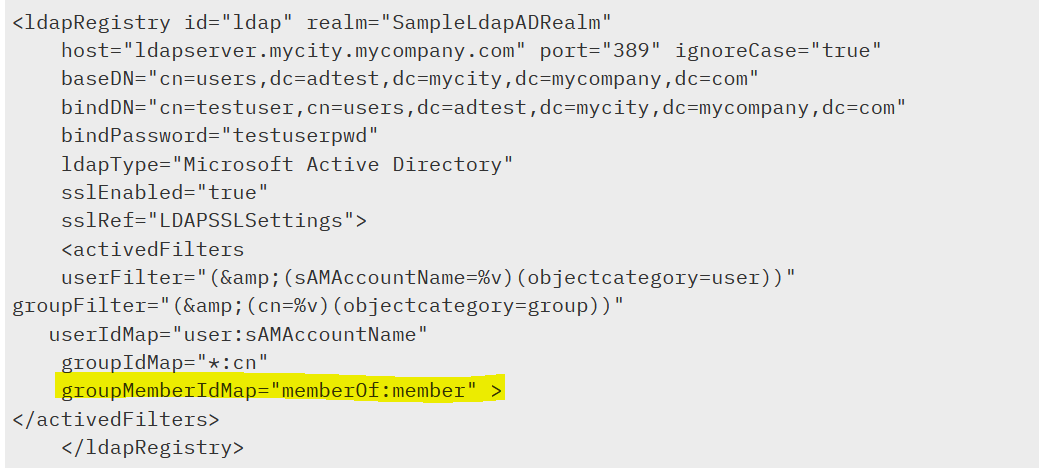
In the above error example, "User X" is not a member of any group (i.e. notice there is no group names between []). This is despite the fact that the groups and users are correctly assigned in MS AD. In this scenario, open your server.xml and review the LDAP registry section. One possible problem is that the LDAP filter, groupMemberIdMap, is not assigned with the correct value. groupMemberIdMap is the LDAP filter that identifies the user to the group members. If the value for this LDAP filter is not assigned with the correct value, then the group memberships will not be able to identify the user, and it can cause the "forbidden" exception that you are seeing in the IBM_i2_Analysis_Repository.log.
Here is the example for the LDAP registry, with the groupMemberIdMap highlighted in yellow.
- The format for groupMemberIdMap should be "classobject:attribute". Therefore, you should assign this value based on how your group and group memberships are defined.
- For examples, a group might look like this:
dn: cn=group1,o=ibm,c=us
cn: group1
objectclass: top
objectclass: groupOfNames
member: uid=user1,o=ibm,c=us
In the above example, the objectclass is "groupOfNames", and the attribute is "member". Therefore, the groupMemberIdMap values should be "groupOfNames:member
Here is a different example:
dn: cn=group1,o=ibm,c=us
cn: group1
objectclass: top
objectclass: memberOf
member: uid=user1,o=ibm,c=us
Now the objectclass is "memberOf", and the attribute is member. Therefore, the LDAP filter value should be "memberOf:member"
- If you are using Microsoft Active Directory, the default value for groupMemberIdMap is "memberOf:member". But the default value for this LDAP filter is different for the various types of directories, such as Novell, Java System, IBMLotusdominos, so on and so forth. You can find more information about how to assign these LDAP filter values here - https://www.ibm.com/support/knowledgecenter/SSAW57_liberty/com.ibm.websphere.liberty.autogen.nd.doc/ae/rwlp_config_ldapRegistry.html#edirectoryFilters
- The central point is that you must ensure the groupMemberIdMap is assigned with the correct value, in the format, "classobject:attribute", according to how you defined the groups and the group memberships.
- Next, re-deploy i2 Analyze by entering the command, "setup -t deploy". Now the AD lookup for the group membership should be returning group names for the user that match the names that have been defined in the security schema. And you can successfully establish a connection from i2 Analyst's Notebook Premium to the i2 server.