Question & Answer
Question
This document steps through downloading a IBM i file directly into an Excel Spreadsheet by using Access Client Solutions data transfer from IBM i.
Answer
Following are the steps to download a IBM i file into an active spreadsheet by using IBM i Access Client Solutions data transfer from IBM i.

Click 'Data Transfer' in the left menu options and you are presented with the following data transfer session panel:

You can use the tabs shown just beneath the menu and toolbar to select upload or download. You can add more data transfer requests to the session by using the Actions menu option or the up or down arrows.
For this document, we are using the tab labeled 'From IBM i - 2'.
In the Data Transfer window, the top section includes input for the IBM i system name or IP address and the IBM i library and file name.
In this example, we are using the file QCUSTCDT in library QIWS; a small example file shipped with IBM i.
You can select the output device on the PC and the name of a PC file when the File output device is selected.
For the purposes of this document, we are going to download a file to an active Excel spreadsheet. Before you select the output device of Active Excel Spreadsheet, make sure you opened Excel and have an active spreadsheet. You are presented with an error when you do not have an active Excel spreadsheet. If you have multiple instances of Excel open or multiple spreadsheets open in the instance of Excel being used, select the spreadsheet you want to populate with the downloaded data.
Select the cell in the Excel spreadsheet where you want the downloaded data to start populating the spreadsheet.
After you select the Excel spreadsheet, go to the data transfer session and select the output device of Active Excel Spreadsheet. The data transfer window then looks similar to the following:
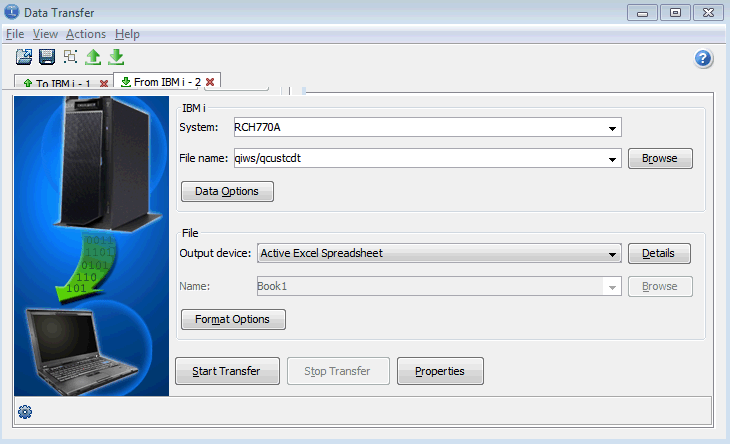
Click the Details button and you are presented with the following panel:

You can select options to customer the Excel spreadsheet by using the File Details. You can also select the option to create a Client file description (
After you select the options you want from the File Details panel, select OK to return to the data transfer session.
Clicking the Format Options button presents you with available date, time, and decimal options.
Clicking the Properties button presents you with options similar to the Properties in the IBM i Access for Windows client.
Click the Start Transfer button. You see a record count dynamically increase when the file is large. You see a completion message when the transfer completes showing the number of records downloaded, as shown in the following snap shot:

The selected active Excel spreadsheet is populated with the downloaded data from the IBM i file.

First, open the Access Client Solutions interface. You are presented with the following window:
Click 'Data Transfer' in the left menu options and you are presented with the following data transfer session panel:
You can use the tabs shown just beneath the menu and toolbar to select upload or download. You can add more data transfer requests to the session by using the Actions menu option or the up or down arrows.
For this document, we are using the tab labeled 'From IBM i - 2'.
In the Data Transfer window, the top section includes input for the IBM i system name or IP address and the IBM i library and file name.
In this example, we are using the file QCUSTCDT in library QIWS; a small example file shipped with IBM i.
You can select the output device on the PC and the name of a PC file when the File output device is selected.
For the purposes of this document, we are going to download a file to an active Excel spreadsheet. Before you select the output device of Active Excel Spreadsheet, make sure you opened Excel and have an active spreadsheet. You are presented with an error when you do not have an active Excel spreadsheet. If you have multiple instances of Excel open or multiple spreadsheets open in the instance of Excel being used, select the spreadsheet you want to populate with the downloaded data.
Select the cell in the Excel spreadsheet where you want the downloaded data to start populating the spreadsheet.
After you select the Excel spreadsheet, go to the data transfer session and select the output device of Active Excel Spreadsheet. The data transfer window then looks similar to the following:
Click the Details button and you are presented with the following panel:
You can select options to customer the Excel spreadsheet by using the File Details. You can also select the option to create a Client file description (
.fdfx) file. The FDFX file is used when you upload data back to IBM i.After you select the options you want from the File Details panel, select OK to return to the data transfer session.
Clicking the Format Options button presents you with available date, time, and decimal options.
Clicking the Properties button presents you with options similar to the Properties in the IBM i Access for Windows client.
Click the Start Transfer button. You see a record count dynamically increase when the file is large. You see a completion message when the transfer completes showing the number of records downloaded, as shown in the following snap shot:
The selected active Excel spreadsheet is populated with the downloaded data from the IBM i file.
Related Information
[{"Type":"MASTER","Line of Business":{"code":"LOB68","label":"Power HW"},"Business Unit":{"code":"BU070","label":"IBM Infrastructure"},"Product":{"code":"SWG60","label":"IBM i"},"ARM Category":[{"code":"a8m0z000000cwMLAAY","label":"Data Access-\u003EData Transfer"}],"ARM Case Number":"","Platform":[{"code":"PF025","label":"Platform Independent"}],"Version":"All Versions"}]
Was this topic helpful?
Document Information
Modified date:
11 December 2024
UID
nas8N1021261