Preventive Service Planning
Abstract
With the release IBM Rational Performance Tester (RPT) v8.1.1 and onward there is now the built-in functionality to substitute request content from a file. Prior to version 8.1.1 this would have had to have been done through the custom code interface. These details apply to IBM DevOps Test Performance (DTP) versions as well now that the product name has changed.
Content
The recorded test consists of two pages:
PAGE 1: An ASP based form to upload a file from the file system
PAGE 2: The acknowledgement from the web server that the file was uploaded
In the original recording a text file named ‘RPT1.txt’ was uploaded; the contents of the file are as follows:
“this is the file uploaded during the initial recording”
A dataset was created consisting of one record; the path to the file that will be uploaded at run time

The file in the dataset is called ‘RPT2.csv; the contents of the file are as follows:
- “This is the file used in the IBM DevOps Test Performance dataset”
The Recorded test will contain a request (POST) that uploads the file. From an HTTP standpoint the POST request recorded will look something like this:
POST /ToFileSystem.asp HTTP/1.1Accept: image/gif, image/x-xbitmap, image/jpeg, image/pjpeg, application/x-shockwave-flash,Content-Length: 254Connection: Keep-AliveCache-Control: no-cacheServerSuppliedCookie: ASPSESSIONIDQCTAARDA=NBHLCGDBOMEGCBAGMLPENPCF-----------------------------7da2322c70648Content-Disposition: form-data; name="File1"; filename="C:\RPTupload\RPT1.txt"Content-Type: text/plain
this is the file uploaded during the initial recording
-----------------------------7da2322c70648—
You can see the file name and text being uploaded
From the DTP Test Editor the POST request contains three data chunk entries (Depending on the application, the number of entries will differ).
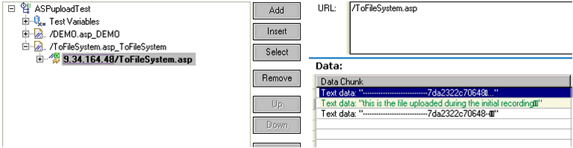
The Data Chunk data corresponds to the POST data of the request
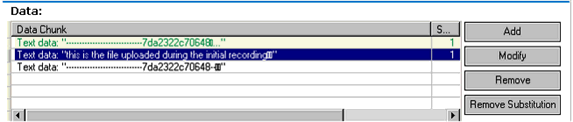
To substitute the contents of the data being uploaded first select the request data that you want to substitute and select the Modify button;
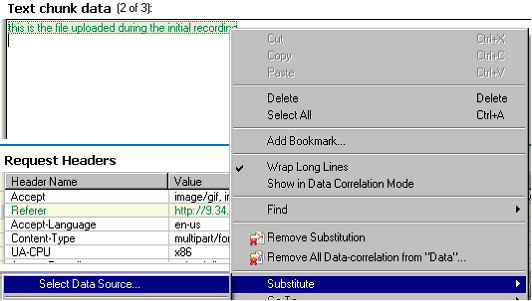
Right-click, and then select Substitute > Select Data Source.
Associate the appropriate dataset column for the substitution

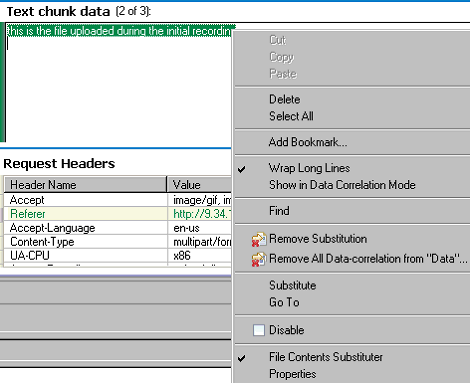
When complete, be sure that data content is highlighted in dark green (indicating a substitution is in place) and that the File Contents Substituter is checked
When the test is executed you can verify that the dataset was uploaded by looking at the Protocol data view of the Test log
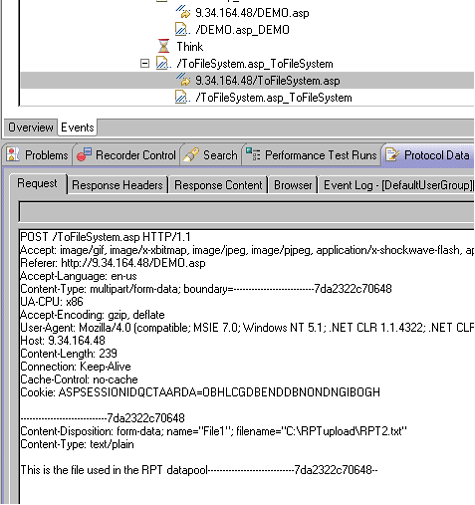
Note 1: In this example and additional dataset substitution was made for actual file name being uploaded; this would be a standard dataset substitution as opposed to the content substitute outlined in the technote. This may be necessary depending on the specific application under test.
Note 2: If you encounter an error in the test log after execution stating, "The file name provided (...<some location>) cannot be found. Please provide the full path and make sure it exists," it indicates that the file at the specified path may have been misplaced or corrupted. Ensure the working file is present in the mentioned location within the system.
Product Synonym
Rational Performance Tester
Was this topic helpful?
Document Information
Modified date:
18 November 2024
UID
swg21424328