Product Documentation
Abstract
IBM Case Analyzer (CA) collects events from the Process Engine event logs and Content Engine audit log and generates chart-based statistical reports from active case and workflow data, as well as historical data. Case Monitor Dashboards use the data from the Case Analyzer database to monitor active cases and workflows.
Case Analyzer provides a set of Out-of-the-box (OOTB) reports and dashboards which can be readily used by business users. Customer seeking deep customization can create adhoc reports and dashboards by directly querying CA RDBMS. This technical document is meant for understanding the CA RDBMS schema for writing these custom SQL queries.
Content
Table of Contents
Schema definition
--------In-Progress Fact Tables
----------------Workflow in Progress (F_DMWorkflowWIP)
----------------Work item in progress (F_DMWIP)
----------------Case in progress (F_DMCaseWIP)
----------------Task in progress (F_DMTaskWIP)
--------Historical Fact Tables
----------------Work(flow) Load (F_DMWorkLoad)
----------------User/System queue Load (F_DMQueueLoad)
----------------Productivity – work item measurement (F_DMProductivity)
----------------Workflow route analysis (F_DMRouting)
----------------Case Load (F_DMCaseLoad)
----------------Task load (F_DMTaskLoad)
User defined dimensions and measures
Access Restrictions and limitations
Best Practices
Schema definition
CA RDBMS is designed as a star schema with a set of Fact tables surrounded by their corresponding Dimension tables. The convention used in naming the tables helps in differentiating them and to understand their purpose.
- Fact tables are identified by the prefix “F_”
- Dimension tables are identified by the prefix “D_”
- System tables are identified by the prefix “X_'
- User defined tables are identified by the prefix “D_DMDataField”
Based on the data it holds, the Fact tables are separated into two categories viz. Historical and In-Progress. Historical fact tables contain data for completed work over a period of time aiding long-term analysis. In-Progress fact tables contain data for the work that is in progress and hence aids real-time monitoring as and when the work moves between the different queues.
In-Progress fact table contains details of work that is in progress. For details on completed work, the user needs to refer to the historical fact tables. The in-progress fact tables are auto-maintained and the size is kept in check by the product under normal processing conditions. Work in progress is generally monitored using real-time dashboards which connect to the views created on top of the fact tables.
Workflow in Progress (F_DMWorkflowWIP)
Details on in-progress workflows. For a in-progress workflow instance, only one record is present in this fact table.
Dimensions
| Name | Comments |
| DataSource_key | Whether the source of data is from Case Analyzer publishing the events in production or from a Simulation output. In production, this dimension might not be taken into account for custom queries |
| Workflow_key | Identifies the corresponding record in the D_DMWorkflow dimension table |
| Name | Comments |
| TSCreationTime | Timestamp of the creation event. In other words, workflow creation timestamp |
| MinutesSinceCreation | Calculated field. Minutes elapsed since the creation of the workflow. For Oracle and DB2, please refer to the view titled V_FM_DMWorkflowWIP. |
Relationship with dimensions

Work item in progress (F_DMWIP)
Details on in-progress work items. For a in-progress work item, only one record is present in this fact table.
Dimensions
| Name | Comments |
| DMWorkItem_key | One record in D_DMWorkItem corresponds to one item in F_DMWIP and both have the same primary key values. Terminated workitems are removed from F_DMWIP but the corresponding entries may exist in D_DMWorkItem until it is explicitly pruned. |
| DMUser_key | Key to the user table. The user who performed the given operation. |
| DMOperation_key | Links to the dimension table D_DMQueueOp which contains the operation related to the event. QueueName and Operation name can be fetched from D_DMQueueOp related to the record in F_DMWIP. |
| DMStep_key | Links to the dimension table D_DMModel where information related to user and system steps can be fetched. Information like whether it is a component step, Start step, User step etc. can be extracted from the dimension table |
| DMItemStatus_key | Whether the workitem is currently waiting, processing or delayed can be extracted from the associated dimension table D_DMItemStatus |
Measures
| Name | Comments |
| MinutesSinceLastEvent | Minutes elapsed since the last event. Used for internal calculations and may not be required for custom queries. For DB2 and Oracle refer to the view titled V_F_DMWIP |
| WaitCurrentMinutes | Cumulative wait time as of the last event that was processed. |
| ProcCurrentMinutes | Cumulative processing time as of the last event that was processed. |
| IsInWaitStatus | Whether the workitem is currently in wait state |
| IsInProcStatus | Whether the workitem is currently in processing state |
Relationship with dimensions
 |
Case in progress (F_DMCaseWIP)
Details of in-progress cases. For a in-progress case instance only one record is present this fact table.
Dimensions
| Name | Comments |
| D_DMCaseType | Casetype name and the Solution name |
| D_DMCaseState | Identifies the current state of the Case. Completed Cases moves to the historical table F_DMCaseLoad |
| D_DMUser | User who performed the action |
Measures
| Name | Comments |
| TSCreationTime | Start time of the Case instance |
| MinutesSinceCreation | Total time since the start of the case to the current event's timestamp. For DB2 and Oracle, refer to the view V_F_DMCASEWIP |
Relationship with dimensions
 |
Task in progress (F_DMTaskWIP)
Details of in-progress Tasks.
Dimensions
| Name | Comments |
| D_DMTaskType | Contains the Case type key and the Task Name |
| D_DMTaskState | Identifies the current state of the Task |
| D_DMUser | User who performed the action |
Measures
| Name | Comments |
| WaitCurrentMinutes | Cumulative number of minutes the task has been in waiting state |
| ReadyCurrentMinutes | Cumulative number of minutes the task has been in ready state |
| ProcCurrentMinutes | Cumulative number of minutes the task has been in processing state |
| FailCurrentMinutes | Cumulative number of minutes the task has been in failed state |
| MinutesSinceLastEvent | Minutes elapsed since the last event. For DB2 and Oracle, refer the view titled V_F_DMTASKWIP |
| TSLastEvent | Timestamp of the last event (the current event's timestamp) |
| EventType | CE Event type. Create=0, Update=1, Delete=2 and Other=3 |
Relationship with dimensions
 |
Historical Fact Tables
Historical fact tables aggregate data over a period of time and aids in long-term trend analysis. They grow in size and the product does not take any implicit action to bring their size down. Business users should decide on how long they want to retain the data in these tables and take appropriate actions to keep the size of these tables in control. The product provides an option to compress the data by aggregating the details to a higher level. Apart from this, the data in these tables can also be cleaned up when no more required using SQL delete statements provided with IBM technical note (http://www-01.ibm.com/support/docview.wss?uid=swg21566580).
Work(flow) Load (F_DMWorkLoad)
Contains the counters and time information of completed and in-progress workflows. This fact table along with its associated dimension tables helps in reporting the workflow load for a given time frame. Having time interval as one of its columns, the fact table aids in creating drill-down reports and dashboards on the time dimension.
Dimensions
| Name | Comments |
| DataSource_key | Whether the source of data is from Case Analyzer publishing the events in production or from a Simulation output. In production, this dimension might not be taken into account for custom queries |
| DMWorkclass_key | The Dimension table D_DMWorkclass contains the details of workflow definitions. Combined with D_DMDomain and D_DMWorkflow, this provides an IsolatedRegion->WorkflowDefinition->WorkflowInstances hierarchy for reports and dashboards. Drill-down on reports and dimensions can be created with the mentioned hierarchy |
| Workflow_key | Extract details of workflow instances. |
Measures
| Name | Comments |
| Incoming | A count on the “Incoming” column provides the number of workflow instances entering into the system. |
| Outgoing | A count on the “Outgoing” column provides the number of workflow instances exiting out of the system. |
| InComp | Adjusted measure on “Incoming” column. For completed workflows, when the dimension keys change during the processing of a workflow and the counts are viewed from the perspective of the modified dimension, the “Incoming” value would be 0 while the outgoing is 1. In such cases this Adjusted column will help compensate the counters. Two records, one with -1 (for old dimension keys) and one with +1 (for new dimension keys) are introduced. If dimension keys remain the same over the execution of a workflow, no new records are introduced and InComp field will have a value of 0. |
| TimeUsage | Time taken in minutes for the workflow execution. For records where Outgoing = 1, this contains the time since the start of the workflow to its completion. |
| TimeInterval | TimeInterval into which the workflow instance falls. Column can be used to populate a time dimension for reports and dashboards. Drill-down can be enabled for the time dimension. Being historical tables meant for long term trend analysis, the TimeInterval column value is at 15 minutes granularity. |
| WL | Not to be used in custom queries. |
Relationship with dimensions
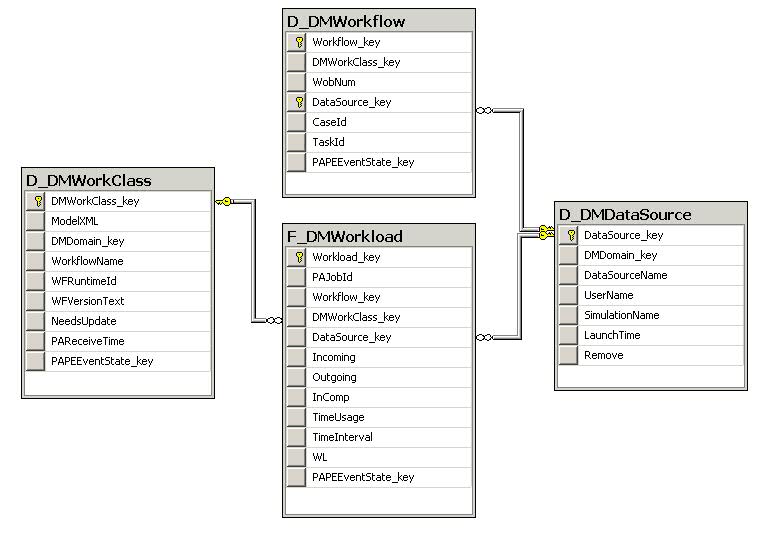 |
User/System queue Load (F_DMQueueLoad)
Contains the counters and time information for the user and system queues. With its associated dimension tables, this fact table helps in reporting the load on the user and system queues. Having time interval as one of its columns, the fact table aids in creating drill-down reports and dashboards on the time dimension.
Dimensions
| Name | Comments |
| DataSource_key | Whether the source of data is from Case Analyzer publishing the events in production or from a Simulation output. In production, this dimension might not be taken into account for custom queries |
| DMUser_key | The associated user |
| DMOperation_key | Links to the dimension table D_DMQueueOp which contains the details for the user and system queues. The column QueueName in D_DMQueueOp can be used for creating the required dimension for reports and dashboards. |
| DMStep_key | Links to the dimension table D_DMModel where information related to user and system steps can be fetched. Information like whether it is a component step, Start step, User step etc. can be extracted from the dimension table |
| Workflow_key | Reference to the record in D_DMWorkflow. When terminated workflows are pruned a record in D_DMWorkflow does not exists for the corresponding record in F_DMQueueLoad. |
Measures
| Name | Comments |
| Incoming | A count on the “Incoming” column provides the number of workitems entering the given user or system Queue. |
| Outgoing | A count on the “Outgoing” column provides the number of workitems exiting out of user or system Queue |
| InComp | Adjusted measure on “Incoming” column. For completed workflows, when the dimension keys change during the processing of a workflow and the counts are viewed from the perspective of the modified dimension, the “Incoming” value would be 0 while the outgoing is 1. In such cases this Adjusted column will help compensate the counters. Two records, one with -1 (for old dimension keys) and one with +1 (for new dimension keys) are introduced. If dimension keys remain the same over the execution of a workflow, no new records are introduced and InComp field will have a value of 0. |
| TimeInterval | TimeInterval into which the work items fall. Column can be used to populate a time dimension for reports and dashboards. Drill-down can be enabled for the time dimension. Being historical tables meant for long term trend analysis, the TimeInterval column value is at 15 minutes granularity. |
| QL | Not be used in custom queries |
Relationship with dimensions
 |
Productivity – work item measurement (F_DMProductivity)
Contains counters and time information for the in-progress and completed work items. Time fields in this table along with the associated dimension tables helps in reporting the productivity of user and system steps in the system. Efficiency of users in completing their work can be computed. In-efficient system steps can be isolated as well.
Dimensions
| Name | Comments |
| DataSource_key | Whether the source of data is from Case Analyzer publishing the events in production or from a Simulation output. In production, this dimension might not be taken into account for custom queries |
| DMStep_key | Links to the dimension table D_DMModel where information related to user and system steps can be fetched. Information like whether it is a component step, Start step, User step etc. can be extracted from the dimension table |
| DMUser_key | The associated user |
| DMOperation_key | Links to the dimension table D_DMQueueOp which contains the details for the user and system queues. |
| Workflow_key | Reference to the record in D_DMWorkflow. When terminated workflows are pruned a record in D_DMWorkflow does not exists for the corresponding record in F_DMProductivity. |
Measures
| Name | Comments |
| TimeUsage | Deprecated. Captures the incremental time since the last event that was processed for this table. For if a user locks an item and then saves, this column would capture that time. |
| ProductivityCount | Always “1” to aid aggregate functions. |
| Completed | Whether the work item is completed. For querying details on completed work items the WHERE condition should contain completed = 1 |
| TimeInterval | TimeInterval into which the work items fall. Column can be used to populate a time dimension for reports and dashboards. Drill-down can be enabled for the time dimension. Being historical tables meant for long term trend analysis, the TimeInterval column value is at 15 minutes granularity. |
| TotalWaitTimeMinutes | For complete work items, the total wait time is populated in this column. For records where completed = 1, this contains the wait time thus far. |
| TotalProcTimeMinutes | For complete work items, the total processing time is populated in this column. For records where completed = 1, this contains the processing time thus far. Processing time is the amount of time the work item is locked by the user or system. |
Relationship with dimensions
 |
Workflow route analysis (F_DMRouting)
This fact table along with the dimension table D_DMRoute is meant for analysing the workflow routes. The dimension table D_DMRoute has foreign keys to the D_DMModel table to identify the source and destination steps for a given route.
Dimensions
| Name | Comments |
| DataSource_key | Whether the source of data is from Case Analyzer publishing the events in production or from a Simulation output. In production, this dimension might not be taken into account for custom queries |
| DMUser_key | The associated user |
| DMRoute_key | Link to the dimension table D_DMRoute which contains the workflow routing information. |
| Workflow_key | Reference to the record in D_DMWorkflow. When terminated workflows are pruned a record in D_DMWorkflow does not exists for the corresponding record in F_DMRouting. |
Measures
| Name | Comments |
| RouteCount | The number of work items that have traversed each of the routes leaving the source step |
| StepCount | Number of times that the source step has been executed. In combination with route count percentage of time the route was taken can be calculated |
| TimeInterval | TimeInterval into which the route fall. Column can be used to populate a time dimension for reports and dashboards. Drill-down can be enabled for the time dimension. Being historical tables meant for long term trend analysis, the TimeInterval column value is at 15 minutes granularity. |
Relationship with dimensions
 |
Contains counters and time information for in-progress and completed cases. This fact table along with its associated dimension tables helps in reporting the Case load for a given time frame. Having time interval as one of its columns, the fact table aids in creating drill-down reports and dashboards on the time dimension.
Dimensions
| Name | Comments |
| DMUser_key | The associated user |
| DMCaseType_key | Links to the dimension table D_DMCaseType which also contains the solution name. Hierarchical relationship between solution, casetype and underlying case instances can be created using the dimension table |
| DMCase_key | Relates to the item in the D_DMCase table. When the terminated cases are pruned, the entry in D_DMCase corresponding to the entry in F_DMCaseLoad will not exist |
Measures
| Name | Comments |
| Incoming | A count on the “Incoming” column provides the number of Cases entering the system. |
| Outgoing | A count on the “Outgoing” column provides the number of Cases exiting out of the system. |
| InComp | Adjusted measure on “Incoming” column. For completed cases, when the dimension keys change during the processing of a case and the counts are viewed from the perspective of the modified dimension, the “Incoming” value would be 0 while the outgoing is 1. In such cases this Adjusted column will help compensate the counters. Two records, one with -1 (for old dimension keys) and one with +1 (for new dimension keys) are introduced. If dimension keys remain the same over the execution of a case, no new records are introduced and InComp field will have a value of 0. |
| TimeInterval | TimeInterval into which the Case instances fall. Column can be used to populate a time dimension for reports and dashboards. Drill-down can be enabled for the time dimension. Being historical tables meant for long term trend analysis, the TimeInterval column value is at 15 minutes granularity. |
| TimeUsage | Total time used by the Case instance for completion. Valid only for records with outgoing = 1 |
| CL | Not to be used for custom queries |
Relationship with dimensions
 |
Contains counters and time information for in-progress and completed tasks. This fact table along with its associated dimension tables helps in reporting the Task load for a given time frame. Having time interval as one of its columns, the fact table aids in creating drill-down reports and dashboards on the time dimension.
Dimensions
| Name | Comments |
| DMUser_key | The associated user |
| DMTaskType_key | Links to the dimension table D_DMTaskType. The dimension table along with the D_DMCaseType table can be used form the dimension hierarchy CaseType->TaskType->Task instances |
| DMCase_key | Points to the record in D_DMCase. When the terminated cases are pruned the record in D_DMCase corresponding to the record in F_DMTaskLoad does not exist. |
Measures
| Name | Comments |
| Incoming | A count on the “Incoming” column provides the number of Tasks entering the system. |
| Outgoing | A count on the “Incoming” column provides the number of Tasks exiting out of the system. |
| InComp | Adjusted measure on “Incoming” column. For completed tasks, when the dimension keys change during the processing of a task and the counts are viewed from the perspective of the modified dimension, the “Incoming” value would be 0 while the outgoing is 1. In such cases this Adjusted column will help compensate the counters. Two records, one with -1 (for old dimension keys) and one with +1 (for new dimension keys) are introduced. If dimension keys remain the same over the execution of a task, no new records are introduced and InComp field will have a value of 0. |
| ProcTotalMinutes | For records with outgoing = 1, this column tells the total processing time in minutes. |
| WaitTotalMinutes | For records with outgoing = 1, this column tells the total Wait time in minutes. |
| ReadyTotalMinutes | For records with outgoing = 1, this column tells the total Ready time in minutes. The total time the task was in the Ready state. |
| FailTotalMinutes | For records with outgoing = 1, this column tells the total Fail time in minutes. The total time the task was in the Fail state. |
| TimeInterval | TimeInterval into which the Task instances fall. Column can be used to populate a time dimension for reports and dashboards. Drill-down can be enabled for the time dimension. Being historical tables meant for long term trend analysis, the TimeInterval column value is at 15 minutes granularity. |
| TL | Not to be used for custom queries. |
Relationship with dimensions
 |
User defined dimensions and measures
User-defined fields exposed to Process Engine and Content Engine can in turn be exposed to the Case Analyzer database. Based on the semantic and type of the source field, it can either be exposed as a Measure or a Dimension. When Case Analyzer processes the source events from CE and PE, these user-defined fields are populated into the Case Analyzer database. User-defined fields can be selectively exposed to a set of fact tables based on the business need.
When a user-defined field is exposed as a Measure, it gets added as an additional column to the fact table(s) to which it is exposed. Reports and dashboards can be customized to aggregate the content of this user-defined Measure.
When a user-defined field is exposed as a Dimension, a new dimension table is created in the CA database and foreign keys are created in each of the fact tables to which the field is exposed.
If the user is interested in a dimension range rather than fixed dimension elements, the product allows to create the ranges as per the business need while exposing the user-defined field. When working with dimension ranges, the foreign key in the fact table points to the corresponding range in the dimension table and the counters in the reports and dashboards will include it for the given range.
Below table provides the naming conventions used with user-defined fields
Dimension
| Entity | Naming Convention |
| Dimension table | D_DMDataField_<unique name> |
| Foreign key in fact tables | VMAE_<unique name>_key |
Measure
| Entity | Naming Convention |
| Fact table column name | VMAE_<unique name> |
Access Restrictions and limitations
Following rules should be strictly followed while querying IBM Case Analyzer RDBMS directly for custom reporting.
- Schema should not be modified. No DDL statement allowed except for VIEW creation.
- Only DML supported is the SELECT query. INSERT, UPDATE and DELETE queries directly on CA DB is prohibited.
- Custom INDEX created directly on the CA DB can have an adverse effect on the performance of Case Analyzer. Product slow down should be investigated after removing all the custom indexes.
- Adding custom triggers to built-in Case Analyzer tables is not supported.
Best Practices
- It is strongly advised to extend existing reports and dashboards with user-defined fields rather than creating a report from scratch querying the CA DB directly.
- Cognos Real-time Monitor is memory intensive. While creating near-term cubes and dimensions, it is advised to keep the dimension elements and hierarchy to relatively small number to gain desired performance.
- All the fact tables containing workflow data have direct link to the D_DMWorkflow table though there does not exist a explicit foreign key for design reasons. The field Workflow_key in the fact tables can be used in join conditions
- Similarly, the fact tables containing case data have direct link to D_DMCase table. The field DMCase_key can be used for join conditions.
Was this topic helpful?
Document Information
Modified date:
17 June 2018
UID
swg27038512