How To
Summary
This document explains how to uninstall OpenSSH and OpenSSL filesets from IBM AIX operating system.
Objective
Show the user how to use smitty to uninstall both OpenSSH and OpenSSL filesets from AIX operating system.
Environment
All versions of AIX
Steps
1. Verify the filesets to be uninstalled:

2. Backup the configuration files located in both /etc/ssh and in $HOME/.ssh direcories:
# cp -rp /etc/ssh /etc/ssh.bkp
# cp -rp $HOME/.ssh $HOME/.ssh.bkp
3. Run "smitty remove". The Remove Installed Software menu will appear:

4. Navigate to SOFTWARE name option then press F4 (or Esc+4) to list all the software installed. It should look something like this:

5. Press the forward slash "/" to search for the desired filesets to remove, then write "open" as a search keyword in the search field. Both OpenSSH and OpenSSL filesets will be listed in series.
6. Press Esc+7 to select them one by one, press "n" to move to the next fileset to choose. After selecting all the filesets, they should look something like below:

7. Press Enter when you are done with the selection of the filesets to be removed. You will return to the Remove Installed Software menu. Now you have the SOFTWARE name field populated with the names of the filesets to be removed, in our case OpenSSH and OpenSSL filesets. Now the menu should look like this:

8. Navigate to the second menu option (PREVIEW only? (remove operation will NOT occur)), it will be set to yes by default which means the remove operation will not occur unless you set it to "no". Press F4 (or Esc+4) and then choose "no" then hit Enter. Now the menu should look like this:

CAUTION: There might be software that is dependent on OpenSSL filesets. The system administrator should verify whether there is any software that is using OpenSSL. If yes, then don't remove OpenSSL filesets. Just remove OpenSSH in that case. Removing OpenSSL while dependent software in existing might lead to disruptive results which might require a downtime to be fixed.
9. Now you are prepared to begin the actual uninstall process. From now going forward, the results will be irreversible. Hit Enter when ready. The following warning message will appear:
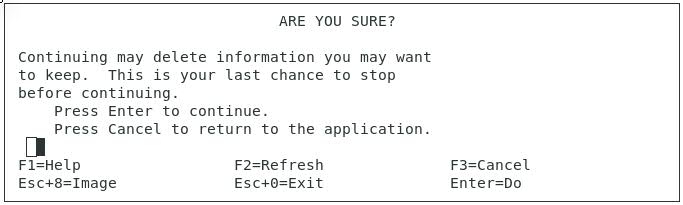
10. Hit Enter again to proceed. Now the fileset removal will start. Watch the command status which will be "running" while the uninstall process is still ongoing. When done, the status will be "OK" as shown below:

Now the uninstall process is complete and you're all set. Cheers!
Document Location
Worldwide
[{"Business Unit":{"code":"BU058","label":"IBM Infrastructure w\/TPS"},"Product":{"code":"SWG10","label":"AIX"},"Component":"","Platform":[{"code":"PF002","label":"AIX"}],"Version":"All Versions","Edition":"","Line of Business":{"code":"LOB08","label":"Cognitive Systems"}}]
Was this topic helpful?
Document Information
Modified date:
15 September 2021
UID
ibm10888473