Troubleshooting
Problem
This technote provides tips and techniques to reduce the memory footprint of WebSphere® Transformation Extender (WTX) maps and systems and also maintain performance.
Resolving The Problem
WTX provides several methods to save memory and maintain good performance.
Table of Contents
| Changes within a map |
1. Setting optimal page size and count will allow for faster processing because the map and data will not remain in memory as long. Use the Page Setting Assistant for Maps to get suggested settings. The dstxpage command line utility invokes the Page Setting Assistant for Maps.
Example:
dstxpage \examples\file_put.mmc
Page Setting Assistant for Maps - version 8.2(77)
Copyright (c) 2006 Ascential Software. All rights reserved.
.size 128 count 16 time 17156
.size 64 count 16 time 16992
.size 32 count 16 time 16957
.size 16 count 16 time 16708
.size 8 count 16 time 17180
.size 16 count 16 time 16674
.size 16 count 16 time 16930
.size 16 count 12 time 19024
.size 16 count 16 time 16842
.size 16 count 20 time 16744
.size 16 count 24 time 16933
.size 16 count 20 time 16840
.size 16 count 16 time 16692
.size 16 count 12 time 17045
Optimal page settings for \examples\file_put.mmc are SIZE: 16 COUNT: 16
See the Utility Commands Reference Guide for further information on using the dstxpage command.
The page size and count can be changed for each map in the Map Settings. Open the Settings dialog box by choosing Map >> Settings from the menu bar. Page Size and Page Count are found under the WorkSpace option.

Note: In V8.1(84) only, the dstxpage command line utility needs patch EC105745 to work correctly. If you are using V8.1(84), you must request this patch from technical support. To request a patch Open a PMR, include versioning information, and refer to patch EC105745 in the problem description.
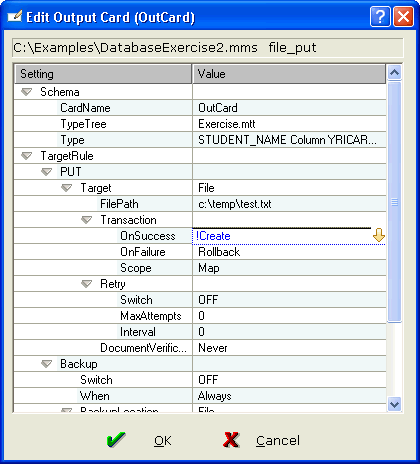
2. A large object created in an output card using the Sink adapter causes the object to be placed in memory. To prevent this large memory usage, set the Target to File and Transaction >> OnSuccess to !Create. This will, however, make the map run single-threaded in a system.
3. When the total data for all inputs is more than 4 or 5 megabytes, set the map’s WorkSpace to file. If this map needs to run multi-threaded in a system, set the WorkFilePrefix to Unique. Any map that is called via the RUN function from this map should also have these settings. Optimum page size and count should also be set for each RUN map. RUN maps should be configured to allow multi-threading.

Changes within the configuration file
The configuration file includes several settings that can reduce memory usage. The name of the configuration file differs by version and can be found in the installation directory of the product.
Version File Name 8.1, 8.2, 8.3 dtx.ini
MaxThreads
MaxThreads controls the number of maps that can be executed concurrently. Reducing this number will also reduce the Launcher system's memory requirements.
WatchMaxThreads
WatchMaxThreads will limit the number of maps that can be run for a particular watch. It is normally set to some fraction of MaxThreads.
StreamMaxMemLimit
This setting tells the launcher at what point to stream the data to a file instead of memory when accessing data from an adapter. Set the StreamMaxMemLimit option to between 10 and 50 Megabytes to reduce memory usage when data comes from or is being sent to a memory intensive adapter source (database, SAP ALE, FTP etc.).
StreamMaxMemDirectory
Use this option in combination with StreamMaxMemLimit. On some operating systems the /tmp or /temp directory points at real memory. Set this option to point at a directory that has sufficient disk space for your needs. Additionally, the Launcher user must have read and write permissions to this directory. Files are deleted when the map completes. This setting is required when StreamMaxMemLimit is enabled.
RunMapCacheMaximum
The RunMapCacheMaximum option defines the number of RUN maps cached in memory. To gain performance on a system with limited memory, reduce the number in this setting. The Launcher will retain the most recently used RUN maps in memory. Changes within systems
RUN maps and regular maps should be contained within different systems (*.msl files). The system containing the RUN maps should not be deployed with a *.msl file. This prevents the Launcher from loading the RUN maps into memory at start-up and creating watch for the maps. Note: These initially loaded RUN maps would not be used by the system and just use RAM. Run maps are loaded from disk when first called and then cached based on the RunMapCacheMaximum setting.
[{"Product":{"code":"SSVSD8","label":"IBM Transformation Extender"},"Business Unit":{"code":"BU059","label":"IBM Software w\/o TPS"},"Component":"Configuration","Platform":[{"code":"PF002","label":"AIX"},{"code":"PF010","label":"HP-UX"},{"code":"PF016","label":"Linux"},{"code":"PF025","label":"Platform Independent"},{"code":"PF027","label":"Solaris"},{"code":"PF033","label":"Windows"},{"code":"PF035","label":"z\/OS"}],"Version":"8.4;8.3;8.2","Edition":"International","Line of Business":{"code":"LOB59","label":"Sustainability Software"}}]
Product Synonym
Ascential DataStage TX Mercator
Was this topic helpful?
Document Information
Modified date:
16 June 2018
UID
swg21245727