Question & Answer
Question
How do I perform a "Recovery Restore" on an iOS device?
Cause
This process should be used when you are not able to factory restore an iOS/Device Enrollment Program (DEP) iOS device from the MaaS360 Admin Portal, the device itself, or unable to Pair the device to iTunes. This process is also used for DEP iOS devices when SCEP errors are encountered.
Answer
This guide will walk you through how to perform a "Recovery Restore" on an iOS/DEP iOS device.
- If you are using a Windows/Linux computer, please ensure you have the latest version of iTunes installed (https://support.apple.com/en-us/HT201352). If you are using a macOS computer, please ensure your Mac is up to date.
-
On a Mac with macOS Catalina, open Finder. On a Mac with macOS Mojave or earlier, or on a PC, open iTunes. If iTunes is already open, close it, then open it again.
-
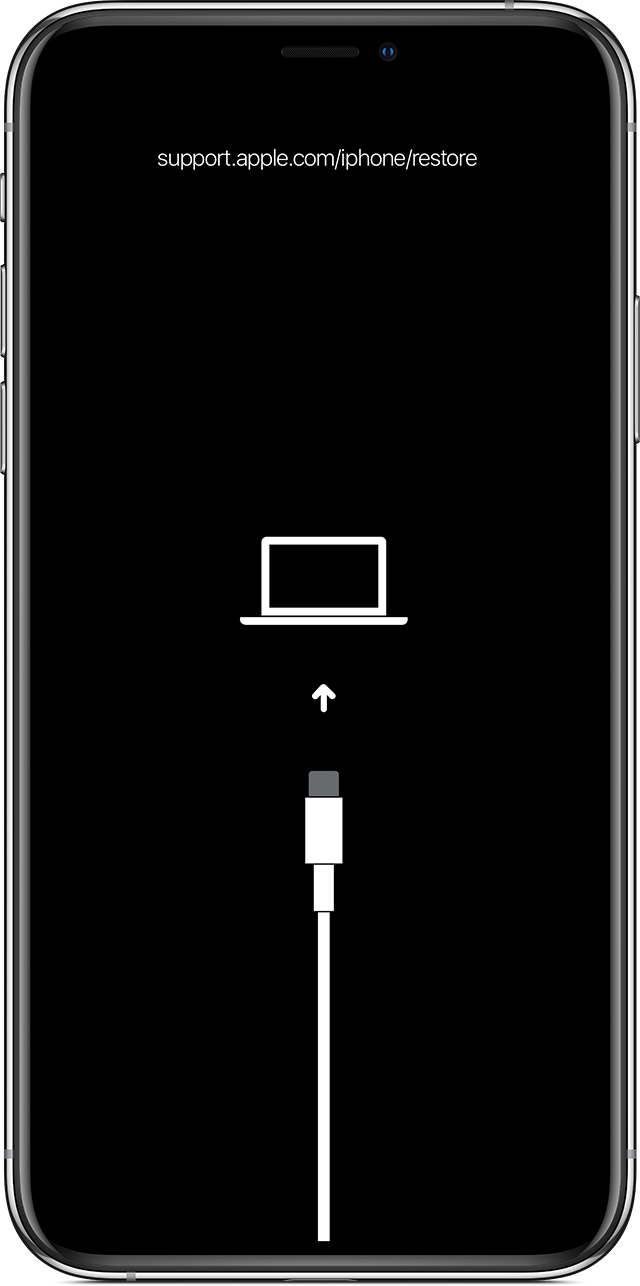
Keep your device connected and wait until the recovery mode screen appears:
- iPad models that don't have a Home button: Press and quickly release the Volume Up button. Press and quickly release the Volume Down button. Press and hold the Top button until your device begins to restart. Continue holding the Top button until your device goes into recovery mode.
- iPhone 8 or later: Press and quickly release the Volume Up button. Press and quickly release the Volume Down button. Then, press and hold the Side button until you see the recovery mode screen.
- iPhone 7, iPhone 7 Plus, and iPod touch (7th generation): Press and hold the Top (or Side) and Volume Down buttons at the same time. Keep holding them until you see the recovery mode screen.
- iPad with Home button, iPhone 6s or earlier, and iPod touch (6th generation) or earlier: Press and hold both the Home and the Top (or Side) buttons at the same time. Keep holding them until you see the recovery mode screen.
-
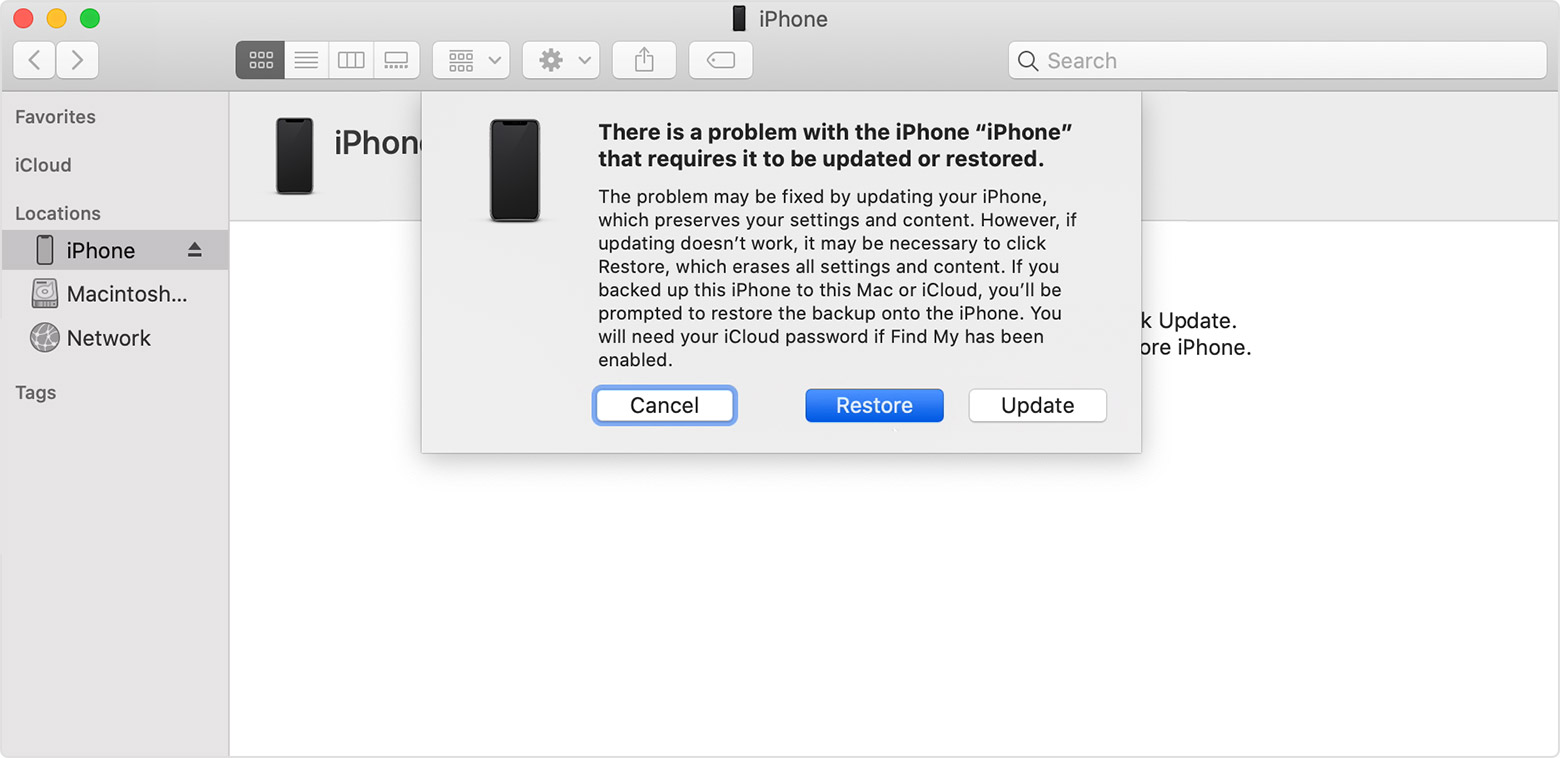
When you see the option to "Restore" or "Update", choose the option "Restore" followed by "Restore and Update". iTunes will try to reinstall the iOS, erasing ALL data in the process. Wait while iTunes downloads the software for your device. If the download takes more than 15 minutes and your device exits the connect to iTunes screen, let the download finish, then repeat step 3.
-
After the restore completes, set up your device.
For more information regarding Apple's Recovery Mode Restore process for iOS devices, please see the following support article: https://support.apple.com/en-us/HT201263
Related Information
[{"Business Unit":{"code":"BU059","label":"IBM Software w\/o TPS"},"Product":{"code":"SSYSXX","label":"IBM MaaS360"},"Component":"","Platform":[{"code":"PF014","label":"iOS"}],"Version":"All Versions","Edition":"","Line of Business":{"code":"LOB24","label":"Security Software"}}]
Product Synonym
iOS ; iPhone
Was this topic helpful?
Document Information
Modified date:
01 September 2021
UID
ibm10732946