How To
Summary
Site policy may prevent the default TLADMIN and TLUSER passwords from being used. This article explains how to install the databases with passwords that meet such a site policy.
Objective
Complete Tealeaf database installation in an environment with a restrictive password policy.
Steps
- Have the DBA create the users TLADMIN and TLUSER, with passwords that meet the organizational requirements.
- Run the Tealeaf Database Manager utility as Administrator.
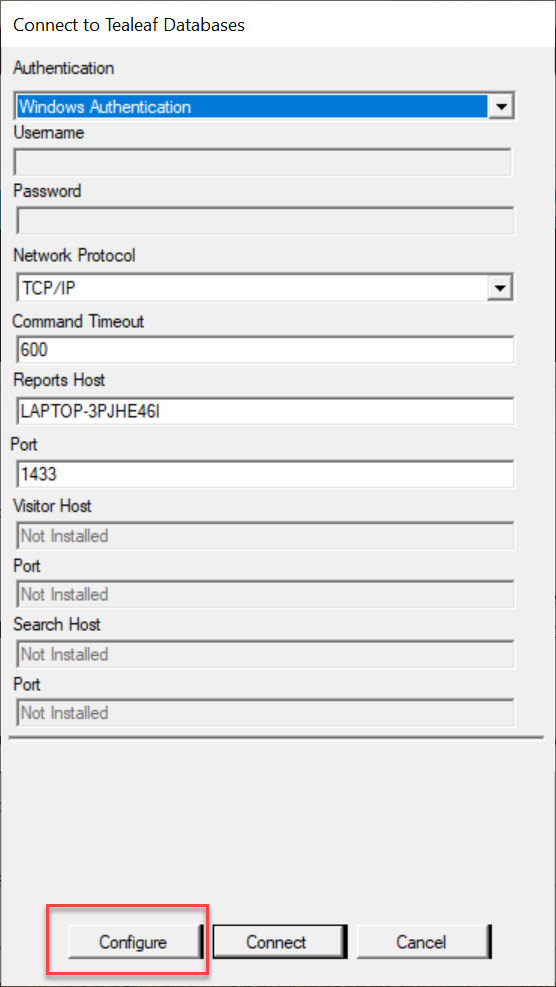
- On the initial Connect to Tealeaf Databases dialog, make sure the Report Server Host is set to the SQL Server machine's host name.
- Click on the Configure button.
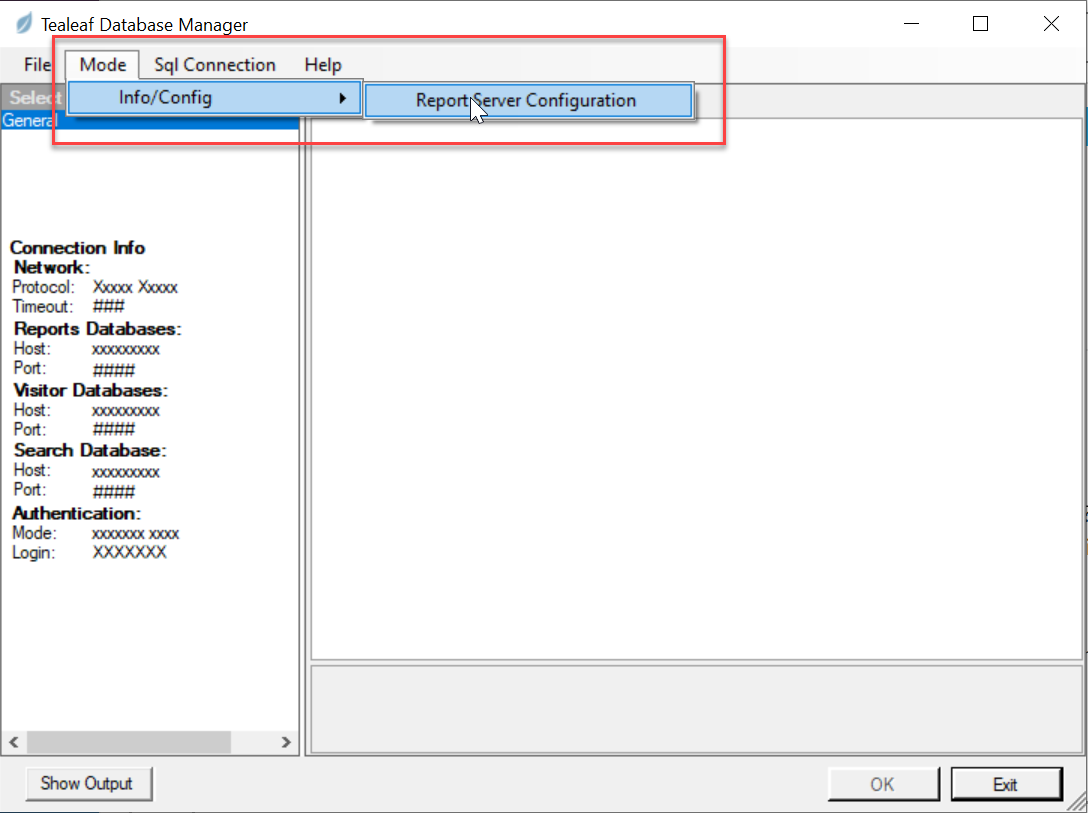
- On the menu bar, select Mode, then Info/Config, then Report Server Configuration.
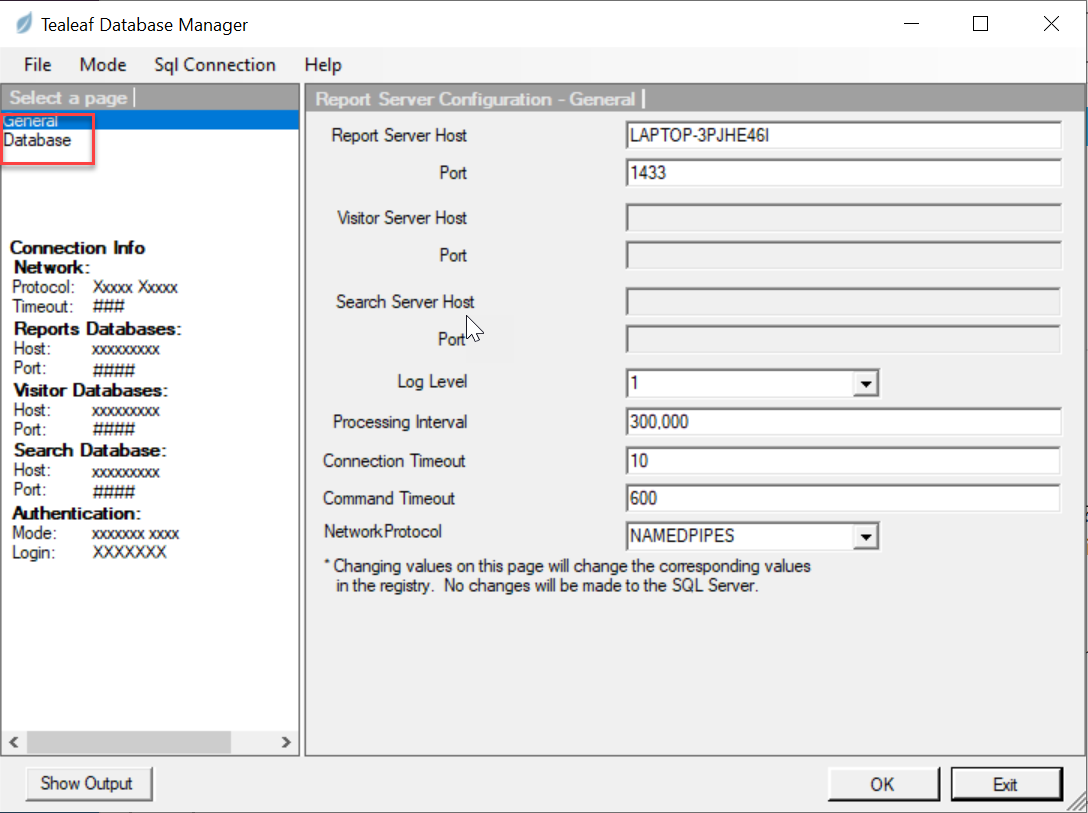
- In the left pane, select Database.
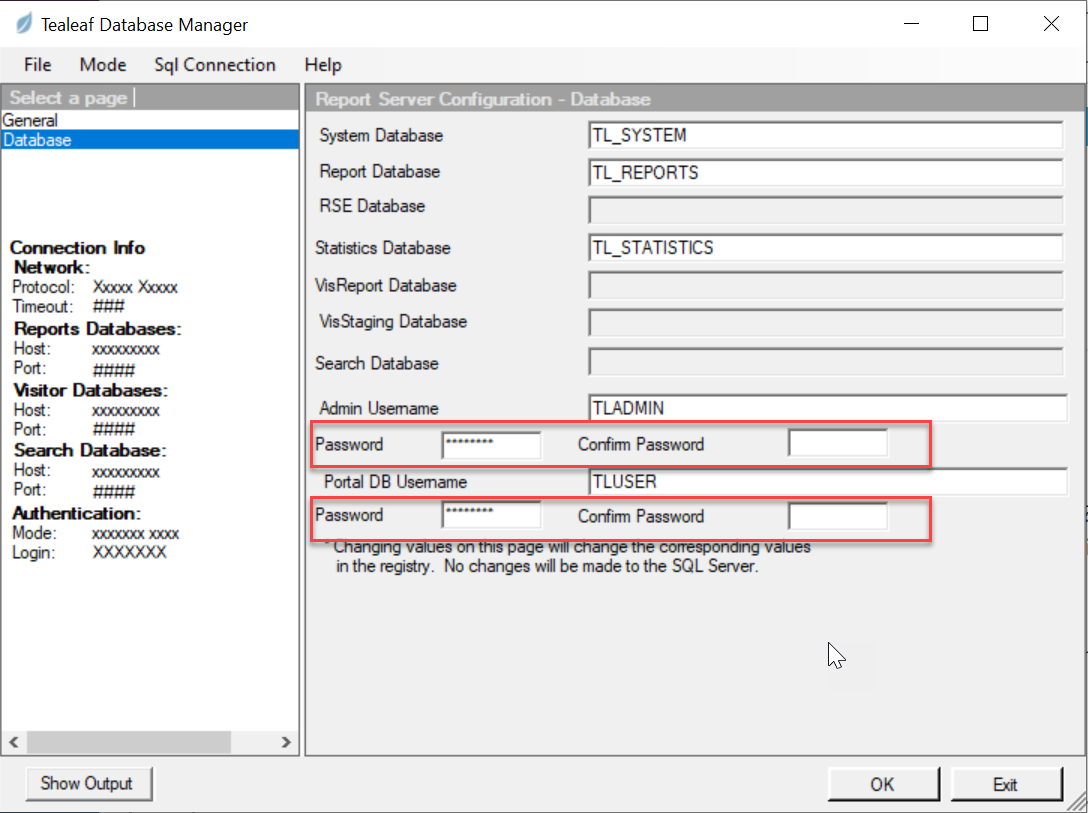
- In the fields at the bottom of the right pane, fill in the passwords for TLADMIN and TLUSER (twice each), then click OK.
- Exit from the Tealeaf Database Manager and then run it again as Administrator.
- On the Connect to Tealeaf Databases dialog, change the Authentication to SQL Server Authentication, then fill in sa as the Username and the sa password. Make sure the Report Server Host is set to the SQL Server machine's host name.
- Click on Connect.
- On the menu, select Mode, then Database Setup, then All Databases.
- Make sure the Action is set to Install, then click OK to install the Tealeaf databases.
Document Location
Worldwide
[{"Business Unit":{"code":"BU055","label":"Cognitive Applications"},"Product":{"code":"SSERNK","label":"Tealeaf Customer Experience"},"Component":"Database;Installation","Platform":[{"code":"PF033","label":"Windows"}],"Version":"All Versions","Edition":"","Line of Business":{"code":"","label":""}}]
Was this topic helpful?
Document Information
Modified date:
28 February 2019
UID
ibm10872960