How To
Summary
This instructional document covers how to delete a certificate authority from Digital Certificate Manager (DCM) running on the IBM i platform. Deleting a certificate authority (CA) certificate from DCM requires that you have no server certificates assigned to applications prior to deletion of the CA.
Objective
The objective of this document is to show how to delete a CA certificate from DCM.
Steps
You will need to be in the Digital Certificate Manager (DCM) application to delete the certificate authority (CA) certificate. If you are not sure how to access DCM, check out our DCM FAQ and look at the first section titled "How do I access Digital Certificate Manager".
If you are already on the DCM page, then lets get started with the steps.
Step 1: Verify the Common Name of the CA
All certificates in DCM have a label name and a common name. The label name is typically what you see when you look at your list of certificates and applications in DCM while the common name is what the actual certificate name is. This can be confusing, especially if you have given the certificate a label name that doesn't give you a clue as to what the actual common name is. To make things more confusing, if you created multiple local CA certificates in DCM, you don't get the opportunity to give them a label name. Locally created CA certificates all start with "LOCAL_CERTIFICATE_AUTHORITY" as the label. Here is an example:

The only way to distinguish these certificates is take note of the different numbers at the end of the name and to view them and look at the common name. To do this, you will need to be signed into the *SYSTEM certificate store, then select "FastPath" and "Work with CA certificates" on the left menu. Select the CA certificate you intend to delete and click the "View" button at the bottom of that page.

Note the number in parentheses (33) as well as the Common name listed in my example: My_Test_CA_Certificate which are important to ensure two things:
1) Making sure you are deleting the correct CA certificate.
2) Finding server certificates that were issued by this CA
Step 2: Deleting the CA Certificate
Once you are confident you have the correct CA certificate, you can attempt to delete it. I say 'attempt' because if you have any server certificates that are currently in use that were issued by this CA certificate, you will get an error (more on that later). To delete the CA certificate, use the left menu and click on "Manage Certificates", then "Delete certificate". On the right window, select "Certificate Authority (CA)" and click the "Continue" button. You will see a list of all the CA certificates in your store.

This window does not allow you to view the common name of the CA, which is why it was important to note the unique number associated at the end of the label name in the earlier image example.
Once you have identified your CA certificate, click the "Delete" button at the bottom of the page. You may get a warning that 'There are applications that trust this CA', which is normal. You will have the chance to confirm that you want to delete this CA. This screen will let you see the actual common name of the certificate and give you a chance to confirm this is the CA you want to delete. If it looks correct, click "Yes" to delete the CA.

You should get a confirmation that the certificate was deleted:

**If you get an error message that there are certificates issued by this CA that are in use, continue with these instructions**
What to do if you get an error when attempting to delete a CA
So you tried to delete the CA certificate and you got an error.

This error means you have a server certificate that was issued by the CA you are attempting to delete and that server certificate is currently assigned to an application. Before you can delete the CA you must find the server certificate or certificates issued by this CA and unassign them from any applications. This can be tedious if you have a large number of applications that the certificates are assigned to. I will provide an alternative solution later in this document if you have a large number of certificate assignments and want to speed up the process.
Identify the certificates issued by the CA you want to delete
On the left menu under "Fast Path" click "Work with server and client certificates". You will need to select the "View" option for each certificate to verify who issued it. You are looking for certificates that were issued by the CA you want to delete. Scroll down on the "View" page and look for the table under "Issuer:"
**Note that in the further examples I am now using a different local CA certificate with the number (34) instead of the one deleted in the earlier steps (33)**


If the "Issuer" common name matches the common name of the CA you want to delete, take note of this certificate and find applications that have this server certificate assigned to them. You will need to look for the server certificate's "Certificate Label" name which I highlighted in the previous images.
Click on "View Applications" button at the bottom of the "View" page you are in. This will show you which applications this server certificate is assigned to.

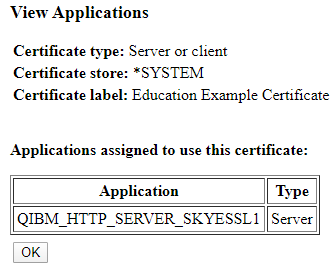
Once you know what applications the server certificate is assigned to, you will need to unassign them. On the left menu, open the "Manage Applications" section and then click "Update certificate assignment". You will have the option to select "Server" or "Client". This depends on what applications your server certificate was assigned to. In most cases it will be a server application but there are some client applications that may be used as well. This all depends on what your particular scenario is, however the option you selected previously to "view applications assigned to use this certificate" should point you in the right direction.

Select the application (you can only do one at a time) that you have the certificate assigned to and click "Update Certificate Assignment". On the next screen, uncheck the certificate (note that if you want a different certificate assigned to this application, you can do that now as well). Click "Update Certificate Assignment".


Once you click Update Certificate Assignment with the application unchecked, you should see a message that the certificate assignment was removed.

Repeat this process for all applications that have certificates issued by the CA you are trying to delete. Once you are finished, you can delete the CA certificate using Step 2 from the beginning of this document.
Alternative method to remove certificate assignments
I mentioned earlier that I would include an alternative method to removing certificate assignments. This method is more extreme as it involves deleting the user index file which will remove the certificate assignments for ALL applications. This means that once you do this, you will need to go back into DCM and reassign any certificates to the applications they were previously assigned to and potentially end/restart those applications. However, this may be a better alternative if most, or all of your applications have the same certificate assigned and you need to remove it from all of them.
**Make sure you have a screen capture of the certificate assignments prior to deleting the user index file**
On the left menu in DCM, under Fast Path, select "Work with server and client certificates". With any of the certificates selected (it does not matter which one), click the "Assign to applications" button. You will not be assigning anything, however this screen provides you with ALL certificate assignments, including server AND client applications, all on one screen. Take a few screen captures of this page if you have to scroll down to fit them all in. This will be your reference for reassigning certificates later.
Next, open an emulation session to the IBM i and make sure you are on the same system as the one you are working on in DCM. You can verify this by looking at the URL in DCM and confirming which system you are connected to.
From the command line, type the following command:
WRKOBJ OBJ(QUSRSYS/QYCDCERTI) OBJTYPE(*USRIDX)
WRKOBJ OBJ(QUSRSYS/QYCDCERTI) OBJTYPE(*USRIDX)

Put a 4 next to the object to delete it. Once it is deleted, go back to your browser and refresh the DCM page. You will need to sign back into the *SYSTEM store. Under Fast Path, select "Work with server and client certificates" again. Select one and click the "Assign to applications" button. You should see that there are no certificate assignments to any applications now.

Now you can delete any CA certificate you want and then reassign server certificates based on the screen capture from before. Use the instructions from Step 2 at the beginning of this document to delete the CA certificate.
This process does not delete any certificates and, other than removing certificate assignments, does not harm your configurations, application definitions, or other certificates in any way.
Note that once you have deleted the CA certificate, any server certificates that were issued by that CA will still remain but you will be unable to assign them to anything. If you try to assign a server certificate whose issuing CA was deleted to an application you will get the following message:

Any server certificates that were issued by the CA you just deleted are no longer useable and can also be deleted.
Once you have reassigned the server certificates to their respective applications using the screen captures as your guide, you are finished. If any applications have SSL/TLS connection problems, you may need to restart the application for it to recognize the reassignment of the certificate.
Related Information
Document Location
Worldwide
[{"Business Unit":{"code":"BU058","label":"IBM Infrastructure w\/TPS"},"Product":{"code":"SWG60","label":"IBM i"},"Component":"","Platform":[{"code":"PF012","label":"IBM i"}],"Version":"All Versions","Edition":"","Line of Business":{"code":"LOB57","label":"Power"}}]
Product Synonym
DCM; Digital Certificate Manager
Was this topic helpful?
Document Information
Modified date:
10 January 2020
UID
ibm11170472