How To
Summary
This Tech Note will describe the steps required to copy a file from the PC to the IBM i Integrated File System when using Access Client Solutions.
Objective
Use the following steps to copy a PC file to the IFS using Access Client Solutions.
Open IBM Access Client Solutions (ACS). If more than one system is configured in ACS, select the system that the PC file is to be copied to.

From the main window, select 'Integrated File System'.
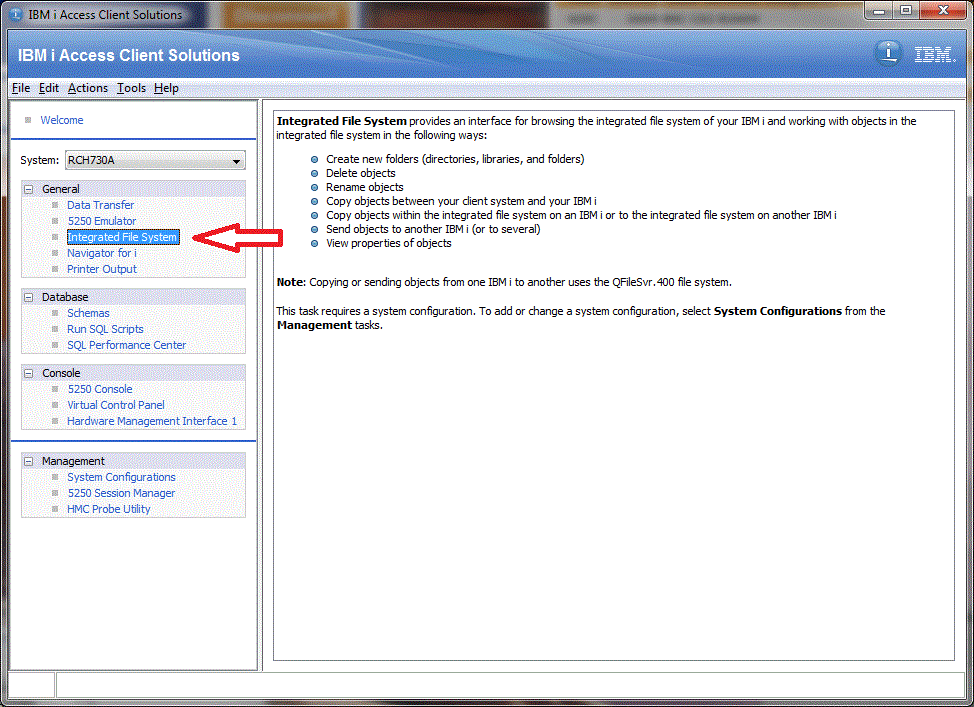
This will open a pop-up window to the root (/) of the Integrated File System (IFS) on the IBM i. It might take some seconds for the window to be fully populated with the contents of the root file system.
Select the path to the location where the PC file is to be copied. In the screen image below, the path where the file is to be copied is /home/joycelk.
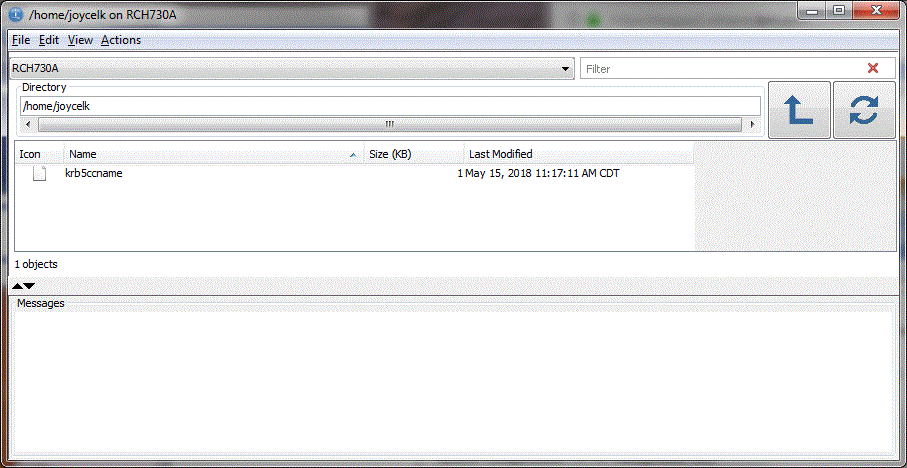
Select the 'Actions' drop down menu from the top of the window. The available options will be New folder, Upload, and Paste.
Alternatively, right click in the area that contains the listing of current files in the directory. In the screen images in this document, the /home/joycelk directory originally contains only one file (krb5ccname). Right clicking will present the same choices that are available in the 'Actions' drop down menu (New folder, Upload, Paste).
Both options immediately above are shown in the two images below.


Using the option from either menu (as shown in the images above), select Upload. Locate the PC file that is to be uploaded and click the [Open] button.

Follow the prompts to upload the file. Once it is uploaded, it will show in the IFS window, as seen in the image below. A successful upload will be indicated by the message in the window 'Uploading filename.txt' and 'Successfully uploaded filename.txt':

Was this topic helpful?
Document Information
Modified date:
18 December 2019
UID
ibm10733813