Question & Answer
Question
How to identify whether a fileset is base or update ?
When do I need an Update fileset / Install fileset ?
Which fileset type I need when getting a requisite failure ?
Where do I get the needed fileset once I determine if I need a base fileset or an update ?
This document’s purpose is to explain the differences between an update and a base fileset, including when each of them is used and how to resolve prerequisites errors requesting base or update fileset.
Answer
Introduction
Filesets can be installed either individually, or combined as is the case when performing a Technology Level or Service Pack update.
V.R.M.F. ( VERSION, RELEASE, MAINTENANCE LEVEL, FIX LEVEL ) which stands for:
For example V.R.M.F - V7 R2 M3 F2 = 7200-03-02
What is the difference between Base and Update fileset ?
Each fileset in a package must belong to the same product. For example all bos.net* packages are part of the bos.net base fileset.
Fileset Name Level I/U Q Content
====================================================================
devices.ethernet.lnc2.rte 7.2.2.15 S b usr,root
# 10 Gigabit Ethernet PCI-Express Adapter Software
U876248.bff
Fileset Name Level I/U Q Content
====================================================================
devices.pci.77102224.com 7.2.2.15 S b usr,root
# PCI-X FC Adapter (77102224) Common Software
.toc devices.pci.77102224.com.7.2.2.15.U
How to identify whether a fileset is base or update?
This is not always the case though – a fileset can be named with only it’s name and version, not including the .I or .U. The best way to identify a fileset and to confirm its type is to use the installp –qld command:
Fileset Name Level I/U Q Content
====================================================================
bos.mp64 7.2.2.15 I b usr,root
# Base Operating System 64-bit Multiprocessor Runtime
We are interested in the I/U column. From the above output, you can see that the fileset is an I type – meaning installable or base. An update fileset will have the S value in this column, indicating Single Update:
Fileset Name Level I/U Q Content
====================================================================
bos.mp64 7.2.2.19 S b usr,root
# Base Operating System 64-bit Multiprocessor Runtime
Regardless of whether or not a fileset has the .I or .U at the end, keep in mind this is only a name and everyone can rename a fileset, just as easy as renaming a single file on the system. To be absolutely sure what type the fileset is, the installp –qld command should be used.
When do I need an Update fileset / Install fileset ?
Update filesets are located in the Technology Level / Service Pack update packages. All of the filesets provided by the Fix Packs are .U and can be used only for updating a fileset from one version to another (update_all). Update filesets are mostly used to update the system and cannot be used for fixing existing issues with an installed fileset. They also cannot be used to install missing fileset – to be able to install a .U fileset, you need to have an earlier version of the fileset already installed on the system.
Base media can be used to create NIM install resources (lpp_source and SPOT) to install other LPARs.
Update media can be used to create NIM lpp_sources that can be used only for updating the TL/SP of other LPARs.
Updating a system with Base filesets is possible, but not recommended. If you are planning on updating to a higher TL/SP and you have base media for this higher version, you should not use the base filesets to update the system - you should download the respective TL/SP package from FixCentral and do the update with the Update filesets.
Fileset File
----------------------------------------------------------------------------
Path: /usr/lib/objrepos
bos.games 7.2.3.0 /usr/games/lib/quiz/ucc
/usr/games/lib/quiz/areas
/usr/games/bj
/usr/games/lib/quiz/chinese
/usr/games/lib/quiz/babies
/usr/games/lib/quiz/inca
/usr/games/wump
bos.games 7.2.3.0 NONE
New volume on bos.games.7.2.3.0.I:
Cluster 51200 bytes (100 blocks).
Volume number 1
Date of backup: Wed Aug 22 15:45:23 CDT 2018
Files backed up by name
User BUILD
0 ./
324 ./lpp_name
0 ./usr
0 ./usr/lpp
0 ./usr/lpp/bos.games
15396 ./usr/lpp/bos.games/liblpp.a
0 ./usr/lpp/bos.games/inst_root
43358 ./usr/lpp/bos.games/inst_root/liblpp.a
0 ./usr/games
14028 ./usr/games/arithmetic
30646 ./usr/games/back
2018 ./usr/games/backrules
7928 ./usr/games/bj
6715 ./usr/games/craps
14482 ./usr/games/fish
8422 ./usr/games/fortune
Which fileset type I need when getting a requisite failure ?
AIX reports requisite failures in a few different ways. Normally it will tell you if it needs a base or update fileset, but there
is an exception.
- Requiring base level file set at X.X.0.0 level.
SELECTED FILESETS: The following is a list of filesets that you asked to install. They cannot be installed until all of their requisite filesets
are also installed. See subsequent lists for details of requisites.
and could not be found on the installation media.
The X.X.0.0 level is required when the fileset is not installed or is at a lower VERSION or RELEASE, in this case we require the cifs fileset to installed at V=7 R=1 M=X F=X.
And if we run a simple check we will either get:
# lslpp -l bos.cifs_fs.rte
lslpp: Fileset bos.cifs_fs.rte not installed.
OR
# lslpp -l bos.cifs_fs.rte
Fileset Level State Description
----------------------------------------------------------------------------
Path: /usr/lib/objrepos
bos.cifs_fs.rte 6.1.9.315 COMMITTED Runtime for SMBFS
bos.cifs_fs.rte 6.1.9.315 COMMITTED Runtime for SMBFS
In this case a base level fileset is needed to install or migrate the file set version/release to the desired level. It is best to obtain a base fileset
at the target level ( In this case we are trying to install 7.1.5.30 ) or lower. There is no need to seek the X.X.0.0, AIX reports the requisite
at the minimum required level, but installing the requisite at a higher level will satisfy the requisite.
- Requiring an update level file set:
SELECTED FILESETS: The following is a list of filesets that you asked to install. They cannot be installed until all of their requisite filesets
are also installed. See subsequent lists for details of requisites.
and could not be found on the installation media.
Running "lslpp" will show the file set is installed, but a lower FIX level then the required FIX level 32.
# lslpp -l bos.mp64
Fileset Level State Description
---------------------------------------------------------------------------------------------
Path: /usr/lib/objrepos
- Requesting for a base level file set when one is NOT required ( This is the exception ).
SELECTED FILESETS: The following is a list of filesets that you asked to install. They cannot be installed until all of their requisite filesets
are also installed. See subsequent lists for details of requisites.
and could not be found on the installation media.
bos.net.tcp.client_core 7.2.3.0 # Base Level Fileset
In this case, we have the system requisting a non X.X.0.0 level, but still requesting a base level fileset.
The "lslpp" for one of the requisite filesets will show it is at a lower MAINTANENCE level. Since the fielset is already installed,
base level is not actually needed, the update level for MAINTANENCE level 3 will satisfy the requisite.
# lslpp -l bos.net.tcp.client_core
Fileset Level State Description
----------------------------------------------------------------------------
Path: /usr/lib/objrepos
bos.net.tcp.client_core 7.2.2.17 COMMITTED TCP/IP Client Core Support
bos.net.tcp.client_core 7.2.2.17 COMMITTED TCP/IP Client Core Support
Where do I get the needed fileset once I determine if I need a base fileset or an update?
- Base level fileets:
Those can be downloaded from the Entitled Systems Support ( ESS ) site at http://www-304.ibm.com/servers/eserver/ess/index.wss
In some cases a FIX level ( Service Pack ) or a MAINTANENCE level ( Technology level) fix pack may contain a base level fileset,
but this is rare and is mainly when a new functionality is added.
Once in ESS, navigate to > My entitled software > Software downloads > AIX > Select the AIX version you wish to download > Click "Continue"

Next, if you want to download the latest media, select "Standard" or "Enterprise" edition and click Continue OR if you need an older AIX level, select the TL Support option and click continue.

If Standard/Enterprise is chosen, you will find the latest available ISO images for the selected AIX level, newer AIX
release will also have a "Flash" image which is simply DVD1 and DVD2 combined, where DVD2 contains mostly non US fonts
and character sets and is not needed for normal OS functionality.

You can refer to the Downloading an AIX ISO for a specific OSLEVEL Technical document for info on downloading specific OS level images.
Once you have selected your preferred OS image, you can click Continue on the bottom of the page and start downloading.
*Note that the ESS site and its functionality is out of the scope of support of AIX support. If you encounter issues during the above steps, please contact ESS support, you can find their contact information in the "Contacts" button on the left side or at:
Toll free +1 800 446 8989
Additional non toll free +44 2392 28959
Email: wwswkeys@dk.ibm.com
To access the ISO contents, you will need to mount it. In AIX this is easily done with the "loopmount" command.
# loopmount -i (path to .iso file) -o "-o ro -v udfs" -m /mnt
The filesets are located in the ./installp/ppc directory:
# loopmount -i AIX_v7.2_Install_7200-03-01-1838_flash_92018.iso -o "-o ro -v udfs" -m /mnt
# ls /mnt
.Version 7200-03 OSLEVEL README.aix RPMS bosinst.data image.data installp ismp license ppc root usr
# cd /mnt/installp/ppc
The filesets are usually packed, so to find for example bos.net.tcp.client you will need to search for the bos.net fileset package:
[root@LPAR1] /mnt/installp/ppc
# find . -name bos.net*
./bos.net
Then use the installp command to check the contents of the bos.net package, or directly to install the file set you need:
Fileset Name Level I/U Q Content
====================================================================
bos.net.ate 7.2.0.0 I N usr
# Asynchronous Terminal Emulator
# netWLM
# IP Security Key Management
# TCP/IP Client Support
# installp -acgYXd . bos.net.tcp.client
# loopmount -i (path to .iso file) -o "-o ro -v cdrfs" -m /mnt
- Update filesets:
Once in Fix Central , navigate to Find Product > Select "AIX (IBM Operating System)" > Select the version you need > then Fix Pack:

Then you should choose the Service pack or Technology level you wish to download and click continue:
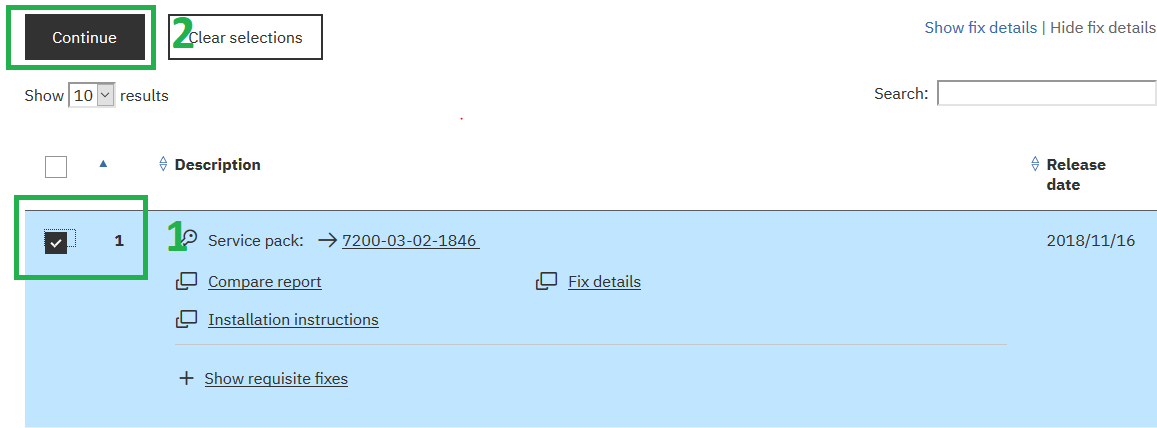
This is important because it lets you choose the preferred download method and if you should include prerequisites or not. Including prerequisite will add requisite fixes for the Fix pack you have selected, for example I have chosen Service Pack 2 ( 7100-03-02 )from AIX 7100 MAINTENANCE level 3, the requisite for Service pack 2, will be MAINTENANCE level 3 ( 7200-03-02 ).

References:
Was this topic helpful?
Document Information
Modified date:
02 April 2019
UID
ibm10871636