How To
Summary
Instructions for enrolling Android devices with a work profile (formerly referred to as Profile Owner or PO).
Environment
Android device on 5.0+
Android Enterprise Recommended or Samsung branded device. For devices that do not fall under either of those categories, whether or not enrollment will complete properly may be a matter of trial and error.
Steps
Please Note: While the workflows remain largely the same, exact appearance of screens and final enrollment experience may vary depending on OS version and device manufacturer. All of the screens provided here were produced on a Pixel running Android 11.
Optional: Navigate the the enrollment URL provided by the organization. This is not a required step but provides a quick link to the MaaS360 agent on the Play Store. Users may skip this and go directly to the Play Store to get the MaaS360 agent.

Download & Install the MaaS360 MDM for Android agent. Regardless of device manufacturer, do not install any OEM specific versions of the app that may appear in the search.

Open the MaaS360 app and enter your corporate email address, as well as the Corporate ID provided by your company.

Enter your username and select ownership of the device (this option may not appear if your organization determines ownership in the enrollment request).

Enter your enrollment passcode or organizational password.

Follow the on screen prompts to continue. You must agree to both the MaaS360 Terms and Conditions as well as any (optional) organizational T&Cs that may be presented in order to continue enrollment.


System screens will be presented for the next few steps while the work profile is created and the work Google account applied to the device.


The remainder of the setup will take place in the background.

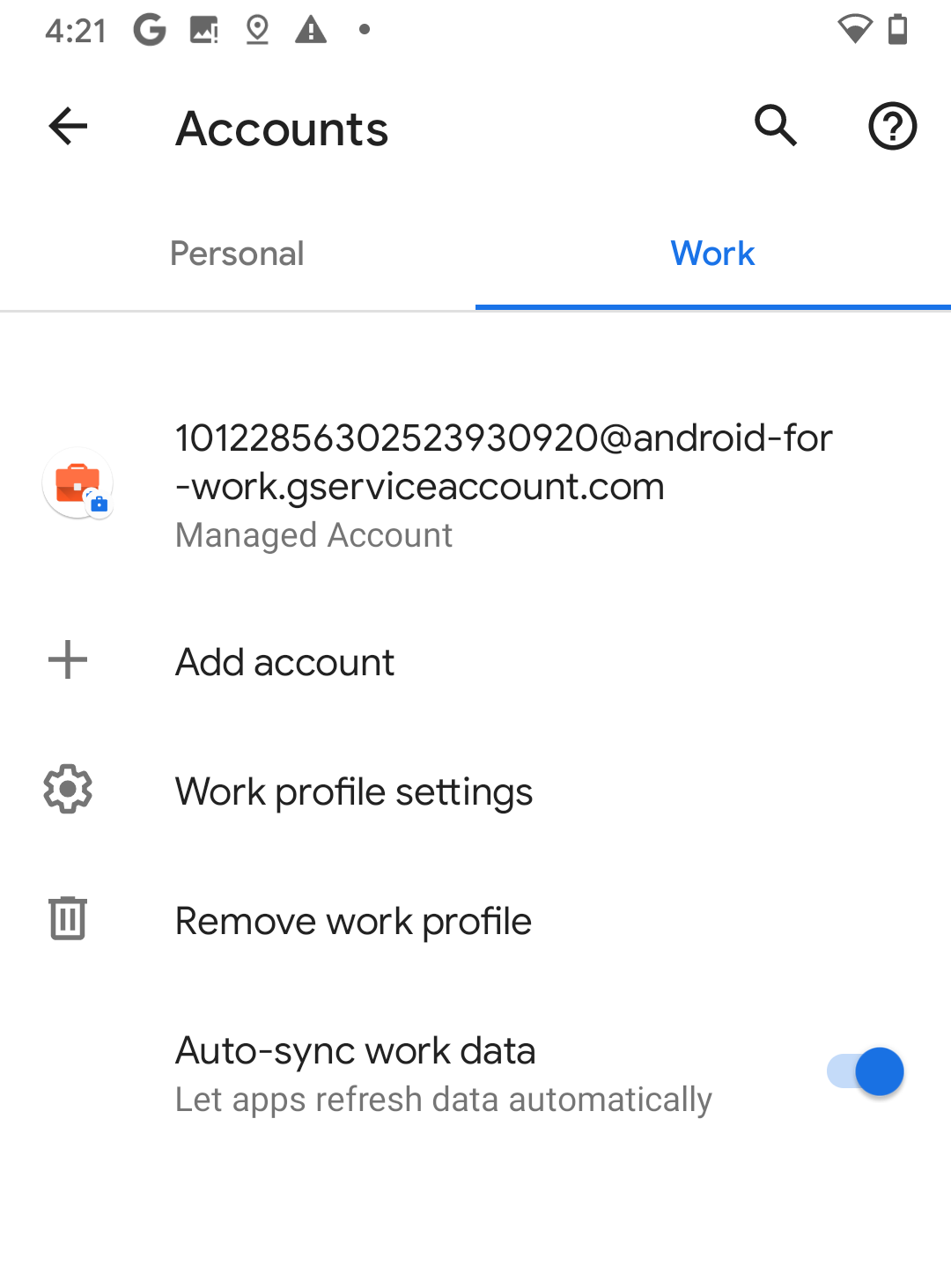
The Work Google Account will appear in the settings under "Accounts." Removing the work profile from this screen will un-enroll the device from MaaS360, deleting all work profile apps, and associated contents.
The work profile will appear as an individual workspace that may be toggled on and off from the application view. Disabling will hide work apps from the UI.

Enrollment of the Android device with a work profile is now complete! Apps distributed by your organization may start installing automatically in to the work profile.
Document Location
Worldwide
[{"Line of Business":{"code":"LOB24","label":"Security Software"},"Business Unit":{"code":"BU059","label":"IBM Software w\/o TPS"},"Product":{"code":"SSYSXX","label":"IBM MaaS360"},"ARM Category":[{"code":"a8m0z000000070xAAA","label":"ENROLLMENTS"}],"ARM Case Number":"","Platform":[{"code":"PF003","label":"Android"}],"Version":"All Version(s)"}]
Was this topic helpful?
Document Information
Modified date:
04 November 2020
UID
ibm16359697