How To
Summary
MaaS360 uses the Microsoft Authenticator broker app to register devices into Azure AD. After the registration, the MaaS360 portal sends the device compliance status returned from the devices to Azure AD, where Conditional Access makes decisions to either grant or deny access to Microsoft-approved cloud apps.
Steps
Follow these steps to register your app in Azure AD:
1. When Conditional Access policies are applied to the device, users must configure the Microsoft Authenticator app by navigating to the following path:
MaaS360 app > Settings > General Settings > Configure Microsoft Authenticator.


Note: If the Microsoft Authenticator app is unavailable, users must download and install the app by tapping Download and Install.

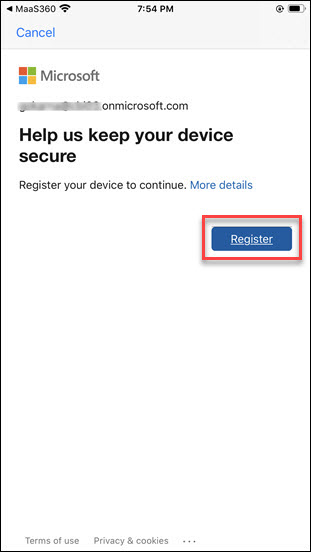
2. Tap Register.

3. Complete the registration by providing valid user credentials and following the registration instructions.
|
|
|
 |

Note: If the configuration fails, please reach out to your corporate administrator.
How it works
Conditional Access verifies the device enrollment status, Azure AD registration, and device corporate policy compliance to grant access to the Microsoft-approved cloud services (or apps).
- If the device does not comply with the organization's policies, access to Microsoft services and apps is blocked.

While accessing the Azure services, if the device is either not enrolled or registered to Azure AD, the access to Microsoft services and apps is blocked and the following screen is displayed. Users must tap Enrol Now to initiate the enrolment and device registration.

Known issues
- MaaS360 for iOS app versions lower than 4.20 does not support conditional access features. If you notice any of the following issues, please contact your administrator for assistance.
- Access to corporate mailbox failed.
- Access to corporate documents failed.
- When the Conditional Access support is disabled in the MaaS360 portal and Conditional Access policies are active on Azure AD,
- The last known device compliance status on Azure AD decides the access status of the Azure services from the device. For example, if the last known device status is non-compliant with corporate policies, the access to Azure services will be blocked.
- During the MaaS360 portal / Azure AD portal downtime, MaaS360 cannot update the compliance status of the devices to the Azure portal. As a result, the access to Microsoft Azure services fails.
- When the corporate administrator revokes the selective wipe status,
- MaaS360 for the iOS app on the device will reinitiate the device registration process by prompting the user with further instructions.
Note: If you notice any issue while authentication, device registration, or accessing Azure services, please contact your administrator for further assistance.
Document Location
Worldwide
Was this topic helpful?
Document Information
Modified date:
29 March 2021
UID
ibm16436157