Troubleshooting
Problem
TBM Studio check‑ins, calculations, and staging processes are extremely slow. After a check‑in, it can take hours for changes to appear in production—even a single‑row update can keep the check‑in running all day. What steps can we take to improve performance?
Symptom
The calculations are running on the instance but are moving slowly consuming large amount of time to finish the calculations even for a small change that might either be in development/ staging or in both environments.
Cause
Several factors can contribute to the slow calculations in different scenarios. However, when there is a slow calculations on the instance then it is most likely due to the configuration in the project which needs to be addressed.
Diagnosing The Problem
A Few recommendations can be made in the project to improve the calculations times and the performance.
- Review the project open time periods.
- Review all the modeled metrics in the project and look for the allocation row counts that are exceeding 1M .
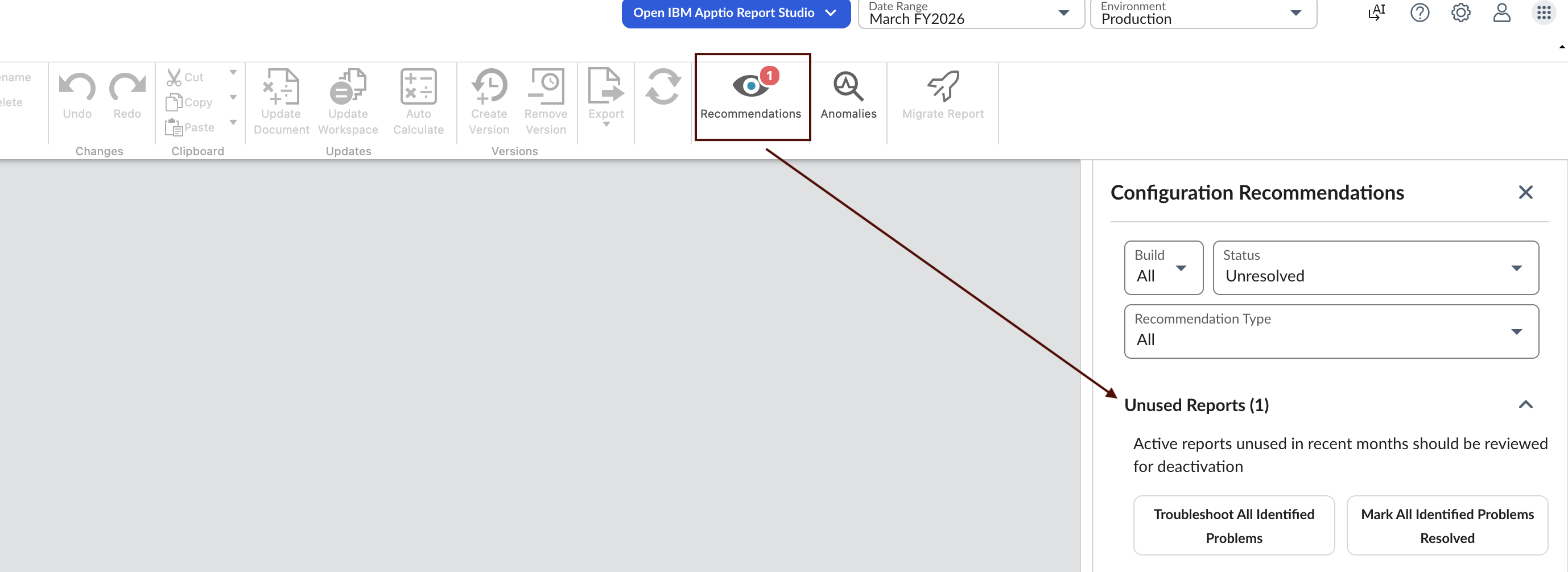
- Review the Unused reports from the Recommendations option available in the TBM Studio.
Resolving The Problem
- Ensure that the project time period settings are opened for not more than 3 years.
Project -> Time settings
- Review all the modeled metrics from the project and look for the allocation row counts that are exceeding 1M and try to reduce them and maintain the row count for less than 1M .
- The Allocation Strategies table displays the properties and settings of all allocations on a model metric. The table is found in the Metrics section in Project Explorer.
- Select a model metric, such as Cost, and then use the drop-down menu to find the Allocation Strategies table.
- Sort the table by Row Count (descending) to quickly identify the largest allocation row counts.
- Note that the allocations and the row counts may change from one period to another. Make sure to examine multiple periods to get a better idea of the allocation sizes.
- Note that each model may have its own allocations and row counts.
- Apart from the row count, notice the Amount column as well (excluded from the screenshot below). Sometimes you will notice relatively small amounts in the allocations with the largest row counts.
- It is always suggested to have the number of allocations less than 100 for the better performance and improve in the calculation settings.

Review all the unused reports from the Recommendations and make the reports inactive which can help in improving the performance and the calculation times. This is recommended as the most of the calculations times are spent on calculating reports.
Home -> Recommendations -> Unused reports
Document Location
Worldwide
Was this topic helpful?
Document Information
Modified date:
17 April 2026
UID
ibm17268631