Product Documentation
Abstract
This document provides the steps to deploy and configure IBM Cognos TM1 Operations Console on WebSphere version 8 and 8.5.
Content
- Install Websphere Application Server.
- From the Profile Management Tool, create a profile. You will create a username, password, etc.
- Start the server for this profile.
- Open the administrative console for this profile and log on (usually this location is: https://localhost:9043/ibm/console/).
- Go to Applications>New Application>New Enterprise Level Application and enter the path of your pmhub.war file here.
- Click Next until you reach the Step 4: Map context roots for Web modules. Enter the context as /pmhub.
- Click Next and let the deployment process finish.

- Save this screen to the master configuration.
- Go to Applications > Application Types > Websphere Enterprise Applications where you will see the deployed pmhub war. Select it and start it.

- To retrieve the certificates:
- Expand Security and click SSL certificate and key management. Under Configuration settings, click Manage endpoint security configurations.
- Select the appropriate outbound configuration to get to the (cell):YourServerNameNode01Cell:(node): YourServerNameNode01 management scope.
- Under Related Items, click Key stores and certificates and click the NodeDefaultTrustStore key store.
- Under Additional Properties, click Signer certificates and Retrieve From Port.
- In the Host field, enter YourServerName in the host name field, enter 5498 in the Port field, and YourServerName_cert in the Alias field.
- Click Retrieve Signer Information.
- Verify that the certificate information is for a certificate that you can trust.
- Click Apply and Save.
- Repeat for the server port used for the TM1 local data server.
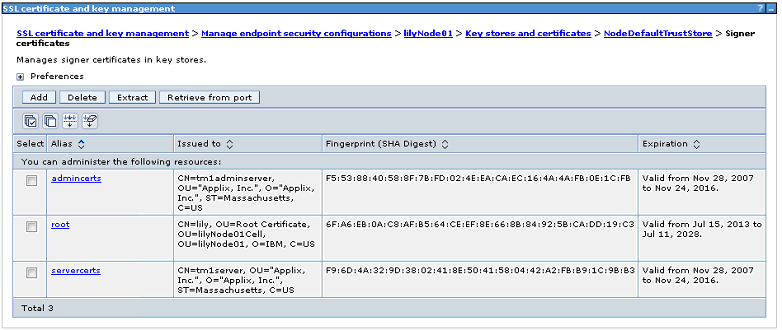
- Save this to the master configuration.
- For ssl configurations, do the following:
- Go to Security > SSL certificate and key management > Manage endpoint security. configurations > nameNode01 > Dynamic outbound endpoint SSL configurations.
- Select New. Enter the name of the connection as tm1admin, and description as ssl connection.
- Under Connection Information, enter *,*,5498.
- Click Add and then click Apply.
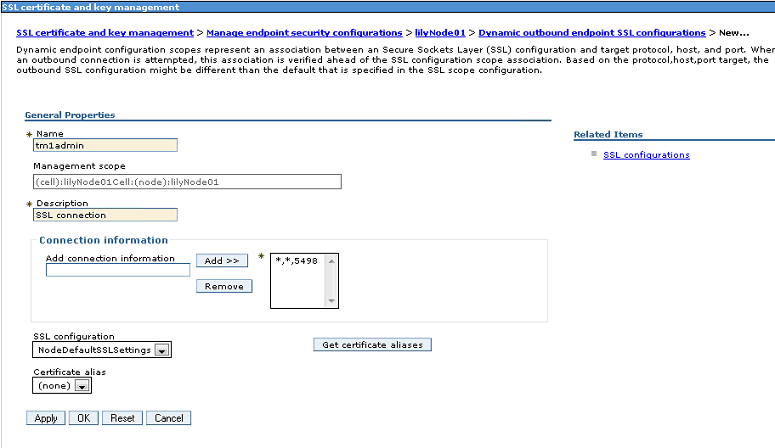
- Save this to the master configuration.
- Restart the server and enter the URL to run the Cognos TM1 Operations Console, for example, http://localhost:9080/pmhub/pm/opsconsole/).
- If the directory does not have the appropriate permissions follow these instructions to edit the permissions:
- Go to to Applications > Websphere Enterprise Applications.
- Click on the pmhub_war.
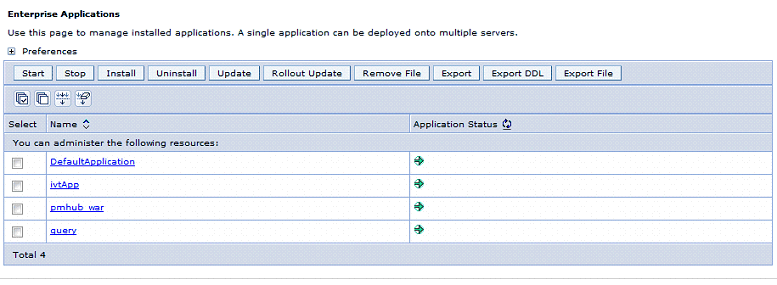
- Under Detail Properties, select Application binaries.
- Change the File permissions to 775 for write access

=========================================================
[{"Product":{"code":"SS9RXT","label":"Cognos TM1"},"Business Unit":{"code":"BU053","label":"Cloud & Data Platform"},"Component":"TM1 Operations Console","Platform":[{"code":"PF002","label":"AIX"},{"code":"PF016","label":"Linux"},{"code":"PF027","label":"Solaris"},{"code":"PF033","label":"Windows"}],"Version":"10.2","Edition":"All Editions","Line of Business":{"code":"LOB10","label":"Data and AI"}}]
Was this topic helpful?
Document Information
Modified date:
17 June 2018
UID
swg27039132